Configuring and Setting Up PeopleSoft Log Analyzer
The configuration and setup process for PeopleSoft Log Analyzer includes generating configuration files, configuring ingestion and processing pipelines, and starting the runtime components required for centralized log analysis and visualization.
Configuration is performed in two phases. In the first phase, the inputs from PeopleSoft run control component within Reporting Tools initiates an Application Engine process that dynamically generates the required configuration files using predefined templates. See Understanding the Log Analyzer Configuration page.
These configuration files are written to a shared storage location, as specified in the Log Folder Path field on Log Analyzer Configuration page. The specified output directory must be accessible to all participating components, as the files are generated and subsequently used from this location during runtime execution. Log Analyzer creates a folder each for Fluent Bit and Data Prepper. The Fluent Bit folder contains a configuration file and a folder named inputs, which contains a configuration file for each domain. The Data Prepper folder contains a pipeline configuration YAML file, typically created as a single pipeline definition, in accordance with the delivered templates.
Note:
You must ensure to use either of the following formats for PIA access logs in Web logic configuration file:- date time cs-method cs-uri sc-status cs-username cs(user-agent) s-ip c-ip cs(X-Forwarded-For) time-taken bytes
- x-psft.pt8.wl.psftCorrelationFields cs-method cs-uri sc-status cs-username cs(user-agent) s-ip c-ip cs(X-Forwarded-For) time-taken bytes
In the second phase, the runtime components are started outside of PeopleSoft. Data Prepper operates independently of the PeopleSoft environment and must be started separately. Fluent Bit must also be manually started from its installation location using the generated configuration files.
Note:
Data Prepper must be invoked before invoking Fluent Bit.The following input, processing, and output parameters must be specified in your Data Prepper configuration to enable secure integration and effective data processing:
- Input: HTTP source plugin to receive data from Fluent Bit
- Processing: Parsing, enrichment, and tagging with domain metadata
- Output: OpenSearch sink using hostname and port
Fluent Bit and Data Prepper components can communicate securely using TLS. You can use the following commands to invoke the Data Prepper executable on Linux systems:
$ export JAVA_HOME=<<OPEN_SEARCH_HOME>>/pt/os_jdk21.0.7/
$ export PATH=$JAVA_HOME/bin:$PATH
$ export JAVA_OPTS="-Xms2g -Xmx2g -Dcom.sun.xml.namespace.QName.useCompatibleSerialVersionUID=1.0"
$ ./data-prepper <<SHARED_CONFIG_PATH>>/LogAnalyzer/DataPrepper/pipelines/data-prepper-pipelines.yaml ../config/data-prepper-config.yaml
Use the following commands to invoke the Data Prepper executable on Microsoft Windows systems:
>set JAVA_HOME=<<OPEN_SEARCH_HOME>>\pt\os_jdk21.0.7\
>set PATH=%JAVA_HOME%\bin;%PATH%
>set JAVA_OPTS=-Xms2g -Xmx2g -Dcom.sun.xml.namespace.QName.useCompatibleSerialVersionUID=1.0
>data-prepper <<SHARED_CONFIG_PATH>>\LogAnalyzer\DataPrepper\pipelines\data-prepper-pipelines.yaml ..\config\data-prepper-config.yaml
The following input and output parameters must be provided in your Fluent Bit configuration to ensure proper integration with PeopleSoft log processing and Data Prepper:
- Input: Tail plugin to read PeopleSoft logs in real time and database to store last read information
- Output: HTTPS endpoint to the Data Prepper service
You can use the following command to invoke the Fluent Bit executable:
- Windows: fluent-bit.exe -c <<SHARED_CONFIG_PATH>>\LogAnalyzer\Fluent Bit\fluentbit.conf
- Linux: ./fluent-bit -c <<SHARED_CONFIG_PATH>>/LogAnalyzer/Fluent Bit/fluentbit.conf
In Multiple mode, Fluent Bit ingestion is configured separately for each domain. The configuration supports multiple input paths, allowing you to define separate log files for each domain. When the PTLOGANCFG process is run in Multiple mode, multiple folders are generated under the Fluent Bit/inputs directory, based on the following naming convention: Database_Domain_ServerType
In this architecture, Fluent Bit must be started independently on each domain using the configuration file corresponding to the server type. Use the following commands to invoke the Fluent Bit executable for each server type:
| Server Type | Command |
|---|---|
|
Application Server (APP) |
Opens existing workbook or creates new workbook. |
|
Process Scheduler (PRCS) |
Saves existing template file to new workbook. |
|
Web Server (PIA) |
Saves generated excel file to output location. |
Although dashboards are included and accessible within the system, they display meaningful data only after Data Prepper and Fluent Bit are operational and log data has been successfully ingested and indexed in OpenSearch. PeopleSoft Log Analyzer uses the OpenSearch and OpenSearch Dashboards connection information configured on the Configure Server page to establish connectivity between OpenSearch Dashboards and the OpenSearch server where log data is indexed. To access the Configure Server page, navigate to PeopleTools > Search Framework > Administration > Configure Monitoring Server > Configure Server.
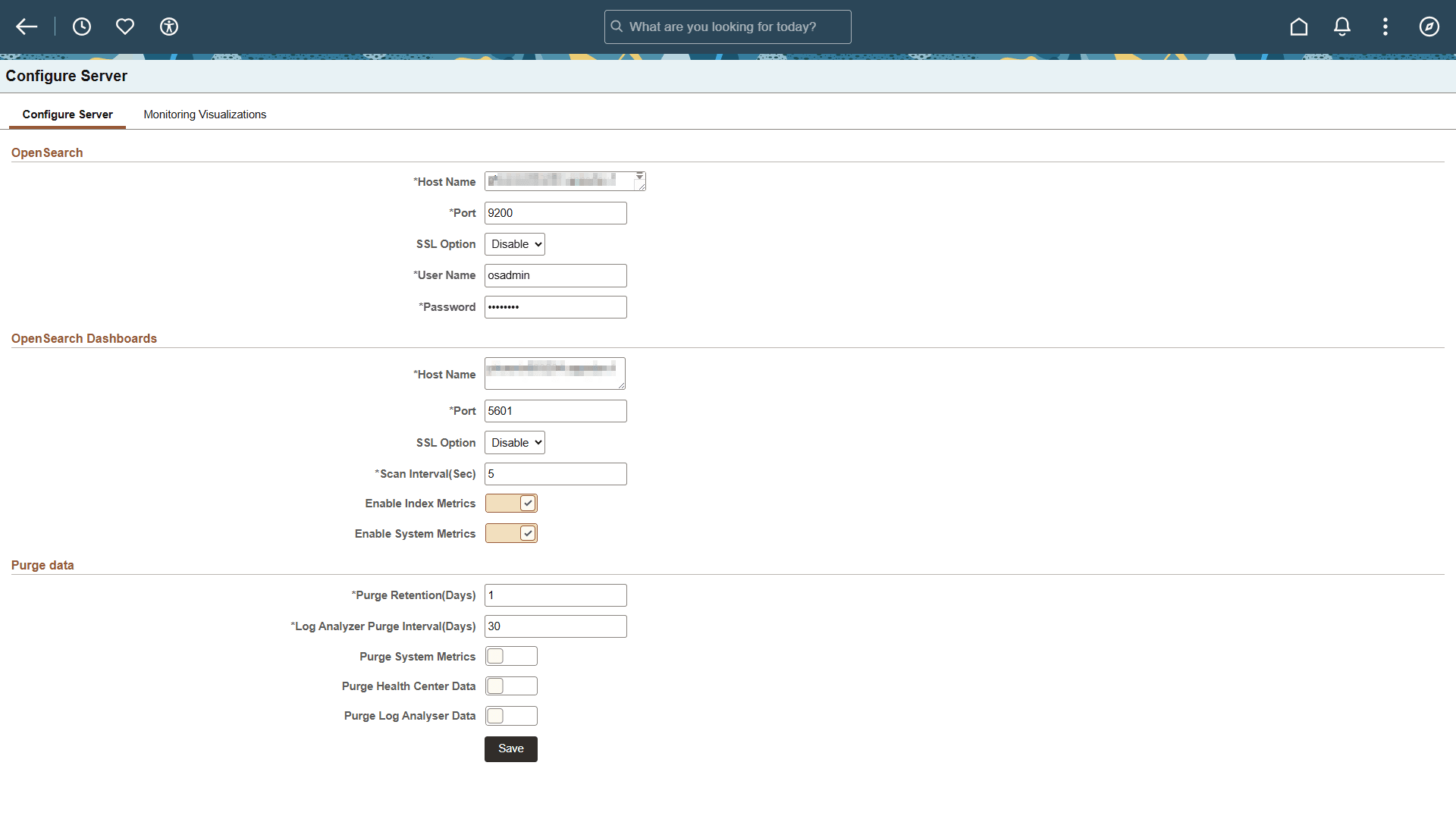
The Scan Interval setting is used to retrieve Log Analyzer data. Log Analyzer Purge Interval (Days) field is used to enable purging of Log Analyzer indexes.