Associating the Base Template to a Component Using Related Content Framework
To associate the Pivot Grid template to a component using related content:
-
Select PeopleTools, Portal, Related Content Services, Manage Related Content Service.
-
Click the Assign Related Content to an Application Page link.
-
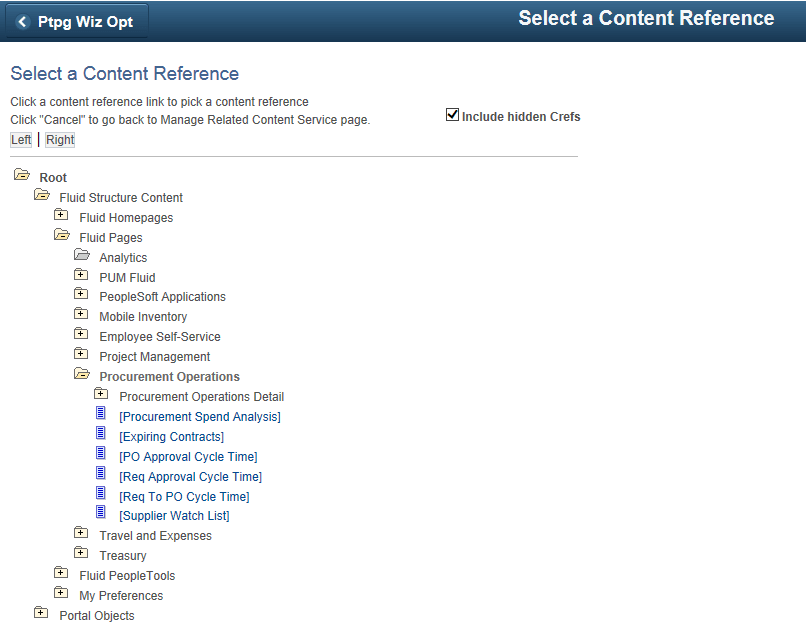
In the Select a Content Reference page, select the Include Hidden Crefs option.
This example illustrates the fields and controls on the Select a Content Reference page.
-
Select the content reference that you want to enable the Simplified Analytics feature.
In this example, you select the Supplier Watch List application page under the Procurement Operations fluid component.
Note:
The association must be defined for CREF definitions pointing to the component. The association should not be defined on the content reference links.
Simplified Analytics is only available for the fluid components.
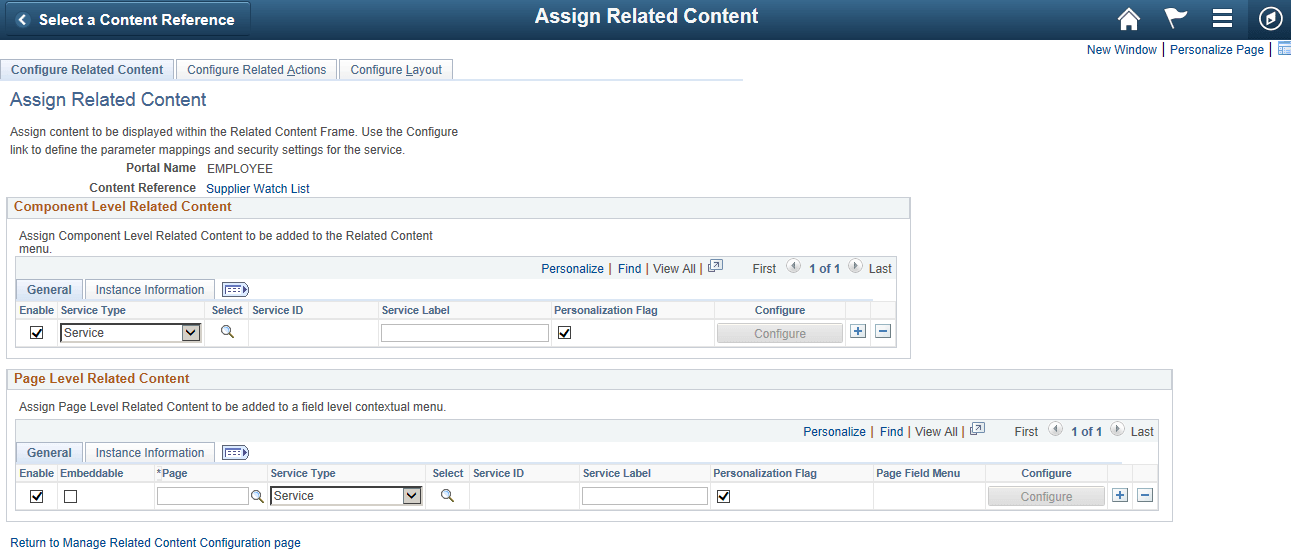
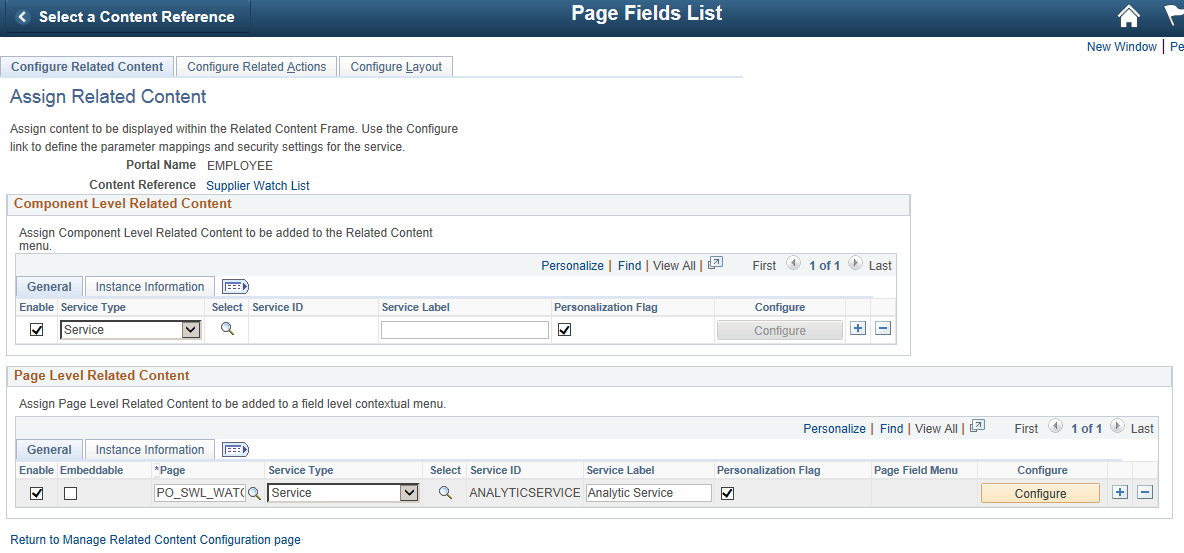
This example illustrates the fields and controls on the Assign Related Content page that appears after you select a fluid page from the Select a Content Reference page. The selected Supplier Watch List page appears as a link in the Content Reference field.
-
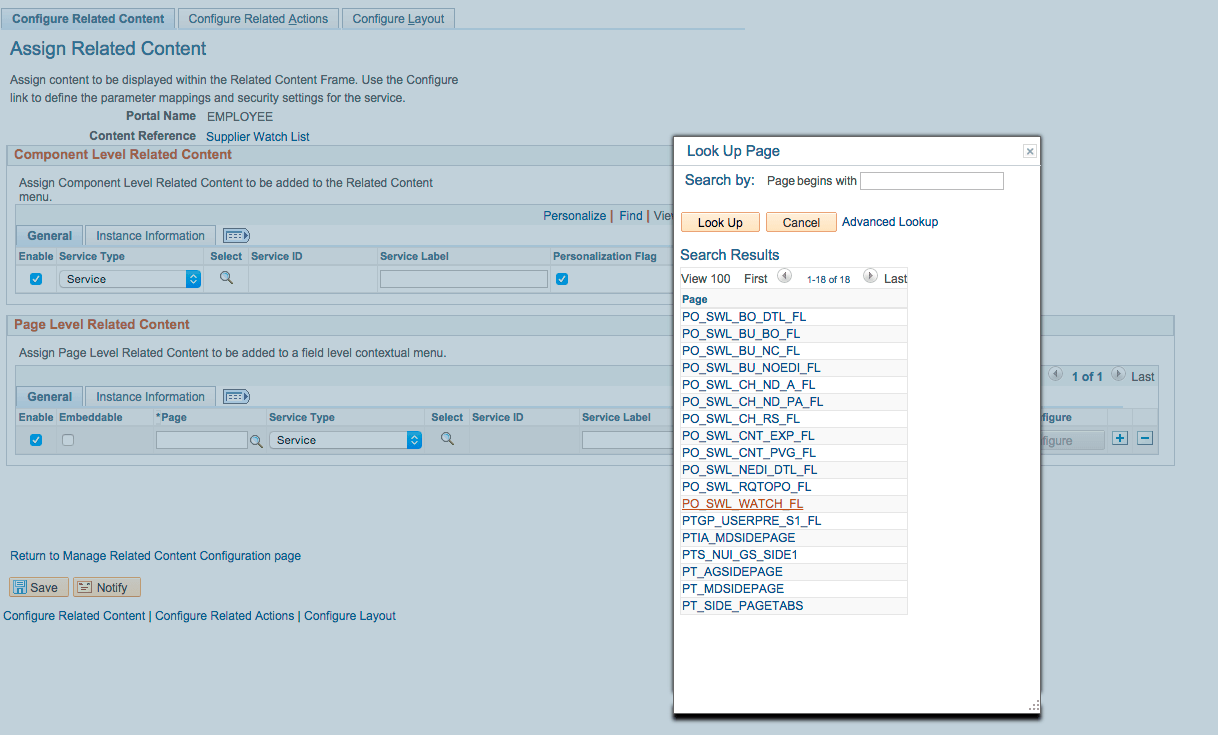
To assign a page in the component that you want to associate the Simplified Analytics feature, use the Page search icon in the Page Level Related Content section to search for and select a page from the list of available pages.
In this example, select the PO_SWL_WATCH_FL page. This page determines the page fields for the mapping.
Note:
The Simplified Analytics templates must be associated at the Page Level Related Content section.
In this example illustrates the Look Up Page.
-
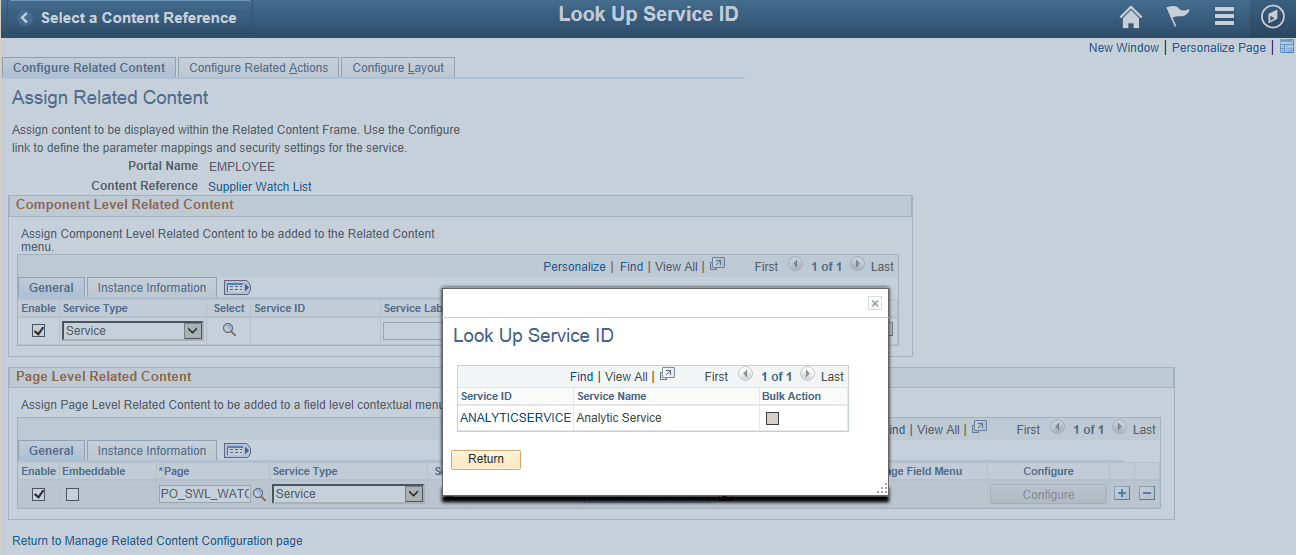
Click the Select search icon in the Page Level Related Content section to display the Look Up Service ID page.
This example illustrates the Look Up Service ID page. The Simplified Analytics feature must use the service ID ANALYTICSERVICE, which associates a page to the analytic report template.
-
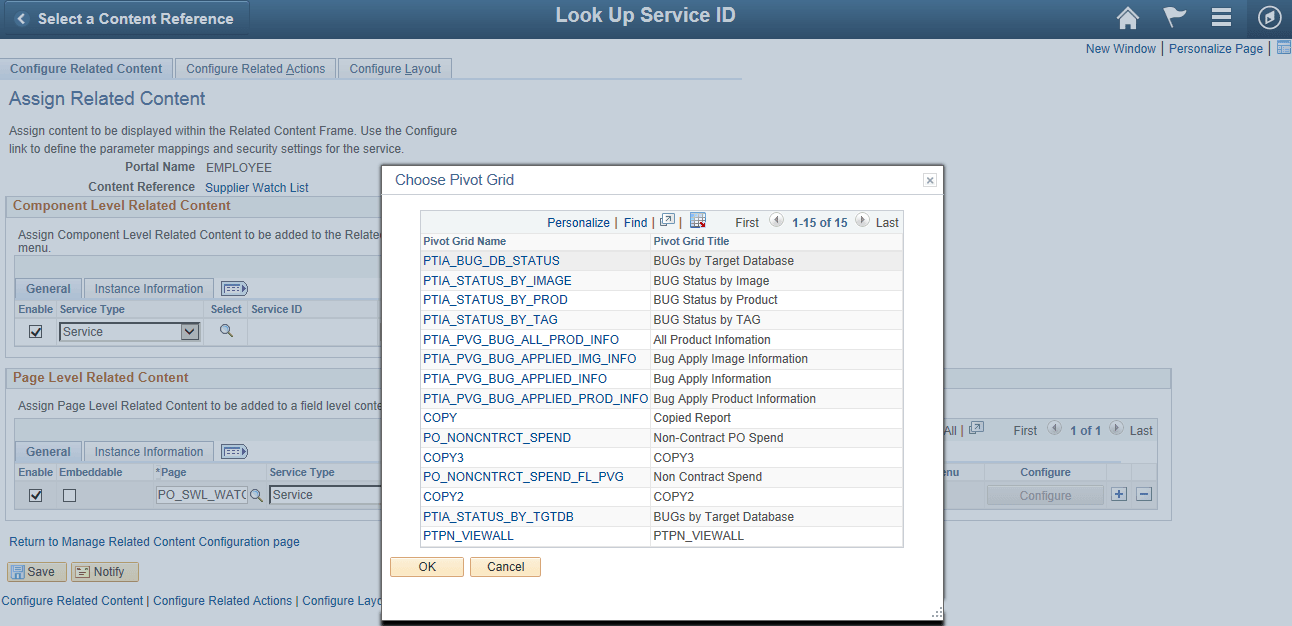
Click the ANALYTICSERVICE link in the Service ID list to display the Choose Pivot Grid page.
This example illustrates the Choose Pivot Grid page listing the available Pivot Grid models that you can use as the base analytic report template.
Note:
The Pivot Grid model that you select at the Choose Pivot Grid page will be the source of the fields, prompts, criteria, query and settings for the analytic report template. This pivot grid template (or base template model) will be used to create new analytic reports for end users. The query used with the current Pivot Grid template will also be used for all analytic reports that will be created later using this template.
Every Pivot Grid model that is available in the database can be selected as a base template model.
-
Select a Pivot Grid model that will be used in the analytic report template.
In this example, select the PO_NONCNTRCT_SPEND model.
The Assign Related Content page reappears. In the Page Level Related Content section, the Page field is now set to PO_SWL_WATCH_FL and the Service ID field is set to ANALYTICSERVICE.
Note:
An error message appears if no pivot grid model is selected in the Choose Pivot Grid page.
-
Click the Configure button in the Page Level Related Content section.
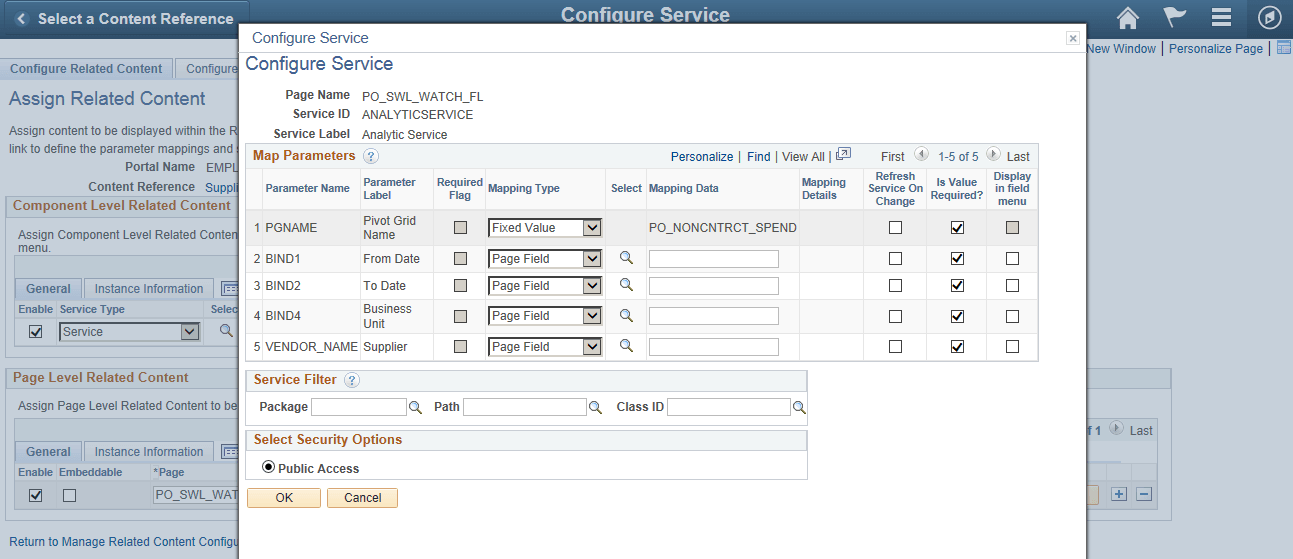
The Configure Service page appears displaying a list of available parameters (prompts).
This example illustrates the Configure Service page appears listing available parameters (prompts).
-
Use the Mapping Type column to set the parameters as Page Field or Fixed Value.
Note:
If the parameter is set as a fixed value, the fixed value will override the default value in Pivot Grid Wizard. If the parameter has the mapping type set to Page Field, the value of the mapped field from the page will be passed dynamically from the page to the analytic report when creating or viewing the analytic report
Mapping is optional. If the mapping option is not set, then the default values (Page Field for Mapping Type and Empty for Mapping Data) ensures the prompt is not mapped; in this case, the default values in the Pivot Grid Wizard for the template model are applied while creating or viewing the analytic report.
-
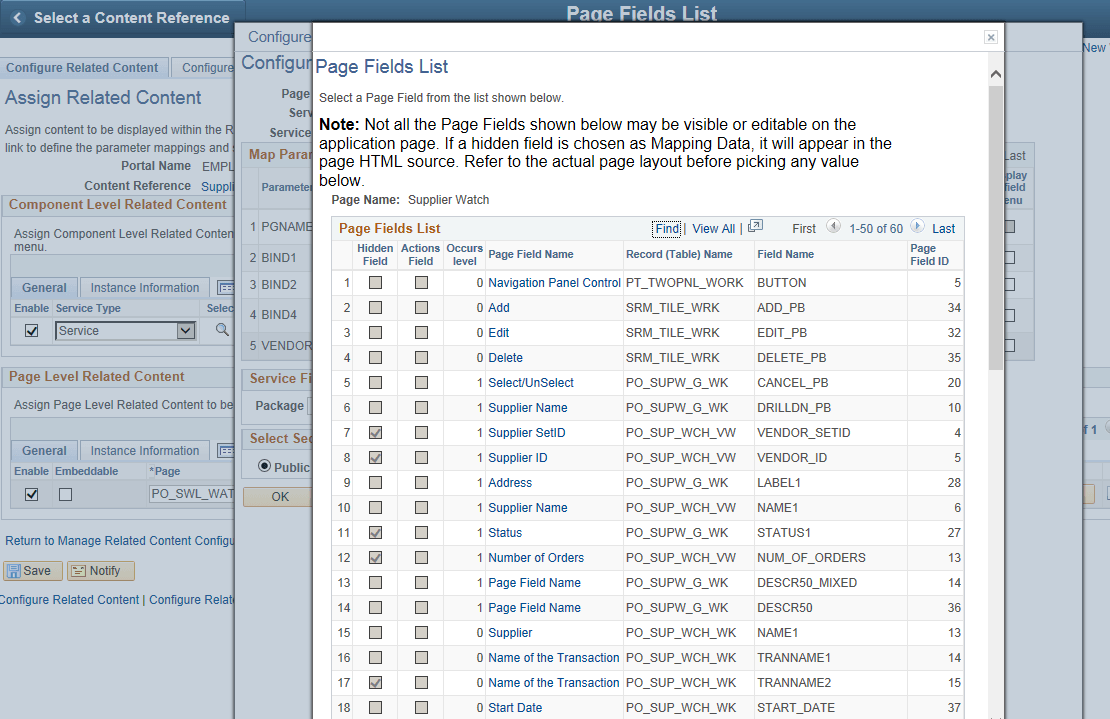
Click the Select icon next to the Supplier parameter to display the Page Fields List page.
This example illustrates the Page Fields List page listing all available fields on the Pivot Grid model.
-
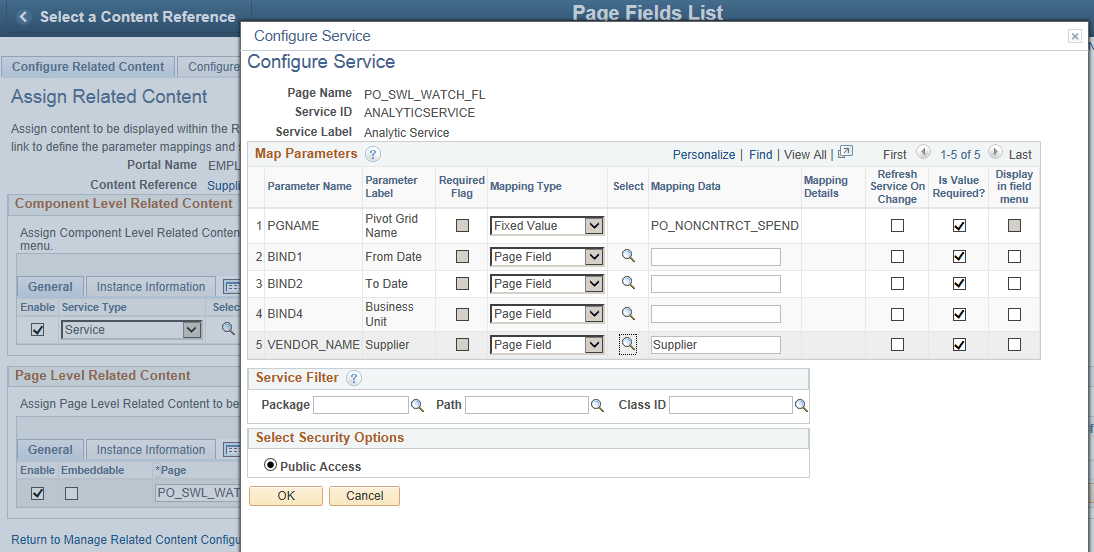
Click the level-0 Supplier link in the Page Field Name column and return to the Configure Service page.
Note:
Simplified Analytic feature uses only level-0 fields for the mapping because Simplified Analytics is common to the entire page (in the right panel), so Simplified Analytics cannot be mapped to any specific row at level-1 and higher. A run-time error message appears if a field higher than level 0 is mapped.
This example illustrates the Configure Service page. The VENDOR_NAME parameter from the prompt is mapped to the page field Supplier, which is a hidden field.
-
Optionally, select the mapping type and mapping data for the other parameters.
In this example, you will accept the default settings for all other parameters.
-
Click the OK button to return to the Assigned Related Content page.
-
Save your configurations.
This example illustrates the Assign Related Content page displaying the Page Level Related Content section with the Page field set to PO_SWL_WATCH_FL and the Service ID field set to ANALYTICSERVICE.
-
Preview the analytic report template by:
Returning to the Supplier Watch List by clicking the Supplier Watch List link on the Assign Related Content page. Alternatively, select the Supplier Watch List from the Procurement Operations landing page.
Note:
You can associate more than one analytic report template (Pivot Grid template model) to a page in a component.