Fluid Mode Options
The Fluid Mode Options are grouped as follows:
-
List View Options
-
Viewer Options
-
Facet Selection
List View Options
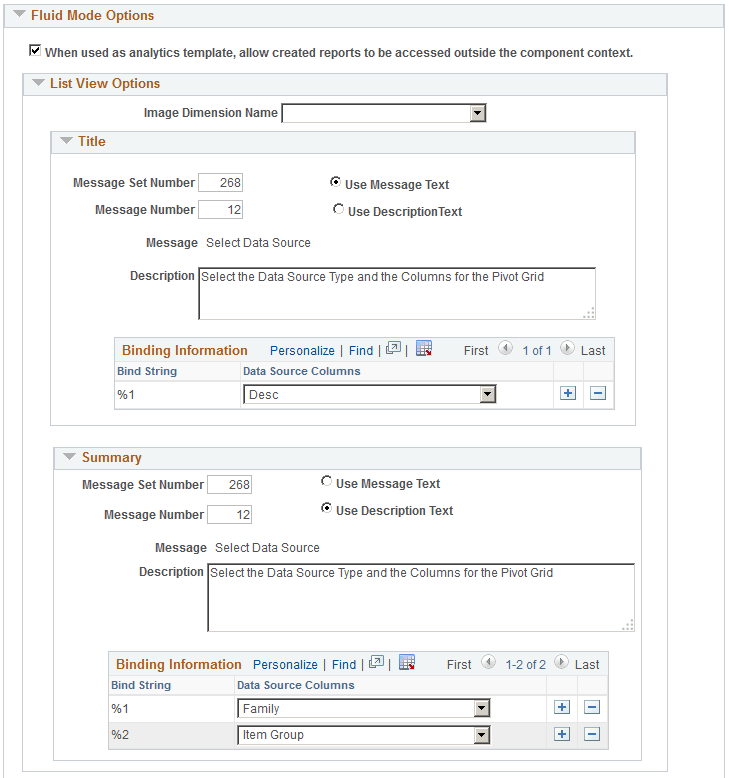
Use the Specify Data Model Options page - Fluid Mode Options section- List View Options region to define the list view options for the pivot grid model. The list view options include the title and the summary for each row of result. The Title and Summary regions use the dimension values that are part of the detail grid. When designing the pivot grid model, application developers create the title and summary text from message catalog entries. The bind values for the message catalog are passed from the dimensions, facts, and display columns.
See the Message Catalog section in System and Server Administration: Using Administration Utilities
Note:
The list view options are also available at the Views Configuration page (Pivot Grid Wizard, Configuration Pivot Grid View link). These properties can be configured at each view level. The Views Configuration page for pivot grids overrides the Fluid Mode Options at the view level.
This example illustrates the fields and controls on the Specify Data Model Options page - Fluid Mode Options section - List View Options group.
Viewer Options
Use the Specify Data Model Options page - Fluid Mode Options section - Viewer Options region to define the result view for the pivot grid model.
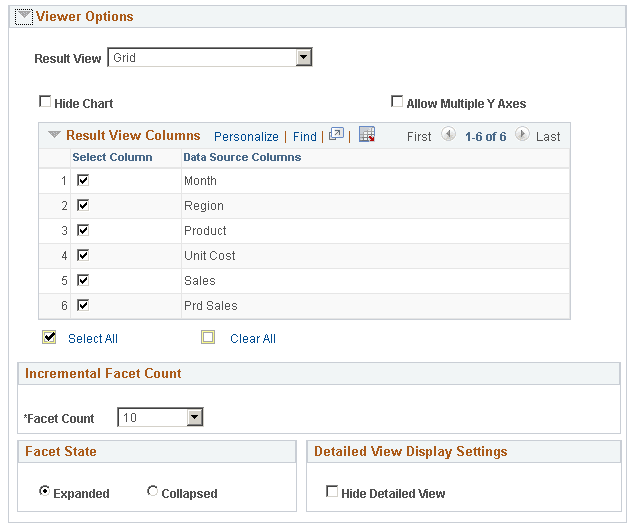
This example illustrates the fields and controls on the Specify Data Model Options page - Fluid Mode Options section - Viewer Options group.
| Field or Control | Description |
|---|---|
|
Result View |
The Result View can be set to Grid, List, Grid and List, or None. |
|
Allow Multiple Y Axes |
Select this option to allow users to select multiple Y Axes on the chart. If this option is deselected, any change to the Y axis will result in a single Y axis being plotted on the chart. |
|
Hide Chart |
Select this option to hide the Chart toggle on a Component Real time Search page. If the check box is not selected the toggle will show on the search result page. |
|
Result View Columns |
By default, all the display type columns, axis rows, filters, and facet fields appear in the detail view. You may not select any column in the Result View Columns section to hide that column in the fluid view. |
|
Incremental Facet Count |
From the Facet Count dropdown select the incremental number of facet values that will load at a time. |
|
Facet State |
Select to keep the facets on the left pane, expanded or collapsed when the model loads initially. |
|
Detailed View Display Settings |
Select the Hide Detailed View check box to help chart models load faster. This option defers loading the detailed view of a chart. |
Facet Selection
Use the Specify Data Model Options page - Fluid Mode Options section - Facet selection region to set the facet display options.
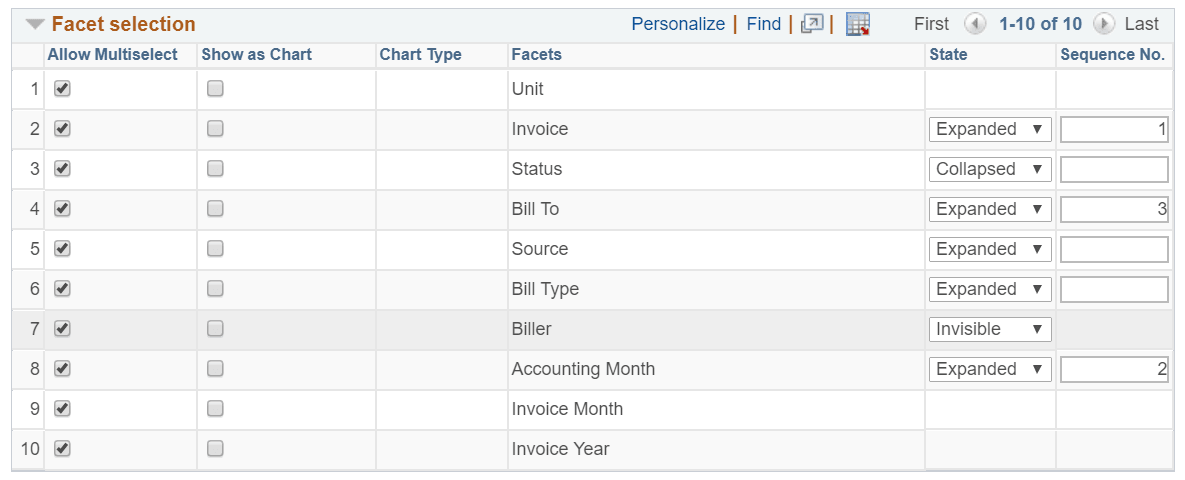
This example illustrates the fields and controls on the Specify Data Model Options page - Fluid Mode Options section - Facet selection region.
| Field or Control | Description |
|---|---|
|
Allow Multiselect |
Select to enable multi-select facets as charts and as lists in fluid views. |
|
Show as Chart |
Select to enable chart view. |
|
Chart Type |
Set the chart type for the facet. |
|
Facets |
Displays the facet name. |
|
State |
Select the state for the facet to appear as Expanded or Collapsed or as Invisible when the model loads initially. |
|
Sequence No. |
Define sequencing of the facets in the pivot grid configuration. The facet with the lower sequence number value will take precedence in order of appearance. |
Drilling URL Options
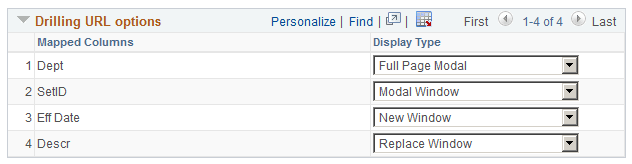
Use the Specify Data Model Options page - Fluid Mode Options section - Drilling URL Options region to define how mapped drilling URLs will appear in fluid view. The available options are Full Page Modal, Modal Window, New Window, and Replace Window.
This example illustrates the columns on the Specify Data Model Options page - Fluid Mode Options section - Drilling URL Options region.
Note:
PeopleSoft recommends that you set your drilling URLs to open in a new window for all external drilling URLs and classic components. For pages with fluid views, the Replace Window and Modal Window options are recommended.
The size of the modal window is controlled by the target page’s min-width and min-height settings, which is similar to any fluid modal. In smart phones, the target page is displayed as full page modal automatically when the column is configured to use the Modal window option.
Related Topics