Display Options
Use the Display Options section to hide chart icon shortcuts and to disable menu options in the Pivot Grid display. This configuration is at the model level and is applicable for all views.
For example, if the Hide Chart, Pie Chart, and Horizontal Bar Chart options are not selected in the Display Options section, the Hide Chart option in the Option Menu dropdown list is disabled and the Pie Chart and the Horizontal Bar Chart icons are invisible in the Pivot Grid display.
This example illustrates the fields and controls on the Specify Data Model Options page - Display Options section.
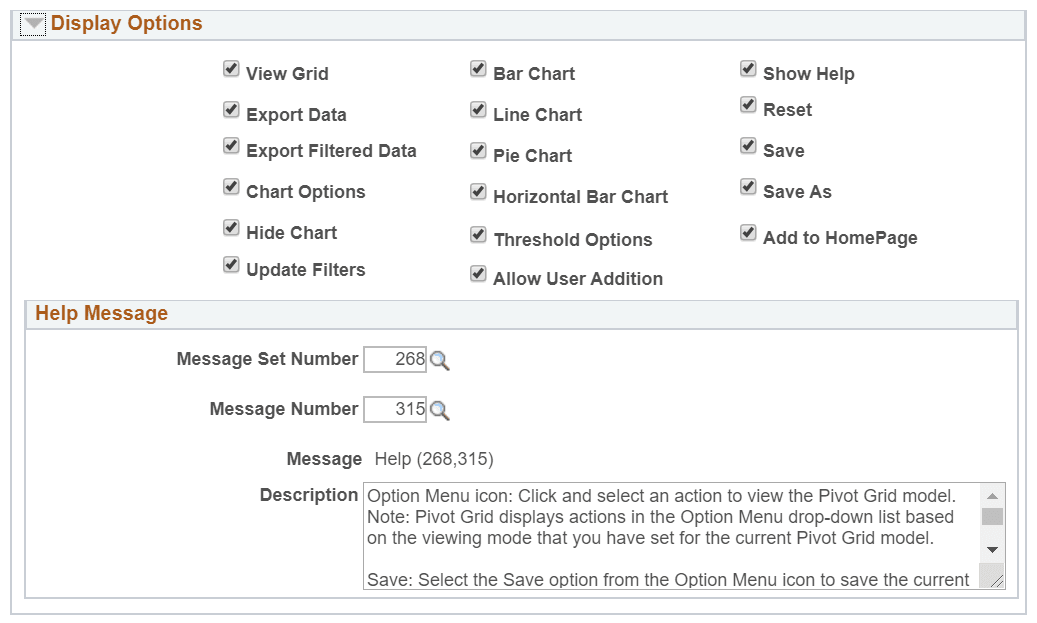
All selected options are available under the Options Menu on a pivot grid model view. See Using the Options Menu.
| Field or Control | Description |
|---|---|
|
View Grid |
Select to display the Pivot Grid view for the chart view on a modal window. The modal window also includes the facet pane on the left. You can select to slice and dice the data in the grid by dragging the facets from the left pane to the columns and rows of the grid. In addition, you can change prompts and facet values to analyze the data. When you select the Apply button in the top right of the modal, the chart is refreshed based on the current layout of the grid. Otherwise, when you select the Cancel button in the top left of the modal, it is closed and the chart layout is not changed. |
|
Export Data |
Select to export the underlying PSQuery data to Microsoft Excel. |
|
Export Filtered Data |
Select to export the filtered PSQuery data:
|
|
Chart Options |
Select to open the Chart Options dialog box, where you can change the chart layout, chart axis, and filters, and enable the display of the data point values on the chart. This option is available only when the chart is visible. See Using the User Charting Options. |
|
Hide Chart |
Select to show the option Hide Chart on a Pivot grid and Chart model. |
|
Update Filters |
Select to display the Update Filters dialog box, which enables you to add or remove filters for a model. The dimensions, that are configured with blank values for the Chart Axis column in Step 4: Specify Data Model Options page of the Pivot Grid Wizard, will be available to add as additional filters in addition to the default filter dimensions. See Specifying Data Model Options |
|
Bar Chart Line Chart Pie Chart Horizontal Bar Chart |
Select to provide the user options to change chart display visual. |
|
Threshold Options |
Select to authorize users to personalize threshold configurations. |
|
Allow User Addition |
Select to allow users to configure Personalized Analytic Notification. See Understanding Personalized Analytics Notification. Users will be able to personalize Threshold Criteria and Alert Type from Threshold Personalization dialog box. See Personalizing Thresholds. If the option is not selected, then options to personalize a threshold are available to the users or roles in the default notification list in Configure Threshold dialog box. See Configuring Thresholds. Enable Threshold Options to enable Allow User Addition. |
|
Show Help |
Displays the help icon on the pivot grid model. |
|
Reset |
Select to reset the pivot grid model to its original display. |
|
Save |
Select to save the current model layout as a default view of the current model. The model layout, filter values, and PSQuery prompt values are also saved as preferences. |
|
Save As |
Select to open the Save As dialog box, which enables you to copy the current Pivot Grid model and save it as a different one. |
|
Add to HomePage |
Select to add the pivot grid model with personalizations to a homepage. You are prompted to select the homepage when you select the option. |
|
Help Message |
Configure message text using the PeopleSoft preconfigured Message Set Number and Message Number. The message description shows when you roll over the Help button. |
This example illustrates the Pivot Grid fluid view. The Export Data, Export Filtered Data, and View Grid options are not listed in the Options Menu, and the Pie Chart and Horizontal Bar Chart icons are invisible.
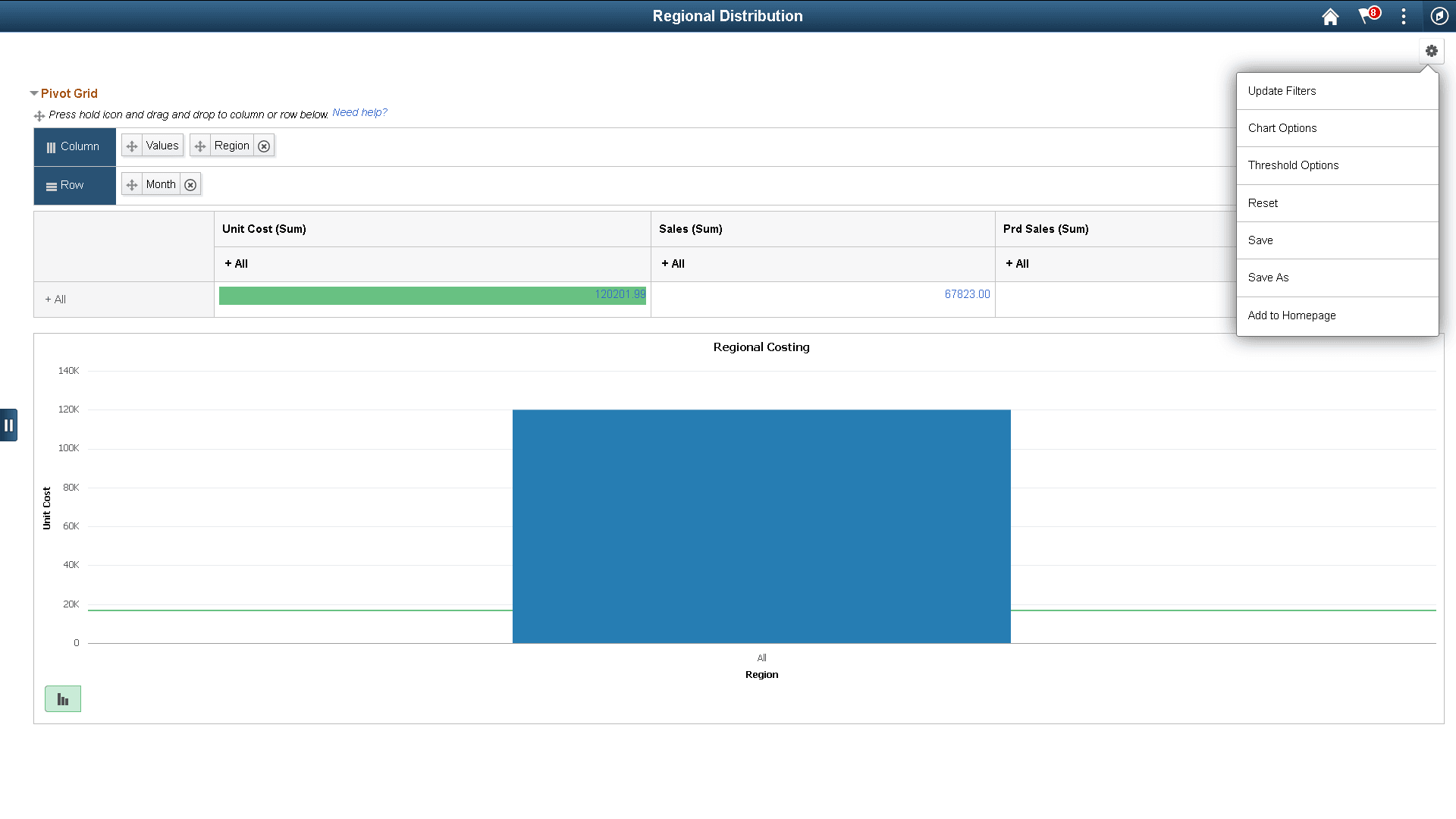
Note that following points when you set the values in the Display Options section:
-
If no view option is selected in the Display Options section and if all prompts are set to invisible, then the Options Menu is invisible in Pivot Grid Viewer.
-
You can selectively show and hide prompts using the Select Query Prompt Values section in the Pivot Grid Wizard – Specify Data Model Values page.
-
If the Show Help option is selected, the embedded Help icon is available in the Grid Viewer page.
Note:
The Help icon is shown only in the classic viewer and it is unavailable in Fluid viewer.
-
Use the Help Message section to define the help information. The default help message is from message set number 268, and the message number 315. The message catalog entry is parsed for special placeholders %PBCTXT(PTPG_PSPGVIEWER). Note that the Help URL field in the Web Profile Configuration page must be specified (by selecting PeopleTools, Web Profile, Web Profile Configuration).
See Application Designer Developer’s Guide: Entering Embedded Help Messages in the Message Catalog.