Specifying Data Source Parameters
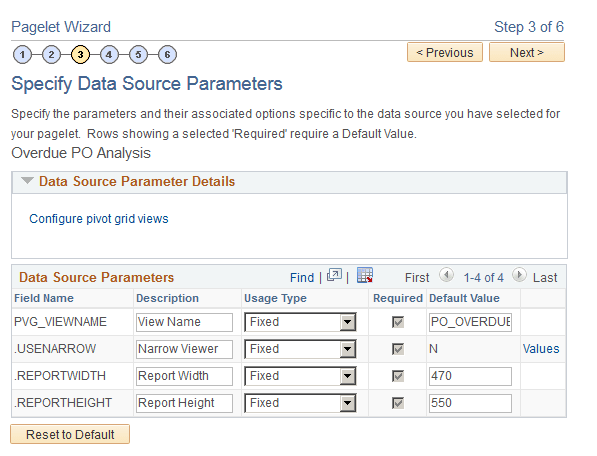
Use the Specify Data Source Parameters page (PTPPB_WIZ_DATAPRMS) to select a view for the Pivot Grid model, create new views for the model using the Pivot Grid View Options component, and specify the initial width and height of the pagelet.
Navigation:
Access the Specify Data Source Parameters page by clicking the Next button on the Select Data Source page.
This example illustrates the fields and controls on the Specify Data Source Parameters page. Definitions for the fields and controls appear following the example.
| Field or Control | Description |
|---|---|
|
Configure pivot grid views |
Click this link to open the Pivot Grid Views Component dialog box, where you can define pivot grid display options. |
|
Description |
Enter a description for the pagelet. The default values are:
|
|
Usage Type |
Select a usage type for your pivot grid. Available options are:
|
|
Next |
Click to advance the wizard to the next page. |
Narrow Viewer
The Narrow Viewer mode is useful for pivot grid pagelets in the work center. You can set the Narrow Viewer mode for pagelets using the Publish as Pagelet page or the Pagelet Wizard - Specifying Data Source Parameters page.
The published pagelet has a single column filter mode in the chart-only models. All functionalities available in the normal viewer are also available in Narrow Viewer mode.
Oracle PeopleSoft recommends that you use the Narrow Viewer mode for the chart-only models. You can expand the width of charts in the narrow viewer from their default settings by using the advanced chart options in the viewer. If you use the Narrow Viewer mode for the grids, the grids occupy the same real estate as in the normal viewer.
This example illustrates a dashboard showing the narrow chart view in the left pane, unexpanded from the default width, and in the right pane expanded from the default width.
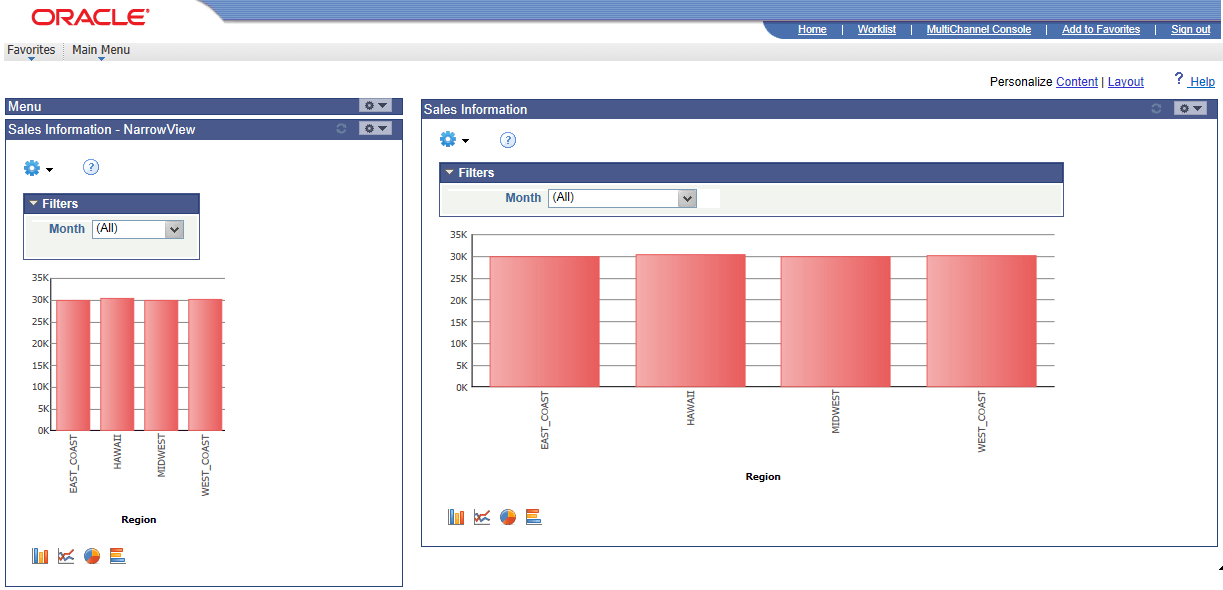
Note that:
-
Options Menu and chart icons are available for all views.
Pivot Grid administrator or Pivot Grid developers can set to show or hide the Options Menu and chart icons using the Viewer Options section in the Pivot Grid Wizard - Specify Data Model Options page.
-
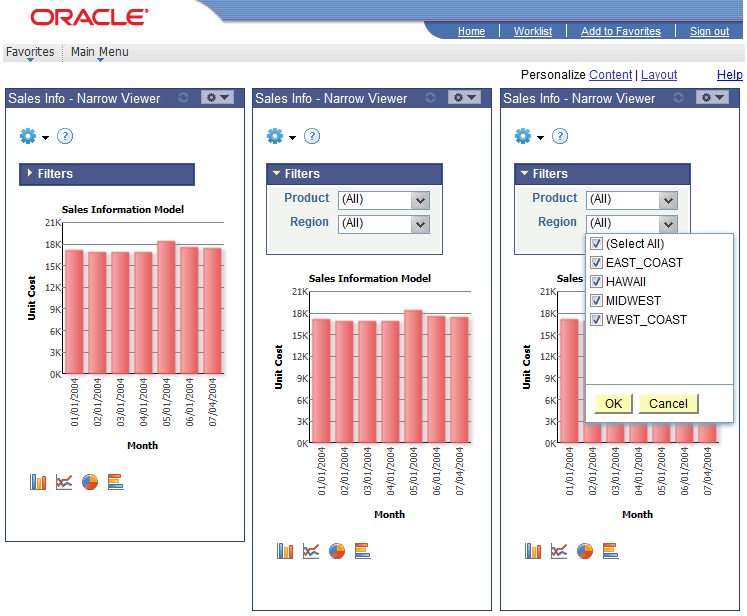
If the Pivot Grid model has filters, the default narrow view of a Pivot Grid pagelet shows the width of the chart at 210 pixels.
This example shows the narrow view of Pivot Grid pagelets with the minimum width for Pivot Grid models that have filters. The width of the chart is 210 pixels, and group boxes are collapsed by default. You can click the bars in the chart to access the detailed view.
-
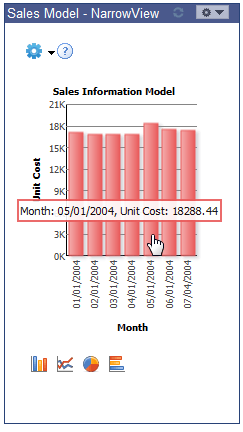
If the Pivot Grid model has no filters, the default narrow view of a Pivot Grid pagelet can be scaled back to 175 pixels, and you can set the narrow view to a smaller size.
This example shows the narrowest view for a model with no filters. The width of the chart is 175 pixels. You can click the bars in the chart to access the detailed view.
-
If the width of the chart is less than 300 pixels, then when you click the chart sector or bar, you access the detailed view directly without the drill-down or Related Action menu.
-
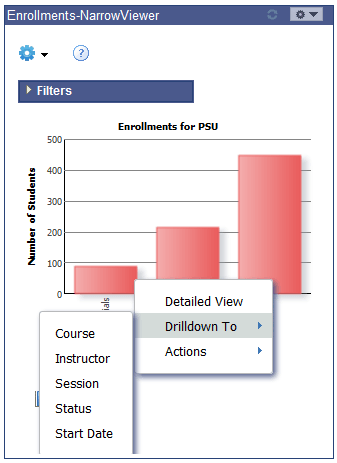
If the width of the chart is greater than 300 pixels, the narrow view of pagelets shows locator links, the drill-down menu, the detailed view, and the Related Action menu.
This example shows the minimum width of the Pivot Grid models with the drill-down menu.
-
If the drill-down menu has multiple levels, then the side of the chart is adjusted to show all drill-down levels.
Defining the Pivot Grid Display Options
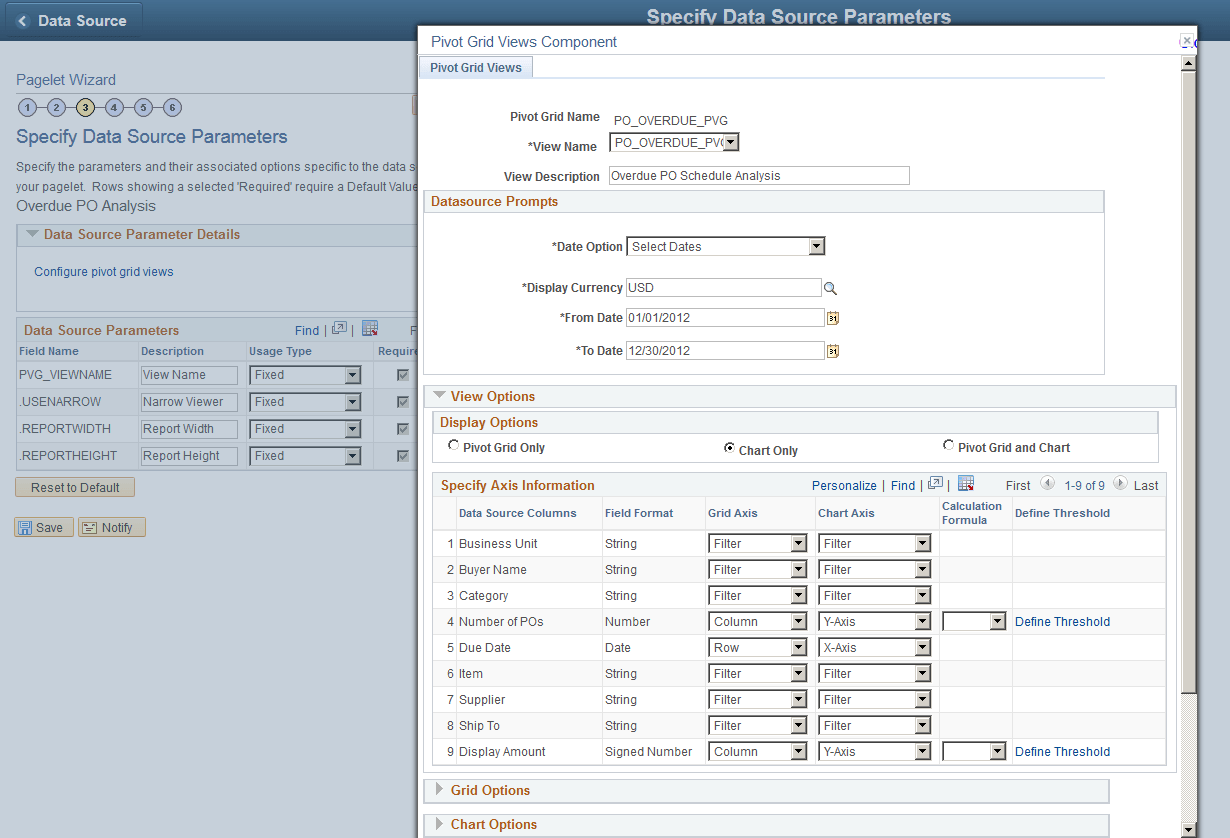
Use the Pivot Grid Views page (PTPG_VIEWOPTIONS) to configure different views for the selected Pivot Grid model.
Navigation:
Open the Pivot Grid Views Component dialog box by clicking the Configure pivot grid views link on the Specify Data Source Parameters page.
This example illustrates the fields and controls on the Pivot Grid Views Component dialog box. Definitions for the fields and controls appear following the example.
| Field or Control | Description |
|---|---|
|
View Name |
Select the Pivot Grid view to use for this pagelet. |
|
Data Source Prompts |
Enter the default values for the PSQuery runtime prompts. Note: This section is only available when the selected query that built the grid has prompts attached. |
|
Display Options |
Define pagelet view options for the grid and the chart. Available options are:
|
|
Calculation Formula |
The Calculation Formula column is available only for number (facts) fields. Select either the Percentage or the Percentage Grand Total option to display the number (fact) values in the grid and chart. You are able to apply or remove this calculation option using the Options Menu icon in the Pivot Grid Viewer. |
|
Grid Options |
Define whether drag-and-drop functionality is allowed in the grid, whether the initial view of the grid is expanded or collapsed, and whether the grid can be expanded or collapsed. Available options are:
|
|
Chart Options |
Define information for axis and value columns of the grid, and define chart type and axes information for the chart. Available options are Title, Type, X axis label, and Y axis label. |
|
Advanced Options |
Define the 3D rotation angle and height of the chart. |
|
Save As |
Click to open the Save View As dialog box, where you can either save the current Pivot Grid model as a new view or update an existing view. |
|
Close |
Click to close the Pivot Gird Views component and copy the selected view name to PVG_VIEWNAME data source parameter. |