Adding and Editing Portal Definitions
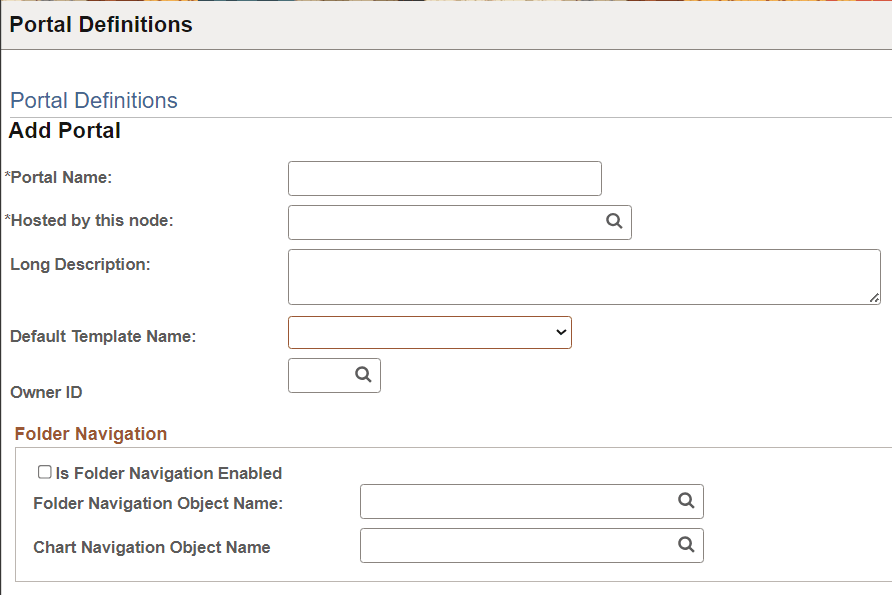
Access the Portal Definitions - Add Portal page (Click the Add button on the Portal Definitions page).
This example illustrates the fields and controls on the Add Portal page. You can find definitions for the fields and controls later on this page.
Note:
The Edit Portal page contains the same fields as the Add Portal page (Click the Edit button on the Portal Definitions page).
| Field or Control | Description |
|---|---|
|
Long Description |
Enter a description to be used by screen readers when screen reader mode is on. This description is also used as the browser window title. If you don't enter a description in this field, the portal name is used as the browser window title. |
|
Default Template Name |
Select the template to use for this new portal. |
Folder Navigation
Use these fields to enable folder navigation and define the objects associated with folder navigation for portals other than the one you are currently signed in to. To enable folder navigation for the current portal, use the General Settings page.
Important:
Folder navigation is not enabled unless you select the Is Folder Navigation Enabled check box on both the Portal Definition and General Settings pages. Is Folder Navigation Enabled is selected by default in the standard PeopleTools portals.