Adding External URL Links
Access the Add New Links page .
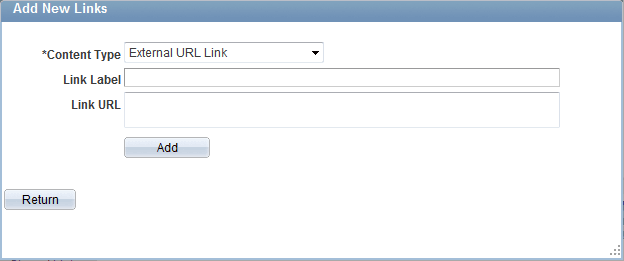
The following screenshot illustrates adding external URL links on the Add New Links page.
To add new external URL links:
-
Select External URL Link as the content type.
-
Enter the label that you want to appear in the Related Links grid on the WebCenter Links page.
-
Enter the target address of the external link in the Link URL field. Use this example as a model: https://support.oracle.com.
-
Click the Add button.
The application returns you to the WebCenter Links page.
Click the Return button to go back to the previous page without saving your entry.