Arranging Pagelets on Classic Dashboards
Use the Tab Layout page (PTSYSTABLAYOUT) to specify the initial layout of columns and pagelets for a classic dashboard. (This page is similar to the page that you use for the same purpose on homepages. The process is also the same.)
Navigation:
On the Tab Content page, select the Layout page tab.
This example illustrates the fields and controls on the Tab Layout page. You can find definitions for the fields and controls later on this page.
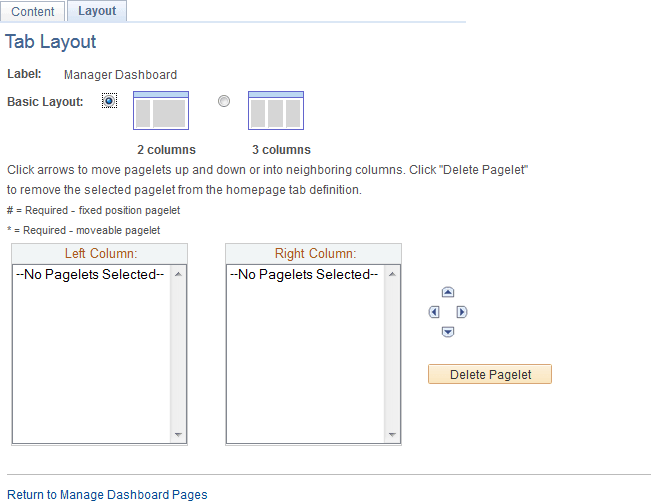
| Field or Control | Description |
|---|---|
|
Label |
Displays the label information from the Content Ref Administration page. |
|
Basic Layout |
Select to display the pagelets in either two or three columns on the dashboard. To specify the three-column layout, be sure that at least one pagelet does not have the Req-Fix behavior option selected on the Content page. |
|
Columns |
Displays the pagelets selected on the Content page in the column sections. If the basic layout is two columns, the pagelets are divided into left and right columns. If the basic layout is three columns, the pagelets are divided into left, center, and right columns. Note: A pound sign (#) indicates a pagelet with the Req-Fix behavior option selected on the Content page. An asterisk (*) indicates a pagelet with the Required behavior option selected on the Content page. For example, #Signon would indicate that the Signon pagelet cannot be moved to a different location on the homepage. |
|
|
Use the Move icons to position the pagelets. Highlight a pagelet, and then click the directional arrow buttons to move the selected pagelet above a pagelet, below a pagelet, to the next column to the right, or the next column to the left. |
|
Delete Pagelet |
Highlight a pagelet and then click to delete it from the homepage. |

To arrange the layout of the dashboard:
-
Select a basic layout option.
-
Select the pagelet name.
-
Click the directional arrow buttons to position the pagelets in the columns.
-
Click the Save button.
Note:
As the portal administrator, you determine the amount of flexibility that you give users to change the layout of the pagelets. The settings that you select on both the Tab Content and Tab Layout pages determine the degree of flexibility. Grant the end user as much or as little flexibility as your organization demands.