Configuring a Magic Button on Fluid Pages
Administrators can use a magic button to configure a single Related Action, which can be associated with an edit field or a long edit field on fluid pages.
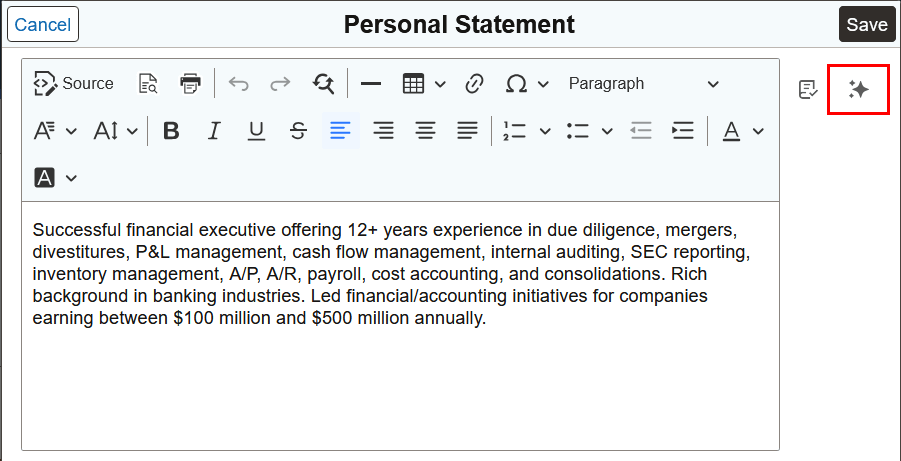
Unlike a standard Related Action, which displays an icon that opens a menu, a magic button provides direct access to a single configured action. Configure the button through the Related Content framework and it does not require modifications to the application page definition. The action performed by the button is implemented in an application class that is associated with a Related Content service.
Consider the following regarding the use of a Magic Button:
- Magic Button can be used with edit fields and long edit fields, including disabled fields.
- Magic Button is supported only on fluid pages.
- Magic Button is not supported for edit boxes within grids.
- Magic Button can be applied only to Related Actions; it is not supported for Action Widgets.
- Magic Button displays an icon only. Label text is not displayed on the page; the Service Label is used as hover text.
- If an icon is already displayed for a field, for example a spell check icon, the Magic Button appears next to it on the page.
- If you configure multiple actions for a field, and select the Magic Button option for each or some of them, the system displays it as a regular Related Actions menu because Magic Button can be configured only for a single action.
Configuring a Magic Button
As a prerequisite, you must create an application-class-based Related Content service that references the application class containing the PeopleCode to be executed when the button is selected. Also ensure that you associate the Related Content service with the required fluid page.
To configure a magic button:
- On the Assign Related Content page, in the Page Level Related Content grid, add a new row.
- (Optional) Select Unrestricted Prompt if the field is on a page that is not part of the component structure, such as a secondary page invoked through PeopleCode.
- Select the fluid page that contains the edit field.
- Select the Related Content service that you created.
- Enter a value in the Service Label field. The label is displayed as hover text for the button.
- Select the Magic Button check box.
- (Optional) Specify an image in the Image field. By default, the system displays the delivered Magic Button icon. You can specify a different image to better represent the action performed by the button.
- On the Configure Service page, select the edit field that you want to associate with the magic button.
- Save the configuration.
The following example illustrates the appearance of a magic button on a fluid page.