Configuring Display of PeopleCode FieldChange Events as Related Actions
PeopleCode FieldChange Event Actions
You cannot configure the display of PeopleCode FieldChange events as related actions using the browser interface. You must use Application Designer. The following table describes the two options:
| Display Option | Configuration |
|---|---|
|
Show FieldChange event actions under the Actions menu only. |
In Application Designer, access the Push Button/Hyperlink Properties dialog box, and in the Related Content Event group box, select Display in Related Action Menu. Note: The Display in Related Action Menu check box is available only if the field is of type Push Button or Hyperlink and the destination is PeopleCode Command. The Action Widget drop-down list displays all the action widgets configured for the page. When you select an action widget, the FieldChange event of this field is associated as a menu item in the widget. Related action widgets in the drop-down list will only display the level at which the field is selected. |
|
Show FieldChange event actions under the Actions menu and on a page. |
In Application Designer, access the Push Button/Hyperlink Properties dialog box, and in the Related Content Event group box, select Display in Related Action Menu and Show in Page. |
See Application Designer Developer’s Guide: Using Push Buttons and Links.
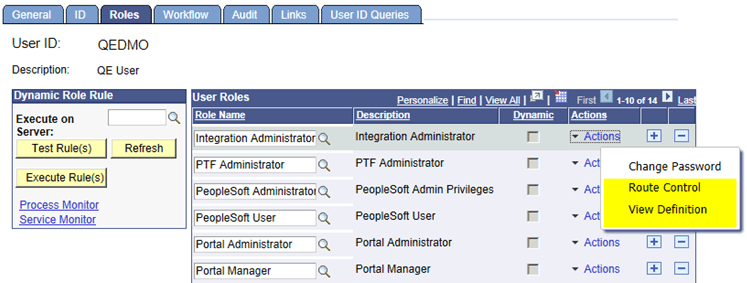
Example 20-1 FieldChange Event Actions in the Actions Menu
In this example, the Display in Related Action Menu check box is selected.
This example illustrates the display of FieldChange event actions in the Actions menu.
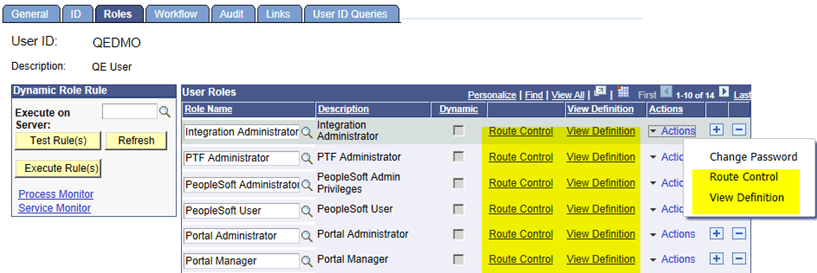
Example 20-2 FieldChange Event Action Shown in Page and Related Action Menu
In this example, the Display in Related Action Menu and the Show in Page check boxes are selected.
This example illustrates the display of FieldChange event actions on a page and in the Actions menu.
Configuring Display of a Single Action on a Page
When a related action widget includes only a single action for a user, you can configure the display of that single action by selecting either action widget, link, or button.
To configure the display of single action on a page, in Application Designer, access the Push Button/Hyperlink Properties dialog box, and in the Action Widget Settings group box, select an option (Action Widget, Link, or Button) from the Display Single Action Menu as drop-down list.
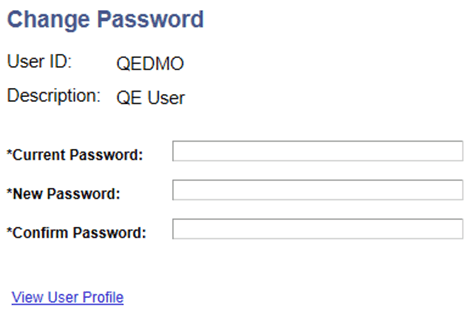
Example 20-3 Display of a Single Action on a Page
In this example, the single action of the action widget is shown as the View User Profile link on the page.