Configuring the Related Content Frame
Use the Configure Related Content Frame page to configure the layout of related content frame on classic pages only.
Note:
You cannot configure this frame for fluid pages.
Navigation:
On the Configure Layout page, click the Configure Layout button in the Related Content Frame group box.
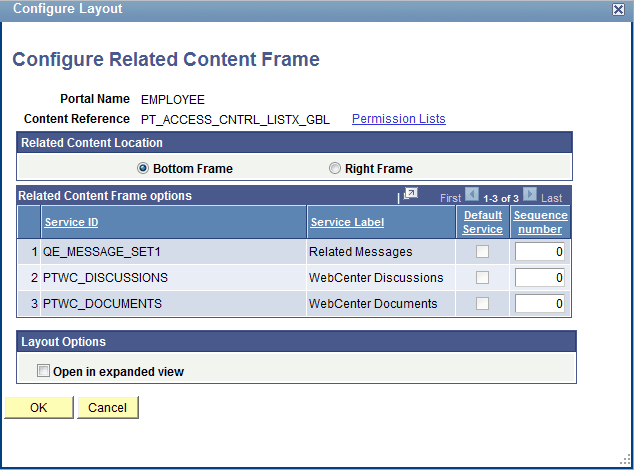
This example illustrates the fields and controls on the Configure Related Content Frame page. You can find definitions for the fields and controls later on this page.
-
Select the frame location:
-
Bottom Frame – Select to have related content services appear as tabs in the frame beneath the transaction page.
-
Right Frame – Select to have related content services appear as pagelets in the frame to the right of the transaction page.
-
-
Configure the order and initial state of the services that appear in the Related Content frame:
-
Default Service – Select the service to be displayed by default when the Related Content frame is opened automatically at the bottom of the page.
Note:
You must select the Open in expanded view option first in order to select a default service.
-
Initially Minimized – Select so that the service appears in the closed state when the user initially accesses the Related Content frame at the right of the page.
-
Sequence number – Specify the sequence for the services.
-
-
Select the frame layout options:
-
Open in expanded view – Select to open the Related Content frame automatically when the user accesses the target application page rather than after the user selects a service.
-
Max no of minimized pagelets – Enter the number pagelets that can appear minimized when the Related Content frame appears at the right of the page. If a user minimizes more than this number, the pagelets move to the More drop-down list at the bottom of the frame.
-