Configuring Service Parameters, Filters, and Security
Use the Configure Service page to configure the service instance.
Navigation:
-
On the Configure Related Content page, click the Configure button for a service instance.
-
On the Configure Related Actions page, click the Configure button for a service instance.
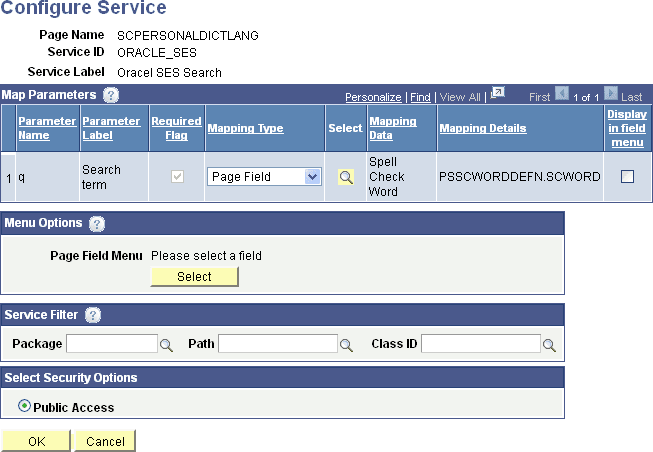
This example illustrates the fields and controls on the Configure Service page. You can find definitions for the fields and controls later on this page.
To configure the service parameters, filters, and security:
-
For each service parameter, select the mapping type.
-
For each service parameter, do one of the following:
-
For a fixed value mapping type, enter the value in the Mapping Data field.
-
For a key field, page field, or system variable mapping type, click the Select button.
Click a link to select the field or variable on the prompt page.
-
-
For page-level services, do one of the following:
-
Select the Display in field menu option for the field that provides access to the contextual pop-up menu.
Note:
When the Display in field menu option is selected, then the Select button in the Menu Options group box is disabled.
-
Click the Select button in the Menu Options group box to select a page field different from the one that is mapped to the service parameter; the Page Fields List page is displayed:
This example illustrates the fields and controls on the Page Fields List page:
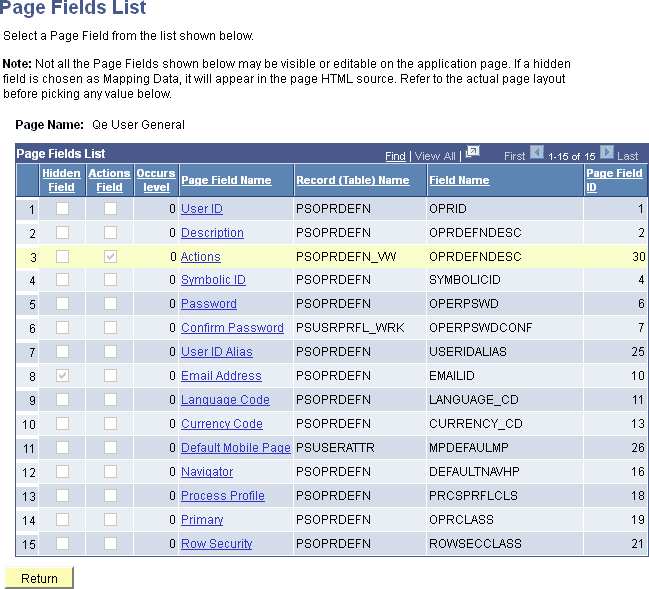
Use this methodology when you want to place the page field contextual menu on a page field that is different from the one mapped to the service parameter. For example, the service parameter could be mapped to the OPRID value, but this methodology would allow you to place the page field contextual menu on the OPRDEFNDESC field.
In addition, use this methodology to add the related action to the menu on the action widget on a page.
-
-
(Optional) Enter the package, path, and class ID of the service filter.
Important:
Service filters are desupported and are retained for backward compatibility only.
Note:
If the App Class Required option was selected on the service definition, then a service filter is not optional and must be identified to be able to save the service configuration.
-
Select the security option.
-
Click the OK button to accept the configuration and return to the configuration page.