Configuring Related Content Menus
Use the Configure Layout page to configure the layout of the related actions menu, the related content menu, a page field contextual menu, or the related content frame.
Navigation:
-
On the Configure Related Content page, select the Configure Layout tab.
-
On the Configure Related Actions page, select the Configure Layout tab.
-
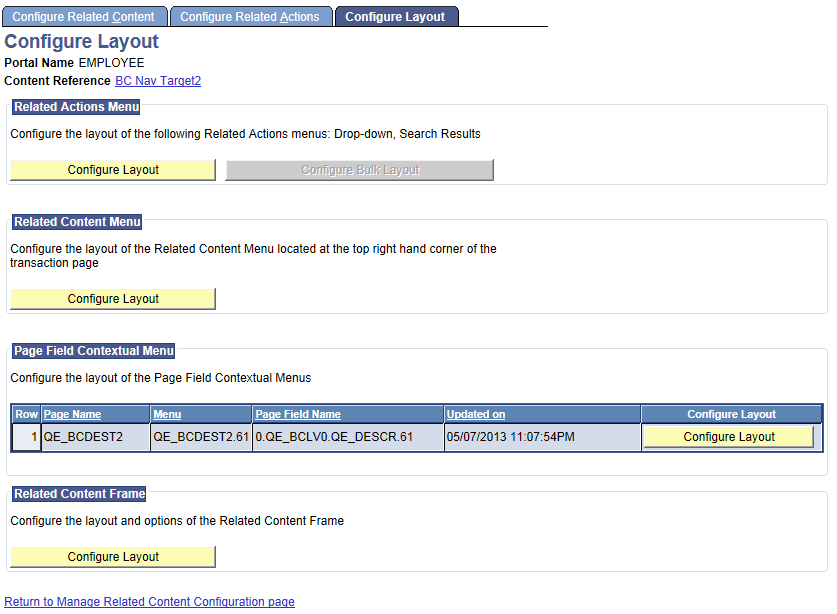
Access the Configure Layout page.
This example illustrates the fields and controls on the Configure Layout page.
-
On the Configure Layout page, click an active Configure Layout button for related actions, related content, or a page field to configure a menu layout.
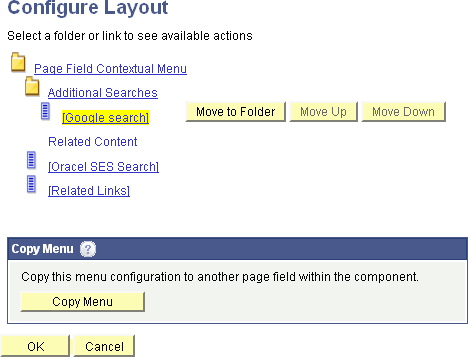
This example illustrates the fields and controls on the Configure Layout secondary page. You can find definitions for the fields and controls later on this page.
-
For related actions menus and page field contextual menus, you can add and move folders in the menu.
Important:
You cannot add or move folders in a related content menu.
When you select a folder, these options appear:
Note:
Not all options appear for all folders.
Field or Control Description Add Folder
Click to add a folder one level below the selected folder. If this option does not appear, you cannot add a subfolder.
Delete Folder
Click to delete the folder If this option does not appear, you cannot delete the folder.
Move Up
Click to move the folder up within the list of folders in the same level.
Move Down
Click to move the folder down within the list of folders in the same level.
-
For all menu types, you can move service links within the menu structure.
When you select a service link, these options appear:
Note:
Not all option appear enabled for all services.
Field or Control Description Move to Folder
Click to access the Select a Folder page, which enables you to move the service to another folder. If this option does not appear, you cannot move the service link to a different folder.
Move Up
Click to move the service link up within the list of services in the same folder.
Move Down
Click to move the service link down within the list of services in the same folder.
-
Click the OK button.
-
Click the Save button.
In addition, you can use the Copy Menu page to copy a page field contextual field menu layout from one page field to a different page field on the same page or on a different page within the same component. See Copying Menu Layouts.