Configuring WorkCenter Pages
Access the Configure WorkCenter Page page by using one of these navigation paths:
-
On the Manage WorkCenter Pages page, click the Edit Configuration button for a WorkCenter.
-
In the title bar of the WorkCenter pagelet area, click the Configure link.
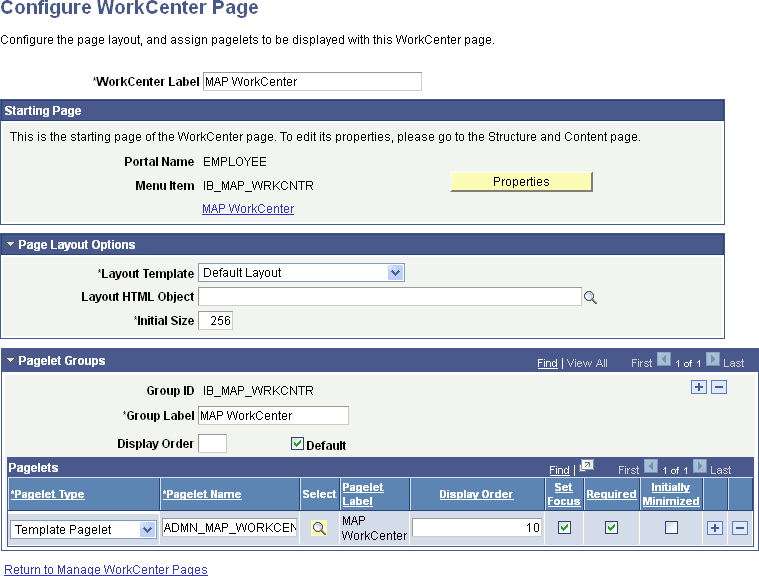
This example illustrates the fields and controls on the Configure WorkCenter Page page. You can find definitions for the fields and controls later on this page.
| Field or Control | Description |
|---|---|
|
WorkCenter Label |
Enter the name that appears on the Manage WorkCenter Pages page and in the header of the WorkCenter pagelet area. This field can contain up to 30 characters. Note: The default value is the name of the content reference, content reference link, or WorkCenter dashboard that you select as the starting page. This value also appears on the User Personalization page if one exists. |
|
Return to Manage WorkCenter Pages |
Click to access the Manage WorkCenter Pages page. |
Starting Page
| Field or Control | Description |
|---|---|
|
Portal Name |
Displays the current portal definition name. |
|
Menu Item |
Displays the menu item name that is associated with the selected content reference or WorkCenter dashboard or the page name that you specified for a content reference link on the Starting Page Administration page. |
|
Properties |
Click to administer properties of the WorkCenter starting page on the Starting Page Administration page. See Administering WorkCenter Starting Pages. |
|
<Starting Page Label> |
Click to access the WorkCenter. |
Page Layout Options
Use these options to change the appearance and character of the WorkCenter page.
Changes that you make to the page layout options are visible after you save the page and click the Refresh button on your browser.
| Field or Control | Description |
|---|---|
|
Layout Template |
Select a layout template from the list of all active page layout templates. The name of the default page layout template appears here when you create a new WorkCenter page. |
|
Layout HTML Object |
Select a custom layout, which you define in an HTML definition in PeopleSoft Application Designer. Only HTML definitions that begin with PTAL_LAYOUT_ appear in this prompt field. |
|
Initial Size |
Enter an integer between 200 and 9999 that determines the width of the pagelet area when the user initially accesses the WorkCenter page. The default value is 256. |
Pagelet Groups
Use the fields in this scroll area to organize the pagelets in the pagelet area into tabbed groups.
| Field or Control | Description |
|---|---|
|
Group ID |
Enter a value that identifies the group. Each value must be unique to the WorkCenter page and can contain no more the 20 characters. After you initially add this value, the field becomes display-only. This field is required. |
|
Group Label |
Enter a meaningful name of up to 20 mixed-case characters for the pagelet group. The label appears on a tab in the pagelet area and is visible to the user. This field is required. |
|
Display Order |
Enter a number between 0 and 999 to manually sequence the order in which the pagelet groups appear. This field is empty by default and pagelet groups appear in the same order as the row sort order in the Pagelet Groups scroll area. If you omit the Display Order value then the system considers it to be 0 and appear before groups for which the field contains a value. |
|
Default |
Select to display the group by default when the WorkCenter page is initially accessed. Only one group can be the default. |
Note these points about pagelet groups:
-
If you create only one pagelet group, no tab appears to the user.
-
If you delete a pagelet group, the application deletes all subordinate pagelet data and personalizations.
Pagelets
Use the fields in this grid to assign the pagelets to the group.
| Field or Control | Description |
|---|---|
|
Pagelet Type |
Select Template Pagelet or Homepage Pagelet. Note: Remote template pagelets cannot be imported and used with a WorkCenter. |
|
Pagelet Name |
Select the pagelet from a list of registered pagelets. Only registered pagelets appear in the list. A pagelet can be assigned to only one group on a WorkCenter page. |
|
Select |
Click the Select button and select the pagelet from the Pagelet Search page to add to the WorkCenter definition. See Searching for and Importing Pagelets and Tiles for more information on searching for pagelets on local and remote nodes. |
|
Pagelet Label |
Displays the label that appears in the pagelet header. |
|
Display Order |
Enter a number between 0 and 999 to specifically determine the position of the pagelets in the group. This field is empty by default and pagelet groups appear in the same order as the row sort order in the Pagelets grid. Pagelets for which you leave the Display Order field blank are considered to have a value of 0 and appear before groups for which the field contains a value. |
|
Set Focus |
Select to move the cursor to the pagelet when the user initially accesses the WorkCenter page. You can select this check box for only one pagelet in the same group. |
|
Required |
Select to prevent the application user from hiding the pagelet in the group. The user can still minimize the pagelet. |
|
Initially Minimized |
Select to display the pagelet in the minimized state when the user initially accesses the WorkCenter page. |
Add to Project
Click the Add to Project link to access the Add To Project page to insert this WorkCenter definition into an ADS project. See Lifecycle Management Guide: Adding Data Set Instances from Object Designer Pages for more information.