Administering WorkCenter Starting Pages
Access the Starting Page Administration page:
-
On the Configure WorkCenter Page page, click the Properties button.
-
When linking to an existing menu item as the WorkCenter starting page, click the content reference that represents the menu item. This page is displayed automatically
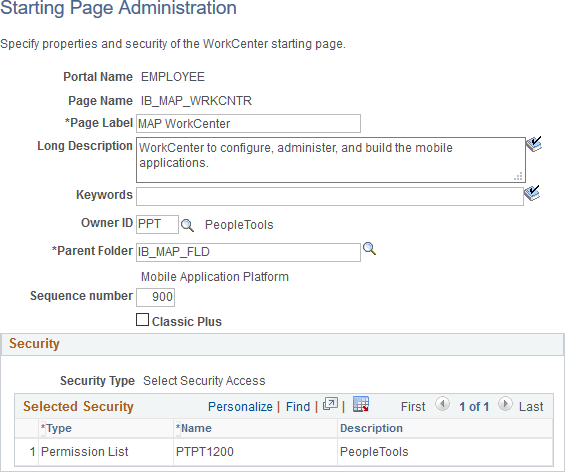
This example illustrates the fields and controls on the Starting Page Administration page. You can find definitions for the fields and controls later on this page.
| Field or Control | Description |
|---|---|
|
Portal Name |
Displays the portal in which the content reference is registered. |
|
Page Name |
Enter the name for the new page when linking to an existing content reference only. Note: Otherwise, for existing starting pages, this field is display only. |
|
Page Label |
Enter the menu item title for the WorkCenter as it will appear in the portal menu and breadcrumbs. |
|
Long Description |
Enter a description for the WorkCenter starting page. Note: This value also appears in tool tip text. |
|
Keywords |
Enter a keyword or keyword phrase to be stored as a content reference attribute. Note: Two content reference attributes are created: KEYWORD (to store the keywords in the base language) and KEYWORD_LNG (to store the keywords in the current session language). See Defining Content References for more information on content reference attributes. |
|
Owner ID |
Select the object owner ID. |
|
Parent Folder |
Specify the parent folder for the menu item representing the WorkCenter. |
|
Sequence number |
Specify a sequence number for this menu item within its parent folder. |
|
Classic Plus |
Select this check box to display the pagelet area of this WorkCenter with fluid-like styling (which is also referred to as “classic plus”). Only the pagelet area of the WorkCenter is affected by this setting. The components displayed in the target content area of the WorkCenter are enabled for classic plus on a component by component basis. For more information on classic plus, see PeopleTools Components Delivered as Classic Plus. Note: If this WorkCenter includes an activity guide pagelet, then this setting is ignored and the pagelet area is displayed with standard, classic styling. |
Security
The Security group box displays the selected security settings for this content reference. When the WorkCenter starting page is a WorkCenter dashboard, the fields in the Security group box are editable. Otherwise, when the starting page is either a link or an existing content reference, these fields are display only.
| Field or Control | Description |
|---|---|
|
Security Type |
Select one of the following security types:
|
|
Selected Security |
Select which permission lists have access to the content reference for this WorkCenter. |