Defining Content References
Access the Content Ref Administration page ( Navigate the portal registry hierarchy until you are in the parent folder for the content reference; then click the link for an existing content reference or click the Add Content Reference link.)
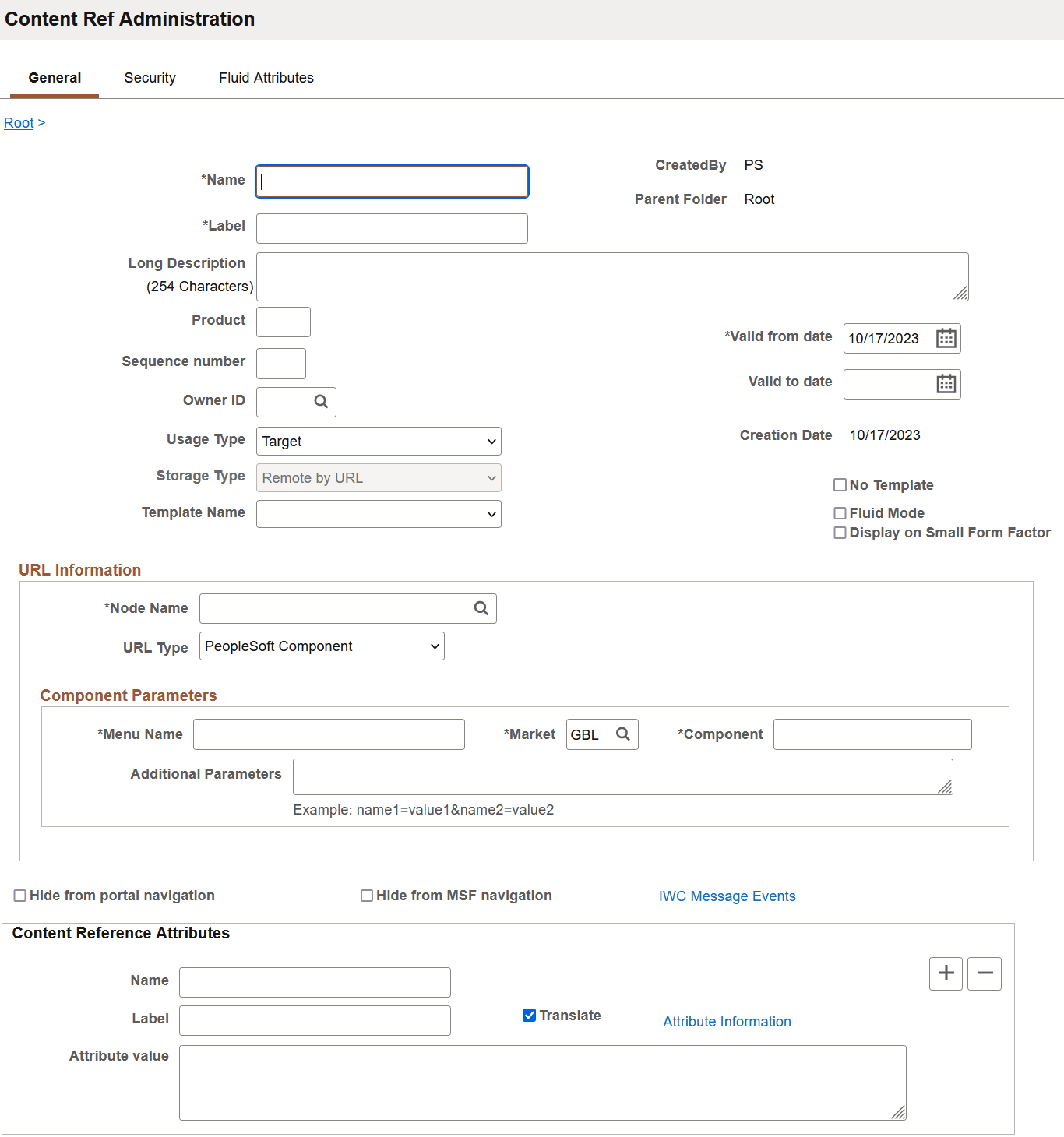
This example illustrates the fields and controls on the Content Ref Administration page. You can find definitions for the fields and controls later on this page.
Note:
Many of the fields described in this section appear only when you enter certain field values.
Many of these fields are similar to fields on the Folder Administration page.
When you save a content reference that points to a PeopleSoft component or script on the default local node, the security settings for the content reference are inherited automatically from the menu or script security settings. Any permission lists or roles that you enter on the Content Reference Security page before saving the content reference are deleted and replaced by those of the component or script. These new security settings are also propagated up the folder hierarchy. This ensures that the content reference is visible and all folders are viewable, enabling users to navigate to the component.
WARNING:
Do not add internal component-based PeopleSoft content references using the Content Ref Administration page. Use the registration wizard instead so that information is consistent between Application Designer and the portal. Any changes made to the menu definition in Application Designer and not made to the portal content reference definition break the content reference. The portal navigation system uses the portal registry, not the internal location of menu definitions in Application Designer.
See Application Designer Developer’s Guide: Understanding the Registration Wizard.
This table describes the fields that appear on the Content Ref Administration page:
| Field or Control | Description |
|---|---|
|
Usage Type |
Select from these usage types:
Based on the value that you select, the application shows, hides, disables, and enables the other fields on the page so that only the fields that are relevant to the usage type are available. For example, if you select a usage type of Pagelet, then Pagelet Attributes group box appears in which you can specify the default column, the refresh time, and other properties that apply specifically to pagelets. For a typical PeopleSoft application page, set the usage type to Target (the default value) and the URL type to PeopleSoft Component. With a usage type of target, the content will populate the target area on the page. Note: An additional group box titled Homepage tab attributes is displayed when either Fluid Homepage or Homepage tab is selected as the usage type. See Creating and Configuring Homepage Definitions for more information. |
|
Storage Type |
This field is enabled when you selected a usage type of Frame template or HTML template. Select Local (in HTML Catalog) or the default value, Remote by URL. |
|
HTML Area |
This text area is enabled when you select a usage type of HTML template or Frame Template and Local (in HTML Catalog) as the storage type. An HTML template uses the HTML that is entered into the HTML area of a content reference that is located in the Templates folder, which you find within the Portal Objects folder. Bind variables cannot be used within the HTML area. The HTML area includes any HTML that is required for the template itself, plus tags that specify the URLs for template pagelets. |
|
Template Name |
Select the template for this page. If you leave this field blank, the portal servlet automatically uses the default template of the node at runtime. The node default template is set up on the General Settings page. If a node default template has not been specified, it uses the portal default template. |
|
No Template |
Select this option to have the target content not wrapped with a portal template (by the psp servlet) at runtime. This option is selected automatically for certain types of fluid content; manually select it for all other types of fluid content. For classic content, it is typically not desirable to select this option. When this check box is selected, the Template Name field is hidden. Note: This option appears only for usage type of Target. |
|
Fluid Mode |
Manually select this option only for:
Note: This option appears only for usage type of Target. Note: For local component-based fluid content, this setting is maintained on the component definition in Application Designer and appears as display-only here. |
|
Display on Small Form Factor |
Manually select this option only if this content reference has been designed to display and perform well on small form factor devices such as smart phones. If this option is deselected, any tile defined for this content reference will not be available on fluid homepages or fluid dashboards when the user is signed in on a small form factor device. Note: This option appears only for usage type of Target. Note: For local component-based fluid content, this setting is maintained on the component definition in Application Designer and appears as display-only here. |
|
Create Content Reference Link |
Click to create or edit a content reference link. |
|
Add Content Reference |
Click to add a content reference. |
|
Test Content Reference |
Click to test a content reference. |
|
Hide from portal navigation |
Select to hide the content reference from menu navigation. Note: If this option is selected and then this content reference is added to a permission list, the permission list is not added to the parent folder. However, if the content reference is already added to a permission list and then this option is selected, the permission list is not removed from the parent folder. |
|
Hide from MSF Navigation |
MSF is not currently supported. |
|
IWC Message Events |
Click to access the Interwindow Communications page. |
URL Information
The fields that appear in this group box are based on the selection that you make in the URL Type field.
| Field or Control | Description |
|---|---|
|
Node Name |
Specify the node that hosts this content reference. Enter LOCAL_NODE to associate the content reference with the default local node (as defined on the Node Definitions page). Note: In a clustered environment, when the Usage Type is set to Pagelet, the node name should not be defined as LOCAL_NODE and must be set to the actual portal host node for the pagelet. |
|
URL Type |
Select from these URL types:
Note: The availability of these options depends on the selected usage type. |
|
Additional Parameters |
Enter query string parameters to be appended onto a PeopleSoft component or PeopleSoft script. For example, enter emplid=8001. |
Pagelet Attributes
The Pagelet Attributes group box enables you to manage pagelet behavior and appearance.
Content Reference Attributes
Content reference attributes provide a framework to specify and store free-form information about a content reference. For example, you can use content reference attributes to specify and store keywords, help information, related content properties, and related links for content references.
In addition, portal-aware applications can use content reference attribute information for application-specific processing. Portal-aware applications are those that:
-
Know about the portal registry and API.
-
Know how to get information from a content reference.
-
Contain code that can access the properties of content references and do something meaningful with the information.
| Field or Control | Description |
|---|---|
|
Name |
Enter an object name to identify the attribute programmatically. This name is not displayed to the user. Note: The name can consist of letters, digits, and underscores ( _ ) only. It cannot contain any spaces and cannot begin with a digit. |
|
Translate |
Select to specify that the label and attribute values are translated. |
|
Attribute Information |
Click to create related links. You can create related links only after entering RELLINK in the Name field. |
|
Label |
Enter a descriptive name for the attribute to display to the user. The label is required only if Translate is selected. |
|
Attribute value |
Enter information about the attribute that the portal uses to apply the attribute to the content reference. |
Links
This grid appears only if content reference links that connect to this content reference exist. Click Link Definition to view the definition of each listed content reference link.
Available Content Reference Attributes
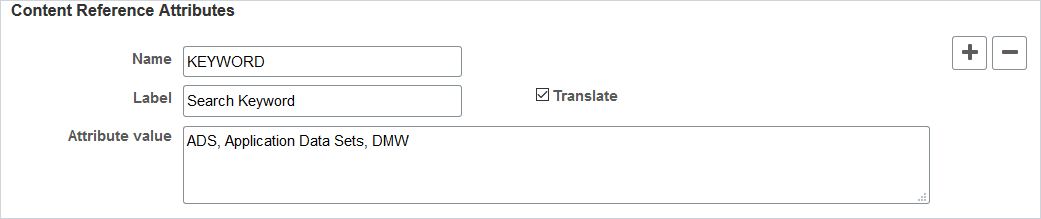
This example illustrates the fields in the Content Reference Attributes group box using the KEYWORD attribute as an example.
This table describes the content reference attributes that your PeopleTools portal recognizes:
| Content Reference Attribute Name | Description |
|---|---|
|
BANNERTILEHANDLER |
Use this attribute to identify the custom application class implementation of PTNUI:Banner:BannerTile that applies to this contextual fluid dashboard. |
|
BCUPDATELABEL |
Use this attribute to override the default label in the breadcrumbs. See Overriding Default Breadcrumbs Using Content Reference Attributes. |
|
BCUPDATETYPE |
Use this attribute to override the default breadcrumb update behavior. See Overriding Default Breadcrumbs Using Content Reference Attributes. |
|
BGLOBALVALUES |
Use this attribute to prevent pagelets from loading in parallel. Pagelets with global variables should not be loaded in parallel; such pagelets must be loaded sequentially. When the parallelLoading web profile property is set to true, you must also add the BGLOBALVALUES content reference attribute to the content reference definition for each pagelet that includes global variables; set the BGLOBALVALUES attribute to true. Then, these pagelets will be loaded sequentially while all other pagelets will be loaded in parallel. |
|
KEYWORD KEYWORD_CUST |
Use these attributes to enter keywords or keyword phrases to be indexed by the PeopleSoft Search Framework as part of the PTPORTALREGISTRY (the menu) search index. Keywords can be used to add alternative search terms not found in the content reference label or description. Separate search keywords or phrases by commas. Select the Translate check box when using these attributes. The example preceding this table illustrates the use of the KEYWORD attribute. The KEYWORD attribute is reserved for use by PeopleSoft application development teams. The KEYWORD_CUST attribute is for use by customers. See Search Technology: Working With the Portal Registry Search. |
|
KEYWORD KEYWORD_LNG |
These attributes are added by the system when keywords are added to specific portal definitions such as classic WorkCenters, classic dashboards, and classic pagelet definitions. Then, the keywords are available on the Pagelet Search page. See Searching for and Importing Pagelets and Tiles. |
|
Name of a default homepage object or image |
Use this attribute to override a default HTML object or image used for homepage components, such as tabs and pagelets, by providing the name of an alternative HTML object or image. Note: You can override only a specified set of homepage objects and images. |
|
IMAGE_BIND_12 to IMAGE_BIND_26 |
Use these attributes (numbered from 12 to 26) to insert additional custom images on a homepage tab. |
|
NAVNEWWIN |
Use this attribute to specify that the component or page always opens in a new browser window. Note: This attribute applies to links on navigation collection template pagelets that appear in the pagelet area of a WorkCenter page. |
|
NAVTOPWIN |
Use this attribute to specify that the component or page opens in the current browser window and replaces the current page completely. Note: This option affects only the link behavior when it is rendered in a navigation collection template pagelet inside the pagelet area of a WorkCenter page. |
|
PSCACHECONTROL |
Use this attribute to implement caching for individual pagelets and targets based on user, role, or application. |
|
PORTAL_BANNER_PGLT |
Use this attribute to create a banner pagelet, which can appear at the top of a homepage or dashboard page and spans the width of the page. Note: To use a pagelet as a banner pagelet, it has to be added to a homepage tab or dashboard page as a required-fixed pagelet in the first column. |
|
PORTAL_ENCODING_OVERRIDE |
Use this attribute to override the character set encoding that is used by the content reference. |
|
PORTAL_HP_COMPONENT |
Use this attribute to hide pagelet attributes such as the title bar, the borders, or both. |
|
PSTIMEOUT |
Use this attribute to specify how long the portal should wait for a pagelet to load before it considers the pagelet unavailable. |
|
PT_PORTAL_PGLT_HDR_IMG |
Use this attribute to add an icon to the header of the pagelet. The attribute value should be the name of the image definition that is stored in the image catalog using Application Designer. |
|
PTPPB_PAGELET_HELP_LINK |
Use this attribute to specify a URL that you want to associate with the help link for a pagelet. Note: This attribute takes priority over a PeopleSoft Help ID if both properties are set. |
|
RCF_SERVICE_PARAMETER |
Use this attribute to provide related content service parameters in name/label pairs for the content reference. The presence of this attribute changes the default behavior of component-based URLs and supplants all parameters with those that you enter in the Value field. See Creating and Managing Related Content Service Definitions. |
|
RELLINK |
Use this attribute to create related links for the content reference. |
|
TILEAPPFILTER |
Use this attribute to specify a custom application class to hide or display this tile on fluid homepages and dashboards. |
|
TILEAPPFILTER_REFRESH |
Use this attribute to re-evaluate the code configured with the TILEAPPFILTER attribute every time the homepage is opened (invalidating all homepages that are cached). |
|
HIDE_IN_PERSONALIZE |
Use this attribute to hide a tile on the Personalize Homepage page and to not list the tile on the Add Tile page. Note: Use this attribute for a tile only within a section on a homepage or dashboard. |
|
EMPTY_SECTION_TILE |
Use this attribute to display the tile when no other tile is present in a section or the tiles' visibility in a section is controlled through PeopleCode. Note: Use this attribute for a tile only within a section on a homepage or dashboard. |
Content Reference Type Parameters
This table summarizes the valid combinations of usage type, storage type, and URL type or key HTML content supported for content references:
| Usage Type | Storage Type | URL Type or Key HTML Content |
|---|---|---|
|
Frame template |
Remote by URL |
PeopleSoft Script |
|
Frame template |
Remote by URL |
Non-PeopleSoft URL |
|
Frame template |
Local (in HTML Catalog) |
Target or IClientComponent element |
|
Target |
Remote by URL |
PeopleSoft Component |
|
HTML template |
Local (in HTML Catalog) |
Target, Pagelet, or Source element |
|
HTML template |
Remote by URL |
PeopleSoft Script |
|
HTML template |
Remote by URL |
Non-PeopleSoft URL |
|
Homepage tab |
Local (in HTML Catalog) |
PeopleSoft Homepage tab |
|
Inline Frame template |
Local (in HTML Catalog) |
Target or Pagelet component |
|
Inline Frame template |
Remote by URL |
PeopleSoft Script |
|
Inline Frame template |
Remote by URL |
Non-PeopleSoft URL |
|
Pagelet |
Remote by URL |
Non-PeopleSoft URL |
|
Pagelet |
Remote by URL |
PeopleSoft Component |
|
Pagelet |
Remote by URL |
PeopleSoft Script |
|
Pagelet |
Remote by URL |
PeopleSoft Generic URL |
|
Pagelet |
Remote by URL |
PeopleSoft Worklist URL |
|
Target |
Remote by URL |
PeopleSoft Generic URL |
|
Target |
Remote by URL |
PeopleSoft Script |
|
Target |
Remote by URL |
PeopleSoft Worklist URL |
|
Target |
Remote by URL |
Non-PeopleSoft URL |
Related Topics
- Defining Folders
- Understanding Portal Templates
- Managing General Portal Settings
- Configuring Pagelet Time-out Settings
- Using Predefined Homepage HTML Definitions
- Administering Server-Based Caching
- Overriding Page Encoding
- Maintaining Pagelet Branding Attributes
- Searching for and Importing Pagelets and Tiles