Maintaining Pagelet Branding Attributes
Use the Pagelet Branding page to specify pagelet title bar, border, and layout options.
Navigation:
This example illustrates the fields and controls on the Pagelet Branding page.
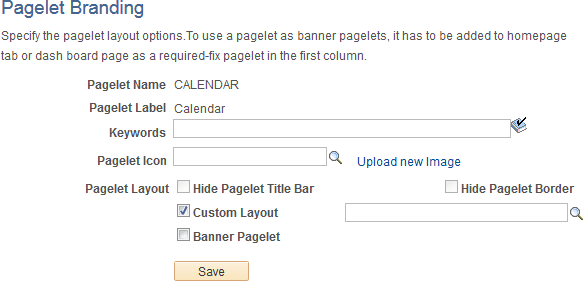
Note:
If a pagelet is already in use on a homepage tab or dashboard page, clear the application server cache so that these branding changes become visible to all users. Alternatively, for testing purposes, you can remove the pagelet from the homepage or dashboard page and then add it back to view the changes on a per-user basis.
| Field or Control | Description |
|---|---|
|
Pagelet Name |
Displays the ID of the selected pagelet. |
|
Pagelet Label |
Displays the label of the selected pagelet. |
|
Keywords |
Enter a keyword or keyword phrase to be stored as a content reference attribute. See Searching for and Importing Pagelets and Tiles for more information on how keywords are used to search for pagelet definitions. Note: Two content reference attributes are created: KEYWORD (to store the keywords in the base language) and KEYWORD_LNG (to store the keywords in the current session language). |
|
Pagelet Icon |
Displays the ID of the pagelet icon if one has been selected for this pagelet. If an icon has been selected, then the image itself displays below this field. Note: Oracle recommends image sizes from 16x16 pixels to 32x32 pixels for use as pagelet icons. Click the Look Up Pagelet Icon button to select an image from the database. Clear the pagelet icon field to display a pagelet without an icon. The PT_PORTAL_PGLT_HDR_IMG content reference attribute is created to store the image ID. |
|
Upload new image |
Click this link to access the Add Image Object page to upload a new image file. |
|
Hide Pagelet Title Bar |
Select this option to hide the pagelet title bar. Hiding the title bar hides the pagelet’s label and all user interaction buttons to personalize, minimize, and remove the pagelet, or to get pagelet help. Note: When this option is selected for a pagelet, users will not be able to use drag-and-drop to reposition the pagelet. The Personalize Layout page must be used instead. The PORTAL_HP_COMPONENT content reference attribute is created to store this setting. |
|
Hide Pagelet Border |
Select this option to hide the pagelet’s borders. The PORTAL_HP_COMPONENT content reference attribute is created to store this setting. |
|
Custom Layout |
Select the Custom Layout check box to enable selection of a custom HTML layout object for this pagelet. Once this check box is selected, an additional unlabeled field and a lookup button are revealed allowing you to select an HTML object from the database. Note: When you select the Custom Layout check box, both the Hide Pagelet Title Bar and Hide Pagelet Border check boxes are cleared (if selected) and disabled. If this check box is itself cleared, then these check boxes are re-enabled; however, their former settings are not restored. |
|
Banner Pagelet |
Select this option to identify this pagelet as one that can be used as a banner pagelet. Note: To use a pagelet as a banner pagelet, it has to be added to a homepage tab or dashboard page as a required-fixed pagelet in the first column. The PORTAL_BANNER_PGLT content reference attribute is created to store this setting. |
Related Topics