Creating and Configuring Homepage Definitions
Use the Content Ref Administration page (PORTAL_CREF_ADM) to create and maintain homepage definitions.
Navigation:
-
Select .
-
Continue to navigate through the folder structure depending on the homepage type:
-
For classic homepages, select .
-
For fluid homepages, select .
-
-
Click the Add Content Reference link.
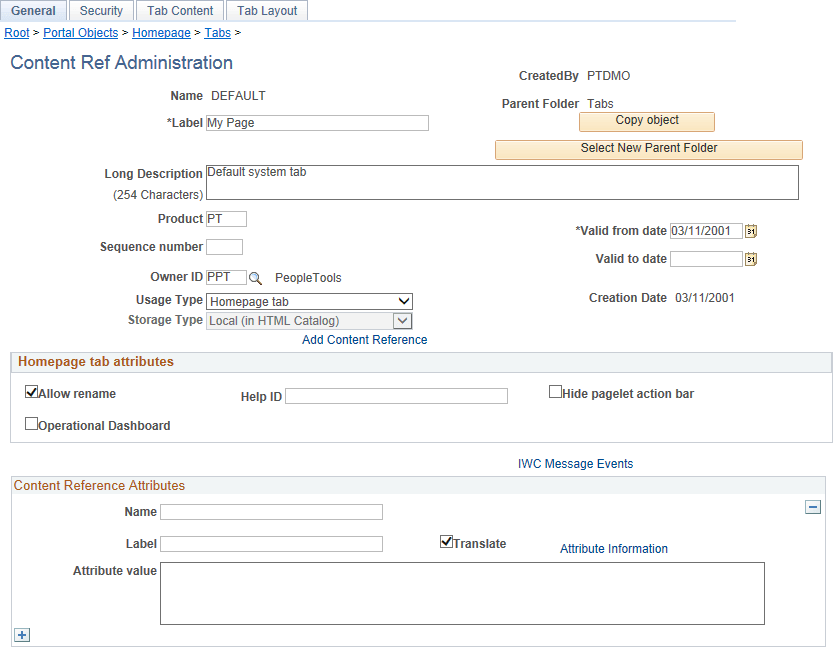
This example illustrates the fields and controls on the Content Ref Administration page for a classic homepage definition. You can find definitions for the fields and controls later on this page.
This example illustrates the fields and controls on the Content Ref Administration page for a fluid homepage definition. You can find definitions for the fields and controls later on this page.
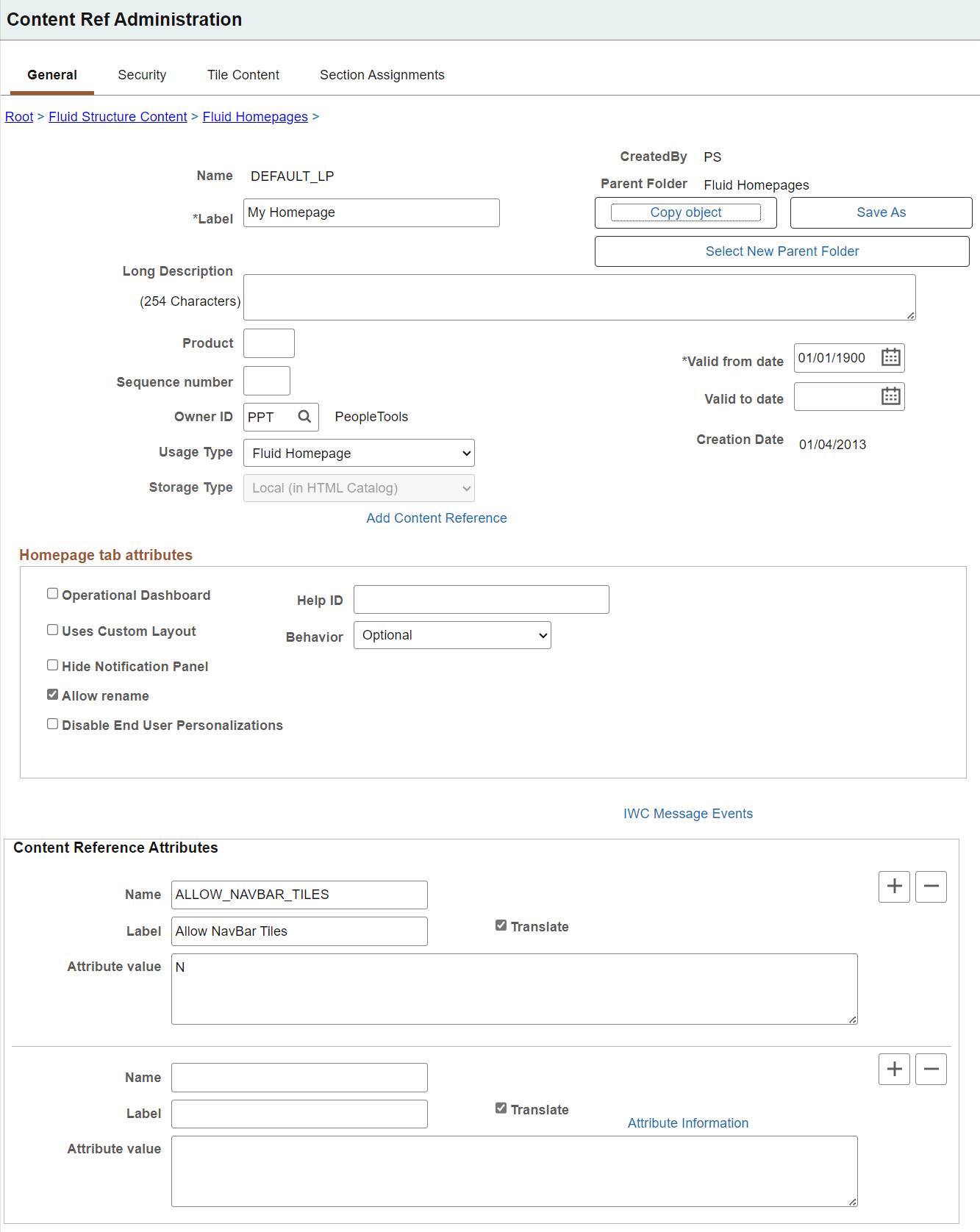
| Field or Control | Description |
|---|---|
|
Name |
Enter a unique ID for the homepage definition. The value that you specify in the Name field can consist of up to 50 letters, digits, and underscores ( _ ). It cannot contain any spaces and cannot begin with a digit. |
|
Label |
Enter the label that users will see for the homepage. |
|
Long Description |
Enter a long description for the homepage. |
|
Product |
Portal-aware applications can use this field for group processing. All PeopleTools objects have the product name PT. |
|
Sequence number |
Enter a value to designate the order of the homepage when multiple homepages are defined. The sequence number determines the order in which the homepages appear. The homepages appear with the lowest sequence number first. If any numbers are identical, then the order is alphanumeric. No value is equivalent to specifying 0. Important: Therefore, the homepage with the lowest sequence number becomes the default homepage. |
|
Save As |
The Save As button is not available in Add mode. The button appears after the homepage CREF is saved. Use the Save As button to clone the delivered homepage or dashboard. It provides administrators a starting point to build upon the delivered definition. On saving the cloned homepage, administrators can navigate to the new definition. |
|
Valid from date |
Enter the date that the homepage becomes visible to users. |
|
Valid to date |
Enter an optional date that the homepage is removed from use. |
|
Owner ID |
Select the object owner ID. |
|
Usage Type |
Select a usage type depending on the definition:
|
|
Storage Type |
Displays Local (in HTML Catalog), which cannot be modified. |
Note:
The ALLOW_NAVBAR_TILES content reference attribute found on some fluid homepage definitions is not a valid attribute and is ignored.
Homepage Tab Attributes
| Field or Control | Description |
|---|---|
|
Uses Custom Layout |
Select this setting when you create an advanced sectionalized homepage that uses the new model. This setting prohibits the adaptive changes performed by the system when running on a small form factor device making the responsibility of the custom layout to handle all visual changes for the small form factor device. Do not use this setting with pre-8.62 fixed tile size homepages or dashboards. For more information see Configuring Advanced Sectionalized Homepage and Dashboard. |
|
Hide Notification Panel |
Select to hide the notifications panel for all users when this homepage is displayed. You may use this option to provide more area to work with when laying out sections on a homepage. Note: The Notifications panel is displayed by default on fluid homepages unless this setting has been configured differently for this homepage. |
|
Allow rename |
Select to enable the user to personalize the homepage label. When you select the Disable End User Personalizations check box, the Allow rename check box is automatically unavailable for entry. Note: When a portal administrator updates the label for a fluid homepage or a fluid dashboard, the PeopleSoft system propagates the new label to homepages or dashboards that have not been personalized and to personalized homepages or dashboards that also retain the original label. If a user has personalized the label, then the user's personalization is retained. |
|
Help ID |
Enter the help ID for the homepage. When users click the Help link, the PeopleSoft system opens a new window displaying online help documentation for this item. Note: You must also configure a help URL on the Web Profile Configuration - General page. |
|
(Classic only) Hide pagelet action bar |
Select to hide the pagelet title bars on all pagelets on the homepage tab. This option overrides all properties for pagelets used on this tab. |
|
Operational Dashboard |
Select to use the homepage as a dashboard page, which hides the homepage so that it does not appear when users sign in. Important: If you use the Dashboard Administration pages to create dashboards, then the system creates the homepage content reference, selects this check box, and creates a content reference link automatically. However, if you manually select this check box, you must manually create a content reference link to the dashboard, which you position in the menu structure. |
|
(Fluid only) Disable End User Personalizations |
Select to disable end-user personalizations for the homepage. When you select this check box, the Allow rename check box is automatically unavailable for entry because modifying the homepage label is an end-user personalization. When you create a section on a fluid homepage, this option is automatically selected. For more information on using this check box, see (Fluid only) Disabling User Personalization for Homepages. |
|
(Fluid only) Behavior |
Select one of the following:
|
Related Topics