Defining Folders
Access the Folder Administration page (Select Click the Add Folder link).
This example illustrates the fields and controls on the Folder Administration page. You can find definitions for the fields and controls later on this page.
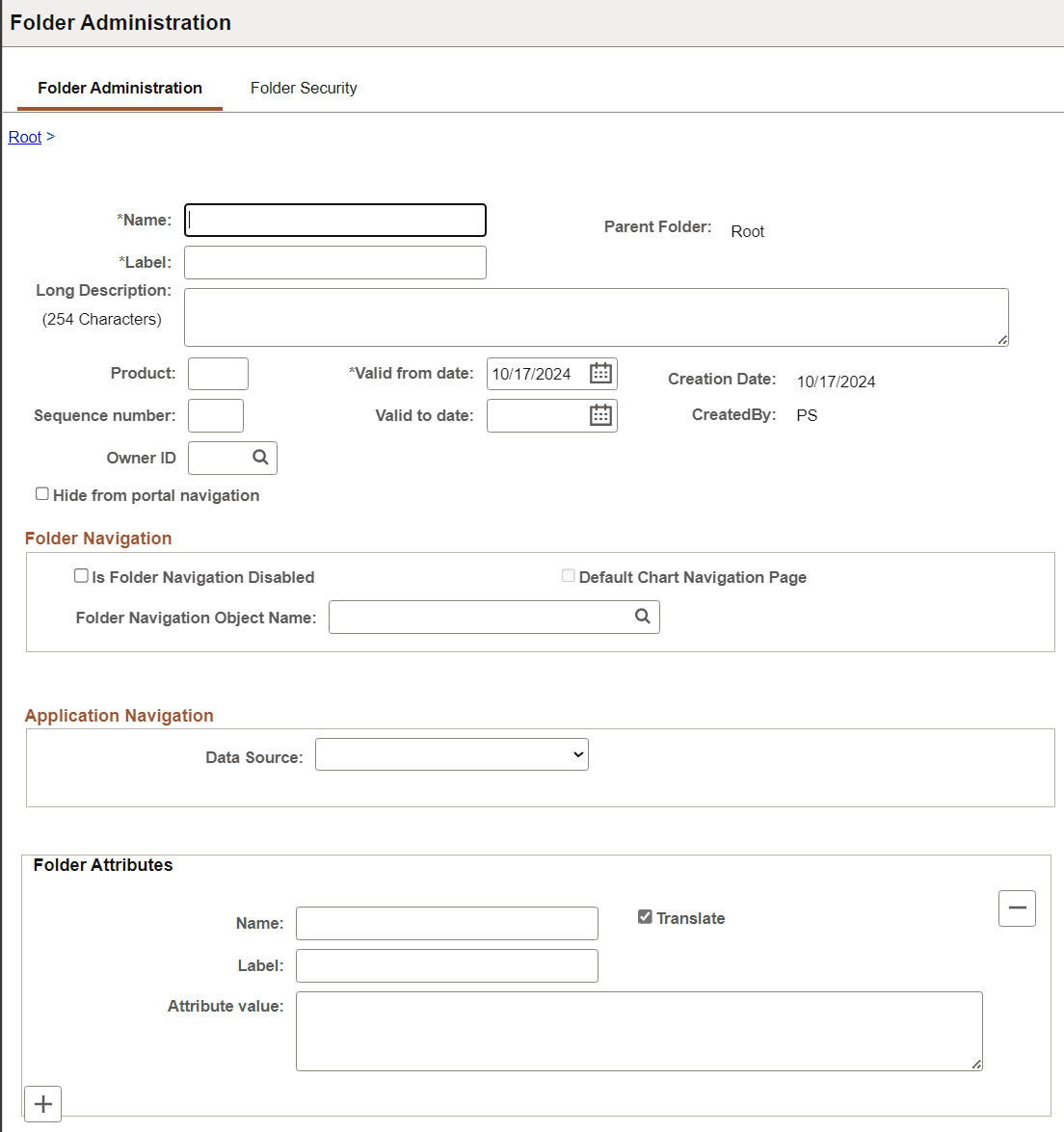
-
Enter values in the Folder Administration fields.
-
(Optional) Enter values in the Folder Attributes fields.
-
Set the folder security.
-
Save the folder.
Folder Administration
This table describes the primary fields that appear on the Folder Administration page:
| Field or Control | Description |
|---|---|
|
Name |
Enter a unique identifier for the folder. Note: The name can consist of letters, digits, and underscores ( _ ). It cannot contain any spaces and cannot begin with a digit. |
|
Label |
Enter the text to appear as the link for this folder. |
|
Copy object |
Click to access the Copy Object to a Different Portal Registry page, which enables you to copy an existing folder to a different portal registry. This button appears only when you're editing a folder. |
|
Parent Folder |
The name of the current parent folder. This field is display-only. |
|
Select New Parent Folder |
Click to copy the folder to a new location within the current portal registry. This button appears only when you're editing a folder. |
|
Long Description |
Enter a description for this folder. Note: In classic forms of navigation (which have been desupported), this description appears as hover text for the link for this folder. In fluid forms of navigation, such as the NavBar menu, no hover effects are displayed. |
|
Product |
(Optional) Portal-aware applications can use this field for group processing. All PeopleTools objects have the product name PT. |
|
Sequence number |
Enter a sequence number to define where this folder appears in its parent folder, and therefore where its associated menu entry appears within its parent menu. If you omit the Sequence number, the folder is added to the top of the list of folders and is displayed in alphabetical order. You can change the sequence only one item at a time, and each time you do so, you must save your changes to see the result. |
|
Valid from date and Valid to date |
Enter a valid from date. The valid to date is optional and is omitted by default. These dates can be used for application-specific processing by portal-aware applications and are used by the portal navigation to determine visibility. |
Application Navigation
Use these fields to create SmartNavigation folders.
Note:
These fields have been retained for backwards compatibility only. SmartNavigation has been desupported.
Folder Attributes
Folder attributes can be used by portal-aware applications for application-specific processing that adds functionality to folders.
-
Specify the attribute name.
-
(Optional) Specify the attribute label.
-
Enter the attribute value.
-
Select the Translate check box to make an attribute label and attribute value translatable.
This table describes the fields that you use to define folder attributes.
| Field or Control | Description |
|---|---|
|
Name |
Enter the attribute name. The attribute must be an attribute that is recognized by the portal. If you enter an attribute, then you must also enter an attribute value. |
|
Label |
Enter text to describe the attribute. This field is required only if the Translate check box is selected. |
|
Attribute Value |
Enter the value that the portal should use in conjunction with the attribute. |
|
Translate |
Select to translate the label. |