Setting Folder Permissions
Access the Folder Security page (Select Navigate the portal registry to the appropriate folder, click the Edit link, and then select the Folder Security tab.)
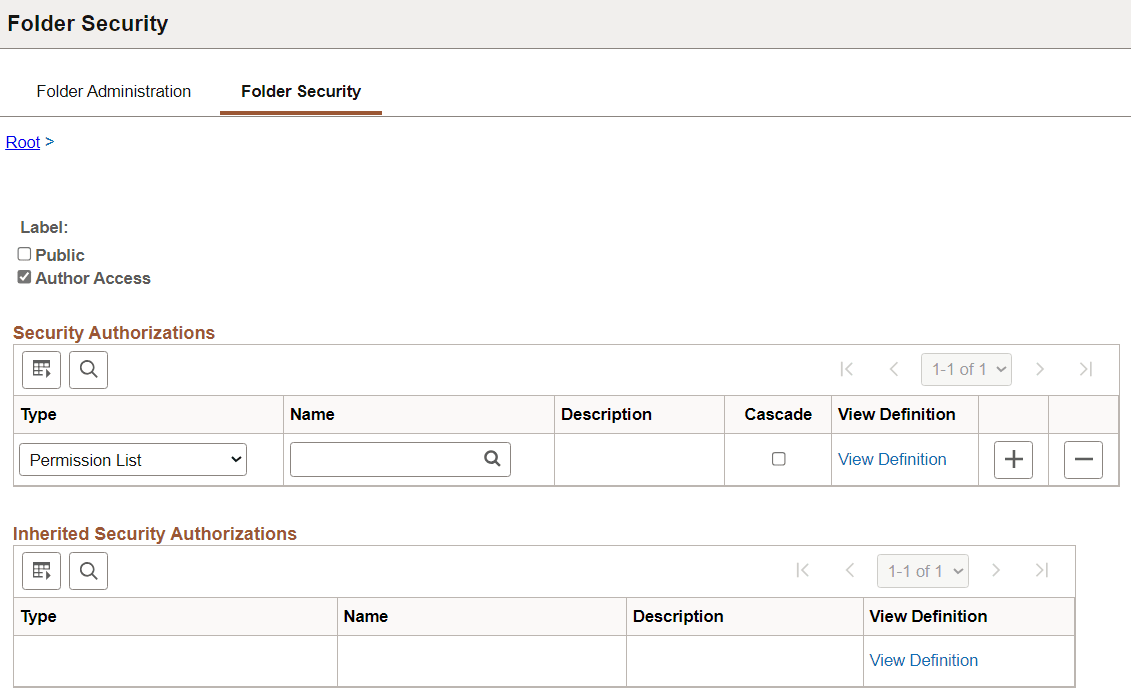
This example illustrates the fields and controls on the Folder Security page. You can find definitions for the fields and controls later on this page.
| Field or Control | Description |
|---|---|
|
Public |
Select to make the folder available to all users. When this check box is selected, all other fields except Label are hidden. |
|
Author Access |
Select to allow folder access to the creator of the folder, regardless of how other permissions are set. This setting is useful for troubleshooting and testing purposes. |
Security Authorizations
You can base folder security on roles or permission lists when security authorizations are not inherited. You can specify any combination of roles and permission lists to provide folder security.
| Field or Control | Description |
|---|---|
|
Type |
Select from these types: Permission List: Enables access for users based on permission list membership. You then specify the permission lists that should have access to this folder. Role: Enables access for users based on role membership. You then specify the roles that should have access to this folder. |
|
Name |
Select the permission list or role that provides access to this folder. |
|
Cascade |
Select to indicate that the permission list or role of the current row should also apply to any folder or content reference that is subordinate to this folder. |
|
View Definition |
Click to access the security administration component for the permission list or role specified on the current row. |
Inherited Security Authorizations
Displays authorizations that have been inherited from parent folders. The fields in this grid have the same purpose as the corresponding fields in the Security Authorizations grid. You can change inherited authorizations by modifying the Cascade setting in the Security Authorizations grid of the parent folder.