Understanding Folder Administration
In the portal registry, folders organize content references into a multilevel hierarchy. A folder can contain content references and other folders. When you create folder definitions, you explicitly configure the properties, attributes, and position of the folder in the hierarchy. The portal uses your configurations to create the menu structure, which remains static unless you modify structure in the portal registry.
Organization of the Portal Registry
You use the Structure and Content component to access the portal registry, where you create and manage folders and content references. When you click the Structure and Content link, the application opens the portal registry at the root level. The initial set of folders, content references, and links that you see correspond to the high level folders and links that appear directly under Main Menu or in the Menu pagelet.
The Structure and Content component enables you to organize and manage your folders and content references; all folders and content references that share the same Structure and Content page are at the same level hierarchically and share the same parent folder. You click the Edit link to access the properties of a folder. You click the folder label link to navigate one level lower in the hierarchy where any child folders and content references that exist appear.
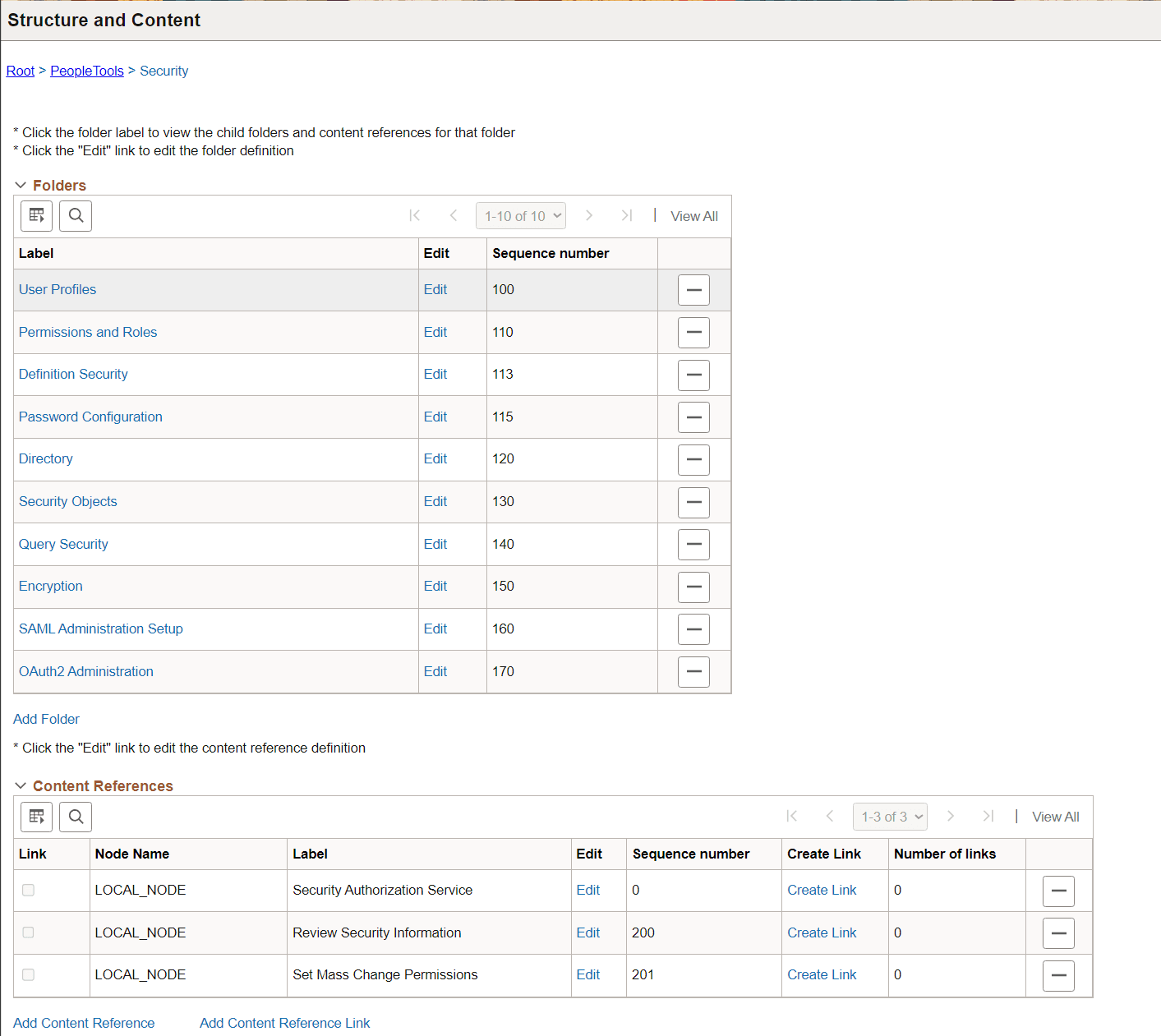
As you navigate through the hierarchy of folders, breadcrumbs appear at the top of the page directly beneath the Main Menu navigation bar. The breadcrumbs appear to visually indicate your current position in hierarchy of the portal registry. Click a link in the breadcrumbs to return to the folder. In this sample Structure and Content page, the breadcrumbs indicate that you are viewing elements that appear in the folder:
The following example illustrates the Structure and Content page showing the breadcrumb path, and the folders and content references that appear in the Security folder.
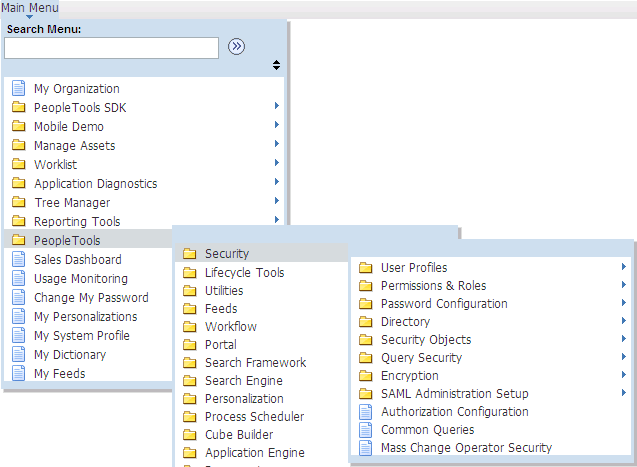
The portal uses the hierarchy of folders in the portal registry to create the menu structure of the PeopleSoft application. Menus open to reveal the folders and content references in the same general sequence and location as they appear in the portal registry. In this sample drop-down menu, notice that the organization of folders and content references in the PeopleTools, Security folder correspond to the folders and links located in the Security folder in the portal registry:
This example illustrates how the folder and content reference organization for the same Security folder is rendered in the drop-down menu .
Folders can appear at any level in the menu hierarchy in both the left navigation Menu pagelet and the Main Menu drop-down navigation. Folders cascade open when users click the folder label and generate navigation pages when you click the folder icon. Most PeopleSoft application folders are standard navigation folders; however, you can configure certain folder properties to create SmartNavigation folders.
Related Topics