Configuring Custom Properties
Access the Web Profile Configuration page. (Select Select the Custom Properties tab.)
This example illustrates the fields and controls on the Web Profile Configuration - Custom Properties page. You can find definitions for the fields and controls later on this page.
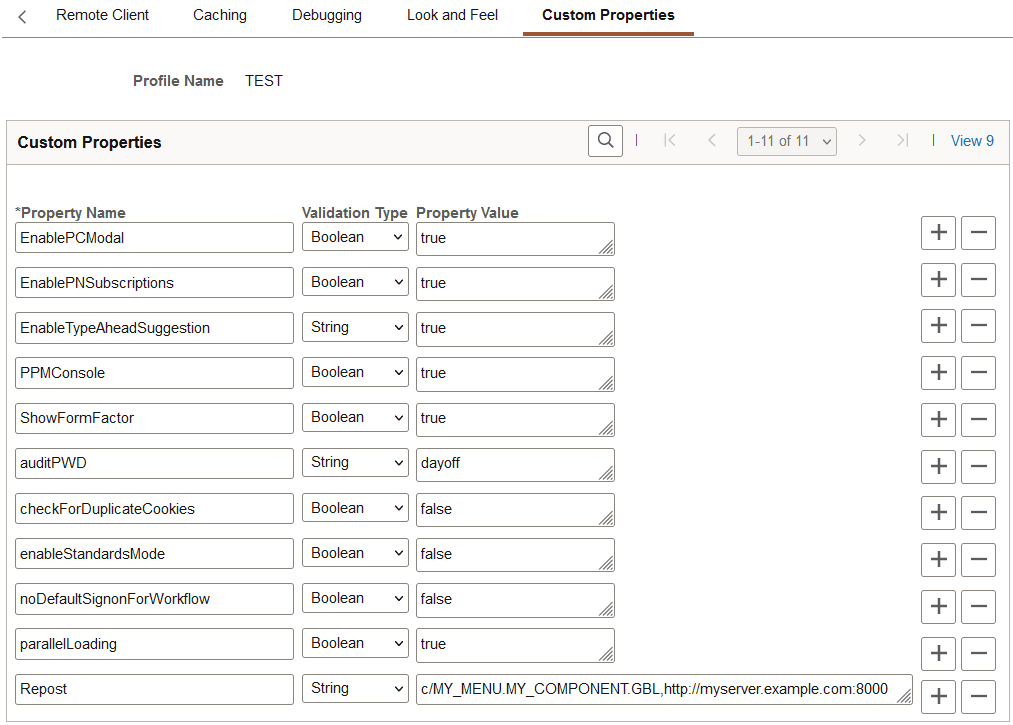
This page enables the use of custom web profile properties that are needed only for specific additional purposes. For each property, you enter the property name, select its validation type, and provide the appropriate property value. The validation type ensures that the property value that you enter is the correct format. The currently available custom properties are:
| Field or Control | Description |
|---|---|
|
AJAXConsole |
This property, although not displayed, enables you to launch an interface for viewing diagnostic information related to AJAX parameters that are required by PeopleSoft support personnel, who will provide you with the correct values when necessary. |
|
attachmentExtraWindow |
This property enables you to prevent the appearance of a message window when you attempt to view certain types of attachments (such as *.doc files) that are not directly displayed by the browser but are instead displayed by the application associated with files of that type. The message varies based on the browser you use. This message window requires explicit user action to dismiss it. The property takes a value of 2 to prevent the appearance of the window. All other values used for this property will allow the appearance of this window. |
|
auditPWD |
This property enables certain debug and control settings that are required by PeopleSoft support personnel, who will provide you with the correct values when necessary. Never set this property in a production environment unless directed to do so. |
|
checkForDuplicateCookies |
Duplicate cookies occur when all of the following are true:
When these conditions are met, the browser presents multiple cookies to each application, which produces unpredictable browser behavior, such as displaying the sign-in page or a page expiration message. For this property, specify a validation type of Boolean and enter one of these property values: True: The portal checks for sets of duplicate cookies. When a duplicate is found, the user is taken back to the sign-in page with this message: “Your browser sent multiple sets of cookies.” You can change the text of this message by editing number 107 in the errors.properties file of the portal site. False: The portal doesn't check for sets of duplicate cookies. This is the default setting, which applies when this property isn't specified. To avoid this issue altogether with applications that don't use single signon functionality, make sure that you specify authentication domains that aren't subsets of each other, such as .user.example.com and .corp.example.com. |
|
EnableAutocomplete |
This property, although not displayed, enables AJAX features associated with auto-complete. For this property, specify a validation type of Boolean and enter false as the property value to disable auto-complete at the system level. Note: If this property is not set to false, you can control autocomplete through personalizations. |
|
EnablePCModal |
Warning! The Oracle-delivered setting is true. Do not change this setting. |
|
EnablePNSubscriptions |
As of PeopleTools 8.58, you do not need to explicitly configure the web server for push notifications. The EnablePNSubscriptions custom web profile property is no longer used, and is ignored regardless of its setting. |
|
enableWorklistNotify |
Use the enableWorklistNotify property to change the behavior of the notify feature on classic pages to the classic workflow notify behavior. On classic pages, the default is to use the fluid notify feature (the equivalent of setting this property to false or not adding this property to the web profile configuration page). Add this property and set it to true to display the classic workflow notify feature. |
|
FocusOnList |
Use the FocusOnList property to change the behavior of the cursor after retrieving search results on classic component search pages only. The default behavior is to set the cursor focus on the first search criteria field after search results are returned (the equivalent of setting this property to false). Add this property and set it to true to set the cursor focus on the first search result within the list of results returned. |
|
IDDA |
Use the IDDA property to enable the Instrumented Development Diagnostic Aid (IDDA) logger and specify the what is logged as an integer value. See System and Server Administration: Enabling IDDA Logging for more information. |
|
InPortalContext |
Use the InPortalContext property to determine whether to maintain the context of the portal system when navigating to remote content provider system links provided under PeopleSoft Interaction Hub’s PeopleSoft menu (that is, links such as Financials Supply Chain PT8.4x, Human Resources PT8.4x, and so on). “Maintaining the portal context” means that the menu of the portal system is displayed when navigating to these links rather than the menu of the content provider system. Specify one of these values:
|
|
mutualAuth |
This property, although not displayed, controls whether your environment is set up for mutual authentication. The default value is True. Note: If you are using Lightweight Directory Access Protocol (LDAP) authentication, you must use the default setting. If you are not using LDAP authentication, a Java exception error caused by a failure to retrieve a certificate property may appear in your webserver log. If this occurs, you must change this value to False to disable the authentication from trying to retrieve the certificate property. |
|
noDefaultSignonForWorkflow |
Use the noDefaultSignonForWorkflow property to control whether a user sees the default signon page after clicking a workflow link. When noDefaultSignonForWorkflow is set to true, the system disables Public Access for workflow notification URLs. By default, noDefaultSignonForWorkflow is set to False. See the following table for information related to the behavior of this setting. See the following section, “noDefaultSignonForWorkflow Property, for more information. Note: This property applies to worklist URLs, not all workflow URLs. Only the URLs that contain a /w/ use this property. |
|
parallelLoading |
The parallelLoading property enables parallel pagelet loading on classic homepages, dashboards, and WorkCenters, which improves the performance of these pages. Note: Beginning with PeopleSoft 9.2 applications, this property is set to true in the configuration.properties file. However, pagelets with global variables should not be loaded in parallel; such pagelets must be loaded sequentially. When the parallelLoading property is set to true, you must also add the BGLOBALVALUES content reference attribute to the content reference definition for each pagelet that includes global variables; set the BGLOBALVALUES attribute to true. Then, these pagelets will be loaded sequentially while all other pagelets will be loaded in parallel. |
|
PPMConsole |
This property, although not displayed, enables you to launch an interface for viewing diagnostic information related to agents and PPMI clients. The default value is False. |
|
psback_unencoded_d |
By default, the psback cookie has encoded delimiters; this is the web server default when psback_unencoded_d is undefined. However, in a clustered environment that includes mixed PeopleTools versions, you may need to allow unencoded delimiters in the psback cookie. If your mixed clustered environment includes any PeopleTools 8.53 or earlier releases, PeopleTools 8.54.20 or earlier, or PeopleTools 8.55.02 or earlier, you will need to allow unencoded delimiters by adding the psback_unencoded_d custom property to the active web profile on each system in the clustered environment:
|
|
ps_theme |
Add the ps_theme custom property (type = String) to identify the default local node for the designated portal (or hub) system in a clustered environment. The ps_theme property is defined on content provider systems only for routing push notifications in a clustered environment or to enforce branding assignments configured on the PeopleSoft Interaction Hub gateway system. Use the following format to set the value of this cookie: For example: Important: The ps_theme property is generated automatically when Automated Configuration Management (ACM) is used to configure a clustered environment. In addition, the property can be manually configured in the Configure Unified Navigation Center on the designated portal system. |
|
Repost |
Use the Repost custom property to identify a specific “punchback” (or callback) URL that a third-party site can use to bypass SameSite requirements for passing cookies. You can define up to 11 repost URLs: Repost, Repost1, Repost2, ... Repost10. Specify the punchback URL as a string value in the following format: For example, a full PeopleSoft URL includes the site, portal, and node names as follows: The value of this property would be set as follows: See the following section, “Repost URLs for SameSite Exceptions,” for more information on implementing a repost URL. |
|
ShowFormFactor |
Use the ShowFormFactor property to enable the Form Factor drop-down list to be displayed on the sign-in page. The default value is false. |
|
unauthSessionInterval |
Use the unauthSessionInterval property to set session time-out (in seconds) during the authentication process. The default value is 120 seconds. The purpose is to limit the effectiveness of denial-of-service attacks on failed authentications. To determine the proper time for this property, check the time in seconds that it takes to send an HTTP(S) request from the browser to the web server and multiply the result by 2. |
| WebMFAEnabled |
This property enables the use of two-factor authentication with time-based one-time passwords. See Security Administration: Configuring the Web Profile for Two-Factor Authentication. |
Repost URLs for SameSite Exceptions
Use the Repost custom property to identify a specific “punchback” (or callback) URL that a third-party site can use to bypass SameSite requirements for passing cookies. You can define up to 11 repost URLs: Repost, Repost1, Repost2, ... Repost10. See the Repost entry in the previous section on how to set the string value of the Repost custom property. Typically, punchout/punchback integration is implemented for B2B e-commerce scenarios, such as procurement from a third-party website and so on.
For more information on SameSite cookies, see Configuring Cookie Rules.
In addition to defining
the Repost custom property, you must also update the PeopleCode that
generates the punchback URL by appending ?&cmd=Repost. For example:
&rec.PB_URL.Value = GenerateScriptContentURL(%Portal, %Node, Record.WEBLIB_PB_DC, Field.PB_ISCRIPT_LIB, "FieldFormula", "IScript_DCCatcher") | "?&cmd=Repost";Finally, you must decode the input parameters received in the punchback operation. For example:
Declare Function URL_Decode PeopleCode FUNCLIB_PORTAL.PORTAL_GEN_FUNC FieldFormula;

&CXML_URLENCODED = %Request.GetParameter("cxml-urlencoded");
&CXML_URLENCODED = URL_Decode(&CXML_URLENCODED);
&CXML_BASE64 = %Request.GetParameter("cxml-base64");
&CXML_BASE64 = URL_Decode(&CXML_BASE64);
noDefaultSignonForWorkflow Property
This table describes the behavior of the system based on the noDefaultSignonForWorkflow setting.
| Configuration | User Session | User Action | System Behavior |
|---|---|---|---|
|
Public user access (default signon) is enabled and the custom web property “noDefaultSignonForWorkflow” is set to true. |
The user has no session with the system. |
The user clicks a workflow notification URL in the email. |
The system displays the sign-in page to the user. Once the user signs in to the system with a valid user ID and password, the system takes the user to the workflow notification based on the user profile privileges. |
|
Public user access (default signon) is enabled and the custom web property “noDefaultSignonForWorkflow” is set to true. |
The user already holds a valid session with the system through the public access. |
The user clicks a workflow notification URL in the email. |
Because the user already has a valid session, the system takes the user to the workflow notification. If the public access user profile does not have workflow privileges, the system displays an authorization failure page to the user. |
|
Public user access (default signon) is enabled and the custom web property “noDefaultSignonForWorkflow” is set to true. |
The user is already signed in to the system with a valid user ID and password (other than default sign-in) |
The user clicks a workflow notification URL in the email. |
The system takes the user to the workflow notification based on the user profile privileges. |
|
When the public user access (default signon) is enabled and the custom web property “noDefaultSignonForWorkflow” is set to false. |
Any |
Any |
The system behaves as configured. |
|
When the public user access (default signon) is disabled and the custom web property “noDefaultSignonForWorkflow” is set to false/true. |
Any |
Any |
The system behaves as configured. |
Note:
If the public user does not have workflow privileges, then close the existing public user session (browser) before clicking the workflow link.
See Security Administration: PeopleSoft Sign In and Performance Monitor: Viewing Monitor Servlet Diagnostics.