Configuring Look and Feel
Access the Web Profile Configuration page. (Select Select the Look and Feel tab.)
This example illustrates the fields and controls on the Web Profile Configuration - Look and Feel page. You can find definitions for the fields and controls later on this page.
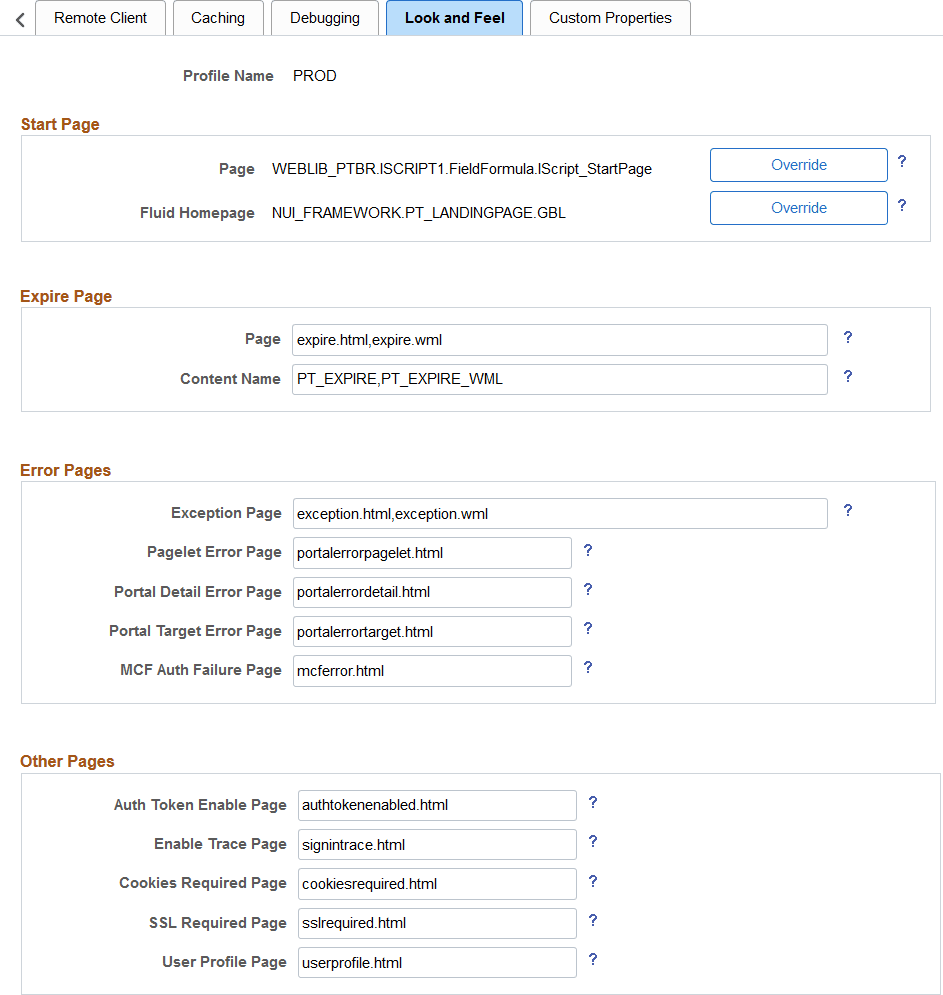
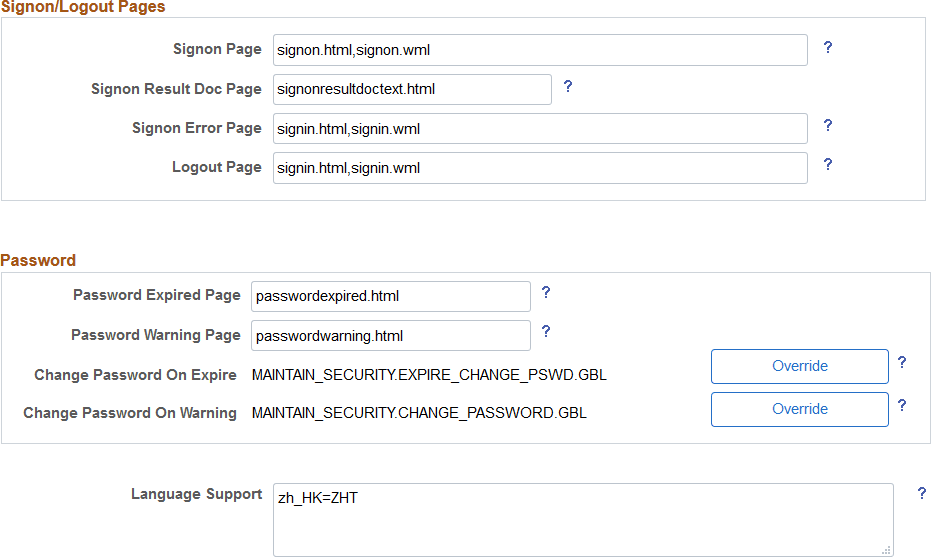
This example illustrates the fields and controls on the Web Profile Configuration - Look and Feel page. You can find definitions for the fields and controls later on this page.
Start Page
| Field or Control | Description |
|---|---|
|
Page |
Displays the script to which the system redirects users after a successful sign-in. This value references the iScripts that build the PeopleSoft navigation. The default value is WEBLIB_PTBR.ISCRIPT1.FieldFormula.IScript_StartPage. |
|
Override |
Click to change the start page script. The Override Start Page Script page is displayed with these fields:
The values of these four fields are concatenated to produce the value of the Page field on the Look and Feel page. |
|
Fluid Homepage |
Displays the name of the component used to render fluid homepage tabs. The default value is NUI_FRAMEWORK.PT_LANDINGPAGE.GBL. See Fluid User Interface Developer’s Guide: Web Profile Configuration - General Page for more information. |
Expire Page
| Field or Control | Description |
|---|---|
|
Page |
Displays the HTML page containing text variables that are defined in text.properties. This page appears when user inactivity exceeds the limit that is specified by the Inactivity Logout field in the Authenticated Users region of the Web Profile Configuration - Security page. Do not change this setting. The default value is expire.html,expire.wml. |
|
Content Name |
Enter the content name that is stored in the HTML catalog. It appears when a page has expired due to reaching the limit that is specified by the Number of States Supported field in the On the Browser region of the Web Profile Configuration - Caching page. Change this value with caution. The default value is PT_EXPIRE,PT_EXPIRE_WML. |
Error Pages
| Field or Control | Description |
|---|---|
|
Exception Page |
Enter the name of the page that is used in Java to handle exceptions. Change this value with caution. The default value is exception.html,exception.wml. |
|
MCF Auth Failure Page (multichannel framework authorization failure page) |
Enter the name of the multichannel framework authorization failure page. The default value is mcferror.html. |
|
Pagelet Error Page |
Enter the name of an initial error message page to be displayed in the user's browser when a portal pagelet is unavailable. The default value is portalerrorpagelet.html. |
|
Portal Target Error Page |
Enter the name of an initial error message page to be displayed in the user's browser when target content is unavailable. The default value is portalerrortarget.html. |
|
Portal Detail Error Page |
Enter the name of an error message page that can be displayed in the user's browser to provide more detail about an error when retrieving portal content. The default value is portalerrordetail.html. |
Because your PeopleSoft portal can aggregate its content from many different sources, errors can occur for a variety of reasons. An error may occur if:
-
A content server is down.
-
An invalid URL is specified.
-
A portal node from which content is being requested is inactive.
-
A portal node fails to deliver requested content within the time-out interval that you specify by using the PSTIMEOUT content reference attribute.
See Configuring Pagelet Time-out Settings.
For practical purposes, all of these reasons result in the requested content being unavailable.
The values that you specify for the pagelet error page, portal target error page, and portal detail error page are the names of HTML pages that present customizable, translatable error messages. The default pages are delivered with the PeopleSoft system and provide useful error messages without any modification.
You can use the delivered error pages, modify them, or create your own. You can choose additional error message information to be displayed by using bind-type variables of two types in your error pages:
-
Numeric message variables
These map to strings that are predefined in the following file:
PS_CFG_HOME\webserv\peoplesoft\applications\peoplesoft\PORTAL\WEB-INF\psftdocs\sitename\text.properties
For example, the numeric variable 5006 maps to the phrase “The portal was unable to retrieve the page you are looking for.”
-
Session variables
These map to system information that depends on the current page and activity.
Session variables have values that are dynamically resolved by the portal engine at runtime. Available session variables include:
-
ErrorTitle
-
ErrorDescription
-
ErrorURL
-
AccessedURL
-
OriginalURL
-
TargetPage
-
StackTrace
-
DetailError
DetailError is the name of the page that is specified by the Portal Detail Error Page field. This can be used to specify a link target.
-
To invoke a numeric
or session variable, you insert it between the strings <%= and %> in your HTML.
For example: <%=5009%> or <%=ErrorDescription%>. Examine the delivered error pages for examples of how to use the
numeric and session variables within your HTML.
Other Pages
| Field or Control | Description |
|---|---|
|
Auth Token Enable Page (authorization token enable page) |
Enter the name of the page to be displayed when the site being accessed is configured with an authentication domain (or web server session cookie domain), and the URL from the browser doesn't include the domain. This page contains a link to a sign-in page that produces the correct URL for the site. You can modify the content interface and design, but do not change the internal meta-tags that generate the correct URL. The default value is authtokenenabled.html. |
|
Enable Trace Page |
Enter the name of the page to be used to set trace parameters. If you enable tracing, this page appears before the sign-in page so that you can set the trace parameters and then sign in to the system. The default value is signintrace.html. |
|
Cookies Required Page |
Enter the name of a page to be displayed when the browser does not accept cookies. You should configure browsers to accept cookies. The default value is cookiesrequired.html. |
|
SSL Required Page |
Displays the name of the page that should appear if the Secured Access Only check box is selected in the SSL region of the Web Profile Configuration - Security page, and the user is unable to proceed without SSL. Do not change this setting. The default value is sslrequired.html. |
|
User Profile Page |
Displays the name of the page that appears when the user clicks the link from a password-expired page. Do not change this setting. The default value is userprofile.html. |
Signon/Logout Pages
| Field or Control | Description |
|---|---|
|
Signon Page |
Displays the name of the page that redirects to the servlet for the sign-in process. Do not change this setting. The default value is signon.html,signon.wml. |
|
Signon Result Doc Page (signon result document page) |
If your portal site is configured with sign-in PeopleCode to additionally validate the user, that code can call a result document if the user authentication failed. You can present the result document to the user in several ways by specifying one of these HTML documents in this field: signonresultdoctext.html: The result text is wrapped in a standard portal error page. This is the default value. signonresultdocpage.html: The result text itself is formatted as the error page. signonresultdocredirect.html: This page redirects the user to your own result document, using the <%=resultDoc%> session variable element. |
|
Signon Error Page |
Enter the name of the page that should appear when the user makes an error signing in. To customize your sign-in page, clone signin.html as a starting point. Change this value with caution. The default value is signin.html,signin.wml. |
|
Logout Page |
Enter the name of the page that should appear when the user signs out. You may define a custom logout page. Change this value with caution. The default value is signin.html,signin.wml. |
Password
| Field or Control | Description |
|---|---|
|
Password Expired Page |
Displays the name of the page that should appear when the user password is expired. Do not change this setting. The default value is passwordexpired.html. |
|
Password Warning Page |
Displays the name of the page that should appear when the user's password is about to expire in the number of days specified in PeopleSoft security. Do not change this setting. The default value is passwordwarning.html. |
|
Change Password on Expire |
Displays the Change Password page content ID. The system uses the value in passwordexpired.html to take the user to the Change Password page when a password is expired. The default value is MAINTAIN_SECURITY.EXPIRE_CHANGE_PSWD.GBL. |
|
Override |
Click to override the expired password change page. The Override Change Password on Expire Page page appears.
|
|
Change Password On Warning |
Displays the content ID for the Change Password page. The system uses the value that you enter in passwordwarning.html to take the user to the Change Password page when a password warning is required. The default value is MAINTAIN_SECURITY.CHANGE_PASSWORD.GBL. |
|
Override |
Click to override the Password Change Warning page. The Override Change Password on Warning Page page appears.
|
(Optional) Language Support
Specify additional mappings from International Organization for Standardization (ISO) locale codes to PeopleSoft language codes, using one line per entry.
The PeopleSoft system uses proprietary codes to represent user languages, and the PeopleSoft Pure Internet Architecture sign-in page appears in the PeopleSoft language corresponding to the user's browser language setting (an ISO locale code). This field enables you to provide mappings from additional ISO locale codes to PeopleSoft language codes to support a wider range of browser-specific language settings.
For example, the entry zh_HK=ZHT maps the ISO locale code zh_HK (Hong Kong Chinese) to the PeopleSoft language code ZHT (traditional Chinese) so that traditional Chinese is the default sign-in language for browsers with the preferred language set to Hong Kong Chinese.
Your PeopleSoft application is delivered with default mappings, shown on the Manage Installed Languages page. The default mappings don't require entries in this field.