Configuring Caching
Access the Caching page. (Select Select the Caching page tab.)
This example illustrates the fields and controls on the Web Profile Configuration - Caching page. You can find definitions for the fields and controls later on this page.
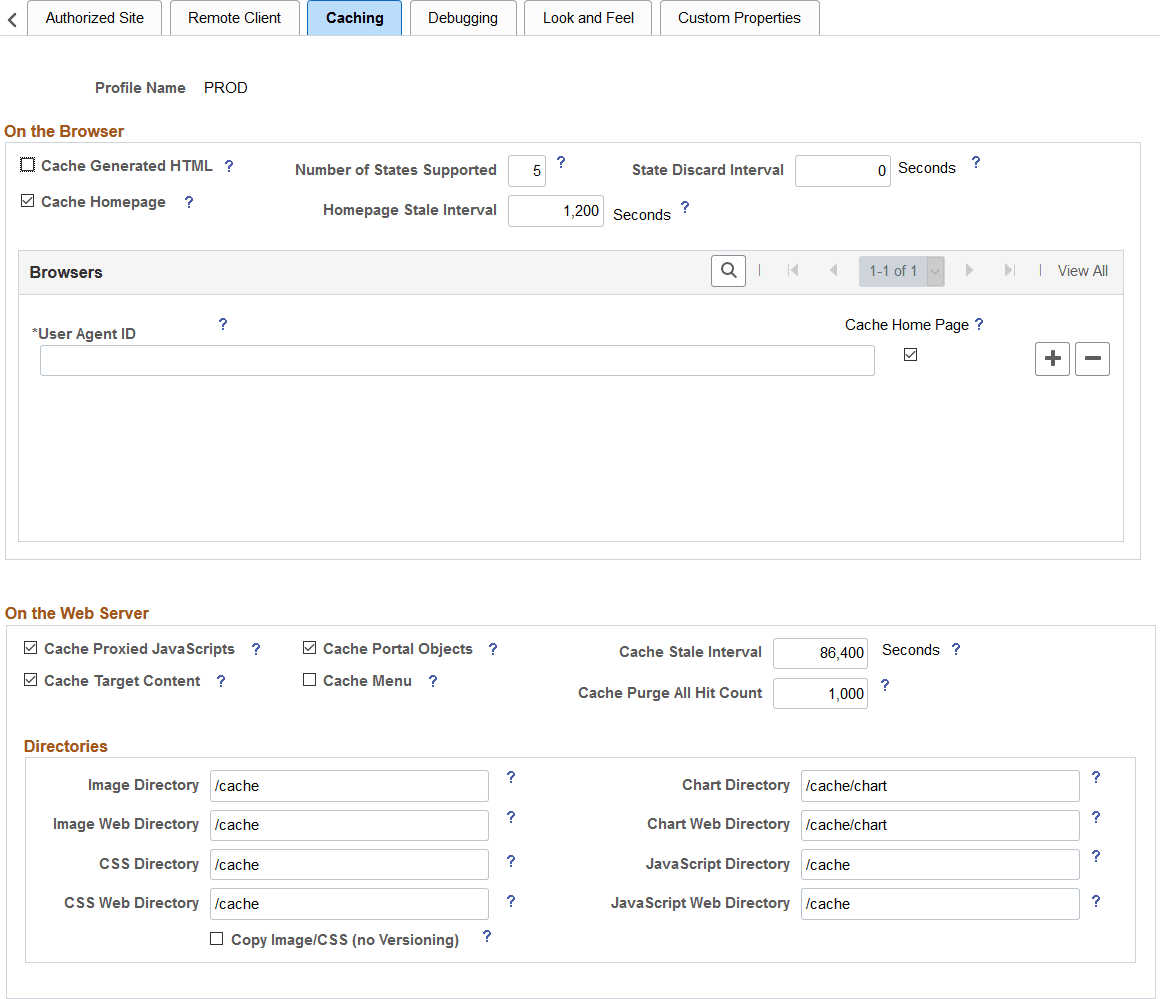
On the Browser
| Field or Control | Description |
|---|---|
|
Cache Generated HTML |
Select to indicate that PeopleSoft application pages should be cached by the user's browser. For security reasons, deselect this check box in kiosk environments. Note: This setting does not affect caching of classic homepages and pagelets, which is determined by the Cache Homepage field. This check box is selected by default. Note: When you use menu navigation, the back button works even if this option is deselected because menu navigation does not generate the No-Cache directive. |
|
Number of States Supported |
Specify how many browser states the portal should support when the user accesses PeopleSoft application pages. Note: If you have applications that make numerous server requests, you may want to increase this value. This increases the virtual machine's memory requirements, so be prepared to allocate more memory accordingly. The default value is 5 states. |
|
State Discard Interval |
When a user signs out (either explicitly or because of a session timeout), the system normally clears all application states for the user's session. This property enables clearing of application states for individual windows instead. If your users have a long session time-out and many browser windows open, use this property to force the portal web server to release cached states for windows that a user has closed. Every time a user clicks the New Window link on a portal page, or when transfer PeopleCode opens a new window, the portal web server creates and maintains a state cache for that new browser window. Even if the user closes the window, the web server continues to maintain the cache during the interval that is specified by the Inactivity Logout field on the Web Profile Configuration - Security page. If users open many application browser windows simultaneously and then close most of them while still continuing to work actively in one or two remaining windows, you may be using more web server memory than is required and unnecessarily degrading its performance. You can improve performance by using this property to specify an independent time-out interval that applies to individual browser windows, which forces the portal web server to release cached states for windows that users have closed. When a user clicks the New Window link, and each time user activity in a window produces a request for data from the web server, the portal applies a current timestamp to its corresponding state cache. The next time the user clicks the New Window link, the portal examines the timestamp for each state cache. For any timestamp that's older than the status block time-out, the portal web server discards the associated window state cache on the assumption that the window must have been closed. Note: The portal performs this comparison only when the user clicks the New Window link. Enter a value that represents the number of seconds for the inactivity time-out per window. This time-out should be as short as possible, but still long enough to avoid discarding the state cache of any window that's still in use. A good starting value is the same value as the inactivity logout. If you don't specify this property, or if you enter 0,status blocks are tracked per session—all status blocks are deleted when the user signs out or when the inactivity logout interval expires. Note: A potential inconvenience with this property is that users might be inactive in a window without closing it, then return to it after the interval that you specify here has expired. In that case, they're presented with the application's search page. |
|
Cache Homepage |
Important: This setting applies to classic homepages and pagelets only, and not to fluid homepages. Select to apply homepage caching on the browser. When this check box is selected, the Homepage Stale Interval field and the Browsers grid become available. This check box is selected by default. When the Cache Homepage check box is selected, the following occurs:
When this check box is deselected, any PORTAL_NOBROWSERCACHE content reference attributes are ignored. |
|
Homepage Stale Interval |
Important: This setting applies to classic homepages only, and not to fluid homepages. Enter the number of seconds that the browser should wait before requesting an updated homepage from the portal server. The default value is 1200 seconds (20 minutes). |
See Implementing Homepage Caching, Implementing PeopleSoft Page Caching.
Browsers
Use this grid to identify the browsers that you don't want to cache the homepage. For each browser make, model, and version, supply the identifying user agent ID and deselect the Cache Home Page check box. To re-enable caching for a listed browser, select the browser's Cache Home Page check box.
Any browser that is not listed caches the homepage if the global Cache Homepage check box is selected.
Note:
If the global Cache Homepage check box is deselected, you can't enable homepage caching for individual browsers.
On the Web Server
| Field or Control | Description |
|---|---|
|
Cache Proxied JavaScripts |
Select to enable caching of proxied JavaScript objects on the portal server. This check box is selected by default. |
|
Cache Portal Objects |
Select to enable metadata caching. This check box is selected by default. |
|
Cache Stale Interval |
Enter the number of seconds that should pass before the portal refreshes the metadata cache. The default value of this property is 86400 seconds (24 hours). Note: This property competes for effect with Cache Purge All Hit Count. |
|
Cache Target Content |
Select to cache all target content HTML that has an appropriately defined Cache element. This check box is selected by default. |
|
Cache Menu |
Important: This setting applies to the classic drop-down menu, and not to the Navigator menu in the NavBar. Select to enable web server-based navigation caching. For all profiles, including those that are newly created, the default value is False. |
|
Cache Purge All Hit Count |
Specify the maximum total number of HTTP requests that the web server should receive for metadata objects before it purges the metadata cache, forcing the portal to refresh the cache. The default value is 1000 requests. Set this property to 0 to disable the feature. Note: This property competes for effect with the cache stale interval. |
See Implementing Target Content Caching, Implementing Metadata Caching, Implementing Proxied JavaScript Caching, Administering Web Server-Based Navigation Caching.
Directories
| Field or Control | Description |
|---|---|
|
Image Directory |
Enter the image file cache directory. The default value is /cache. |
|
Image Web Directory |
Enter the image file web cache directory. The default value is /cache. |
|
CSS Directory (cascading style sheet directory) |
Enter the cascading style sheet (CSS) cache directory. The default value is /cache. |
|
CSS Web Directory |
Enter the CSS web cache directory. The default value of this field is /cache. |
|
Copy Image/CSS (No Versioning) |
Select to have the system write a copy of the image and CSS cache with no version number. This check box is provided in case an external reference to the PeopleSoft stylesheet is needed. Warning! Enable this setting with care. In a production environment, it can double the number of files that are stored in the site's cache directory. Unless a clear need exists to use a custom solution to access style sheets and the like, this check box should be disabled. This check box is deselected by default. |
|
Chart Directory |
Enter the directory of the cache for the chart image file. The default value is /cache/chart. |
|
Chart Web Directory |
Enter the directory of the web cache for the chart image file. The default value is /cache/chart. |
|
JavaScript Directory |
Enter the Java Script cache directory. The default value is /cache. |
|
JavaScript Web Directory |
Enter the JavaScript web cache directory. The default value is /cache. |
Recent Search Results
Important:
Persistent search, the drop-down menu, and other forms of classic navigation are no longer supported. The default navigational interface for PeopleSoft applications in the current release is based on the fluid banner, which can be used for both classic and fluid applications.
| Field or Control | Description |
|---|---|
|
Enable Caching |
Select to temporarily store recent (persistent) search results on the browser and web server. Deselecting this setting suppresses all search persistence property settings that you configure in Application Designer definitions. The default value is unchecked. |
See Application Designer Developer’s Guide: Setting Record Field Use Properties.