Configuring General Portal Properties
Access the Web Profile Configuration page. (Select ).
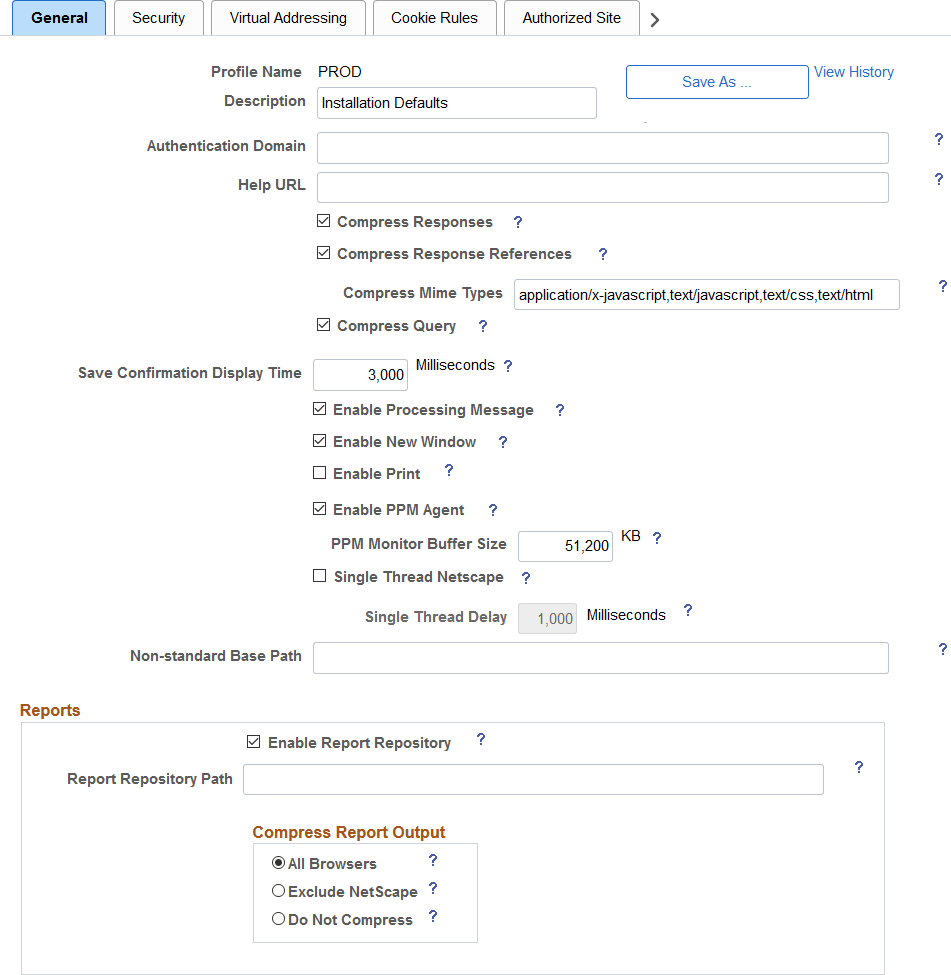
This example illustrates the fields and controls on the Web Profile Configuration - General page. You can find definitions for the fields and controls later on this page.
| Field or Control | Description |
|---|---|
|
Save As |
Click to save a copy of the current web profile under a new name. On the Save Web Profile As page, enter a new profile name and click OK. Use this button to modify one of the profiles that is delivered with your PeopleSoft application. |
|
View History |
Click to access the Web Profile History search page in a new browser window. |
|
Authentication Domain |
Enter the name of the extended authentication domain in which the portal is running, starting with a leading period. This value overrides, but must be compatible with, the base-level authentication domain. For example, if you entered .example.com during the PeopleSoft Pure Internet Architecture setup, only values such as .us.example.com and .fr.example.com are valid. An authentication domain is required for a variety of portal functions. For example, if a cookie is shared on web servers srv1.example.com and srv2.example.com, you must specify an authentication domain of .example.com. This field requires a value if you specified a default addressing server name on the Web Profile Configuration - Virtual Addressing page. You must qualify that server name with this domain name. The default value of the authentication domain is the one that you specified during the PeopleSoft Pure Internet Architecture setup. That value is stored as the web server session cookie domain and kept in an internal web server file. For Oracle WebLogic, that file is weblogic.xml. The preferred method for changing that value is to rerun the website setup. Note: The value that you enter in this field is automatically converted to lowercase. Note: You must enter your authentication domain to enable all functionality associated with PeopleSoft Related Content Framework. |
|
Help URL |
Specify the URL that points to an installation of PeopleSoft online help. When users click the Help link, the appropriate context-sensitive PeopleSoft documentation is displayed. To remove the Help link from all application pages, omit this value. You can point to either an installation on Oracle’s hosted documentation website or to a local installation of PeopleSoft online help:
Note: This setting applies only to the Help link displayed on PeopleSoft pages accessed through a browser. Use the PeopleTools Options page to configure F1 help for Application Designer and other Windows client applications. See System and Server Administration: PeopleTools Options for more information. |
|
Compress Responses |
Select to enable compression in the communication between the web server and the browser. Gzip and Compress protocols are supported. This check box is selected by default. |
|
Compress Response References |
Select to enable compression of cache files that are delivered from the web server to the user's browser. Only cache files with the Multipurpose Internet Mail Extensions (MIME) types that are specified in the Compress MIME Types text box are compressed. Gzip and compress protocols are supported. This check box is deselected by default. |
|
Compress MIME Types |
Specify the MIME types of the cache files to be compressed as a comma-separated string. This field is available only if you selected the Compress Response References check box. The default value is application/x-javascript,text/javascript,text/css,text/html. |
|
Compress Query |
This property applies to browser requests in which the content type section of the URL is /q/, indicating a query. Select to enable compression of query responses to the browser. This check box is selected by default. |
|
Save Confirmation Display Time |
Specify in milliseconds how long the save confirmation image should appear for the user if the save confirm personalization option is enabled. The default value is 3000 milliseconds (3 seconds). |
|
Enable Processing Message |
Select to enable processing notification while the system processes a request. This check box is selected by default. |
|
Enable New Window |
Enables or disables the New Window link in the pagebar site wide:
This check box is selected by default. |
|
Enable Print |
Enables or disables the Print link in the pagebar site wide:
This check box is deselected by default. |
|
Enable PPM Agent (enable PeopleSoft Performance Monitor agent) |
Select to activate the PeopleSoft Performance Monitor agent for this portal. The performance monitoring system has agents and monitors. An agent captures units of data (PMUs), and a monitor views and analyzes agent flows. This check box controls whether the agent is active on sites that use this profile. This check box is selected by default. |
|
PPM Monitor Buffer Size (PeopleSoft Performance Monitor buffer size) |
Specify the maximum size, in kilobytes (KB), of the Monitor Server buffer. Data is discarded once this limit is reached. This field is available only when Enable PPM Agent is selected. The default value is 51200 KB (50 megabytes). |
|
Single Thread Netscape |
Select to indicate that requests from a Netscape browser should be single-threaded to prevent crashes. Older versions of Netscape browsers had problems with multithreading responses and would crash. Select this check box if your users are using older versions of Netscape browsers and are experiencing browser crashes. This check box is deselected by default. When selected, the Single Thread Delay option appears. |
|
Single Thread Delay |
Specify a delay, in milliseconds, for single-threaded Netscape requests. This field is available only when Single Thread Netscape is selected. The default value is 1000 milliseconds (one second). |
|
Non-standard Base Path |
In the rare circumstance that you receive an error message that the base physical path has not been set, you must enter the location of the directory that contains the signon.html file for your application. This field is blank by default. |
See Viewing Web Profile History, Understanding the Authentication Domain, Configuring Caching, Configuring Virtual Addressing, Performance Monitor: Working with Performance Monitor Web Profile Properties, Application Designer Developer’s Guide: Setting Internet Properties, and Applications User’s Guide: Using the Pagebar.
See PeopleSoft 9.2 Application Installation for your database platform.
Reports
| Field or Control | Description |
|---|---|
|
Enable Report Repository |
Select to enable users to view the report repository. When this check box is deselected, no report files can be viewed by users. This check box is selected by default. |
|
Report Repository Path |
(Optional) Specify a drive and directory path to indicate where the site that is served by this web profile should look for generated reports. This value overrides the location that is specified during the PeopleSoft Pure Internet Architecture setup; you can leave this field blank to use the original value. Note: Changing the report repository path prevents you from viewing existing reports unless the old subdirectory structure is moved to the new location. Be careful when editing this field. Note: (For Microsoft Windows only) If the report repository resides on a different machine from the web server, specify the report repository path in UNC format instead of mapped drive format. For example, if the report repository is on MachineX in folderY, the Report Repository Path should be specified as: //MachineX/folderY/psreports or \\\\MachineX\\folderY\\psreports If MachineX/folderY is mapped to the Y: drive, do not specify the Report Repository Path as Y:\psreports. |
|
Compress Report Output |
Specify how reports should be compressed: All Browsers: Reports are always compressed. This is the default value. Exclude Netscape: Reports are compressed, except for users who are using Netscape Navigator. Do Not Compress: Reports are never compressed. |