Selecting the WorkCenter Starting Page
To select the WorkCenter starting page:
-
Select
-
Click the Create new WorkCenter Page link.
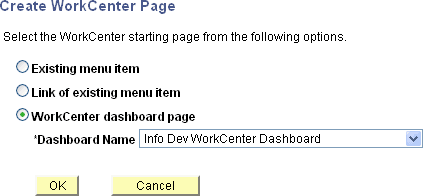
The Create WorkCenter Page page is displayed:
This example illustrates the fields and controls on the Create WorkCenter Page page:
-
On the Create WorkCenter Page page, select the type of starting page:
-
Existing menu item – Select this option to convert an existing content reference into a WorkCenter.
Important:
When users navigate to the menu item for this content reference, they will now open the WorkCenter once it is converted in this manner.
-
Link of existing menu item – Select this option to create a link to an existing content reference. The link will be used as the WorkCenter starting page.
Note:
When users navigate to the menu item for this content reference, they will continue to open the content, and not the WorkCenter.
-
WorkCenter dashboard page – Select this option to use an existing WorkCenter dashboard page as the WorkCenter’s starting page.
Note:
When no WorkCenter dashboards exist in the system, this option is not displayed. In addition, the Dashboard Name field is displayed only after you select this option.
After selecting the WorkCenter dashboard page, continue by configuring the WorkCenter. See Configuring WorkCenter Pages
-
-
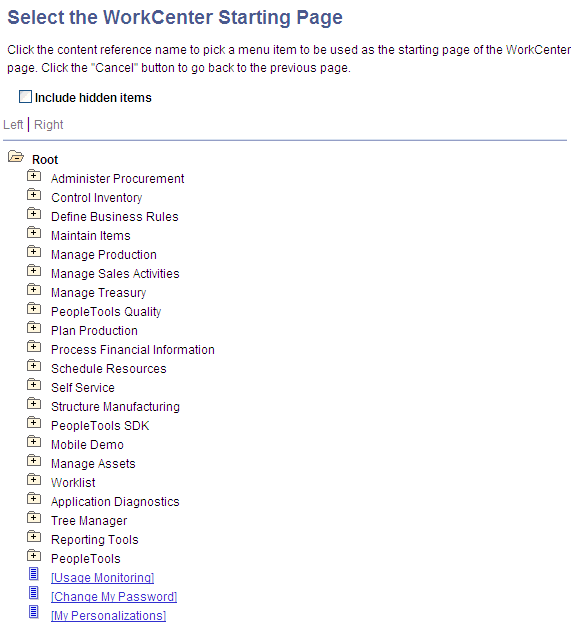
If you selected either Existing menu item or Link of existing menu item, continue by selecting the content reference that represents that menu item:
This example illustrates the fields and controls on the Select the WorkCenter Starting Page page:
-
Continue by:
-
If you selected Existing menu item, then configure the WorkCenter. See Configuring WorkCenter Pages.
-
If you selected Link of existing menu item, then you must administer the starting page properties first. See Administering WorkCenter Starting Pages. Then, configure the WorkCenter. See Configuring WorkCenter Pages.
-