Defining Footer Images
Access the Specify Image page. (Select .)
This example illustrates the fields and controls on the Define Footers - Specify Image page. You can find definitions for the fields and controls later on this page.
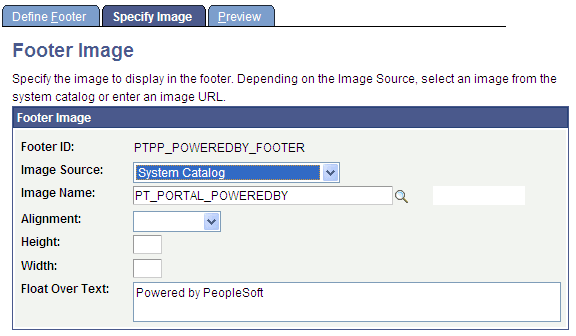
Footer Image
| Field or Control | Description |
|---|---|
|
Image Source |
Select the image source. Options are: System Catalog: Select to specify an image from the PeopleTools system image catalog. External Source: Select to specify an image from a source external to the PeopleTools system image catalog. |
|
Image Name |
If you select System Catalog as the image source, click the Search button to access a list of existing images. |
|
Image URL |
If you select External Source as the image source, enter a URL for the desired image file. All image types are supported. Ensure that the location of the image provides reliable access. |
|
Alignment |
Select the alignment of the image. Options are: Left: Select to align the image with the left margin of the pagelet. Right: Select to align the image with the right margin of the pagelet. |
|
Height |
Enter the image height in pixels if the image needs to be resized. If you enter an image height, the system adjusts the image width to fit the image height. |
|
Width |
Enter the image width in pixels if the image needs to be resized. If you enter an image width, the system adjusts the image height to fit the image width. |
|
Float Over Text |
Enter text that you want to appear when the user moves the cursor over the image. |