Defining Navigation Collection System Options
Access the System Options page. (Select .)
This example illustrates the fields and controls on the System Options page. You can find definitions for the fields and controls later on this page.
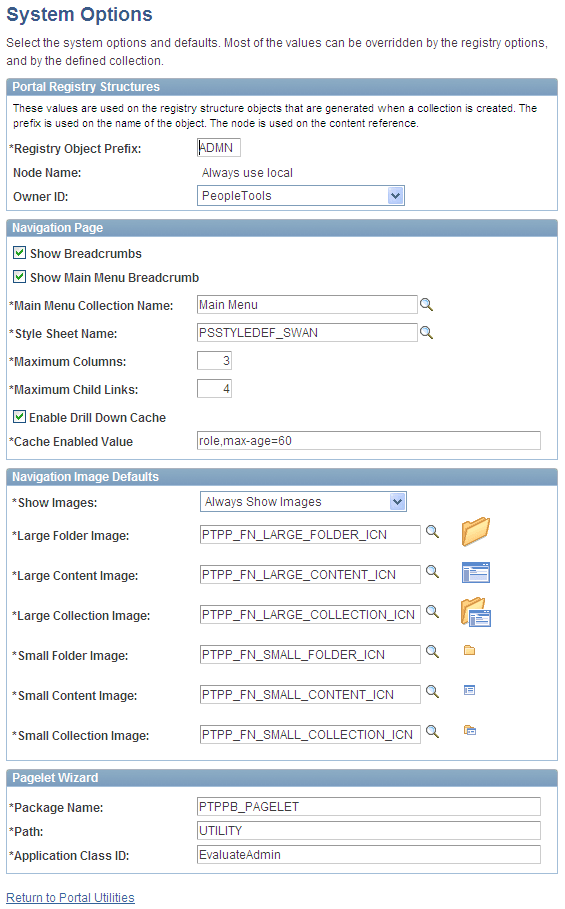
PeopleTools delivers a set of system-level defaults. You can change the default values on this page or override the defaults at successive levels in the default hierarchy. However, you cannot delete the default values because system-level default values are required.
See Understanding Navigation Collection Options.
Portal Registry Structures
| Field or Control | Description |
|---|---|
|
Registry Object Prefix |
Enter the value that the system prefixes to registry structure object names (content and folder references) that are created when you publish navigation collections, template pagelets, and feed definitions. For example, the object
name of a published navigation pagelet has this format: |
|
Node Name |
You should not change the default value delivered with your system. This default value corresponds to the content provider node for your database. For example, the following databases are delivered with the listed default node names: PeopleSoft FSCM: ERP PeopleSoft CRM: CRM PeopleSoft HCM: HRMS PeopleSoft Interaction Hub: EMPL |
|
Owner ID |
Use this value to easily identify navigation collections created by your organization when searching for navigation collections through PeopleSoft Application Designer or SQL queries of the portal registry tables. Do not select a delivered PeopleSoft owner ID. You can define unique owner IDs for your organization by entering field translate values for the OBJECTOWNERID field using PeopleSoft Application Designer. |
Navigation Page
| Field or Control | Description |
|---|---|
|
Enable Drill Down Cache |
Select to enable caching for navigation pages that you access by selecting a folder on a navigation page. You must also enter a value in the Cache Enabled Value field on this page. |
|
Cache Enabled Value |
Enter the value to assign to the PSCACHECONTROL attribute in the registry structure definition when enabling caching for applicable navigation page access methods. For example, you can enter a value such as role,max-age=30. |
Navigation Image Defaults
| Field or Control | Description |
|---|---|
|
Show Images |
Select one of these values: Always Show Images: Select if you always want images to appear on navigation pages and pagelets. Never Show Images: Select if you never want images to appear on navigation pages and pagelets. Only Show Defined Images: Select if you want only specifically defined images to appear on navigation pages and pagelets. If you select this option, only images defined as part of the navigation collection or defined on the source reference are displayed on the navigation collection's publications. System-level and registry-level default images are not displayed. |
|
Large Folder Image |
Select the default image that you want to display for top-level folders on a navigation page or pagelet. |
|
Large Content Image |
Select the default image that you want to display for top-level content references on a navigation page or pagelet. |
|
Large Collection Image |
Select the default image that you want to display for top-level navigation collection references on a navigation page or pagelet. |
|
Small Folder Image |
Select the default image that you want to display for a folder within a folder on a Navigation page or pagelet. |
|
Small Content Image |
Select the default image that you want to display for a content reference within a folder on a Navigation page or pagelet. |
|
Small Collection Image |
Select the default image that you want to display for a navigation collection within a folder on a Navigation page or pagelet. |
Pagelet Wizard
| Field or Control | Description |
|---|---|
|
Package Name |
Specify the application package name to use for the display format. |
|
Path |
Enter the names—delimited by colons—of each subpackage in the hierarchy that drills down to the class that contains the method. |
|
Application Class ID |
Enter the application class ID to use for the display format. The class must exist in the application package name that you specify. |