Deleting and Copying Pagelet Wizard Pagelets
This section discusses how to:
-
Delete pagelets.
-
Copy pagelets.
Deleting Pagelets
Access the Delete Pagelets page. (Select .)
This example illustrates the fields and controls on the Delete Pagelets page. You can find definitions for the fields and controls later on this page.
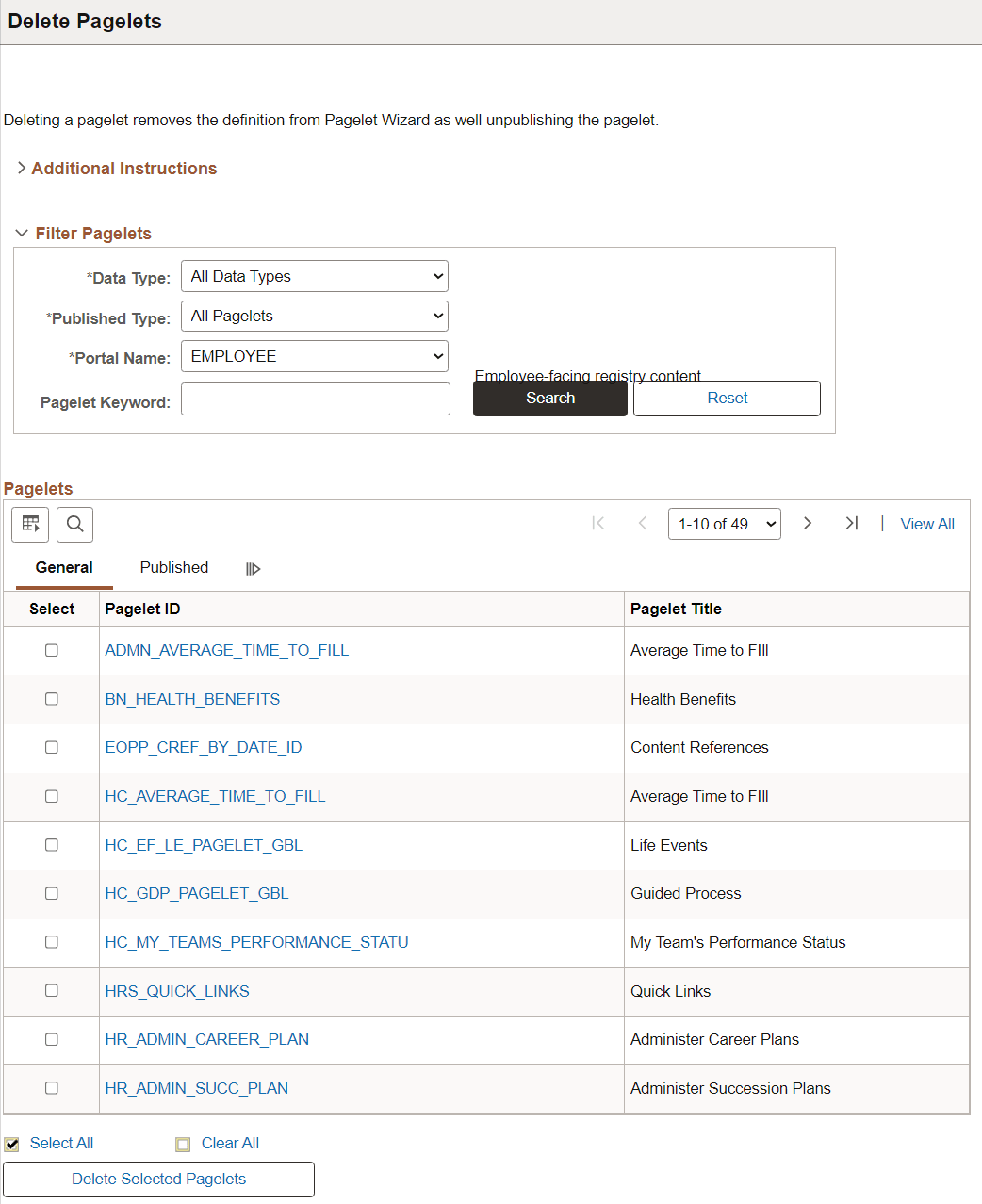
Deleting a pagelet removes the pagelet definition from Pagelet Wizard. In addition, associated metadata and registry entries are deleted from the database and portal registry.
| Field or Control | Description |
|---|---|
|
Select |
Select the pagelets to delete. |
|
Delete Selected Pagelets |
Click to delete selected pagelets. The system prompts you to confirm the deletion. |
The Published tab shows information about how the pagelet has been published.
| Field or Control | Description |
|---|---|
|
Homepage |
If selected, indicates that the pagelet has been published as a homepage page. |
|
Template |
If selected, indicates that the pagelet has been published as a template pagelet. |
|
WSRP |
If selected, indicates that the pagelet has been published as a WSRP portlet. |
|
Embeddable |
If selected, indicates that the pagelet has been published as an embeddable pagelet. |
Copying Pagelets
Access the Copy Pagelets page. (Select .)
This example illustrates the fields and controls on the Copy Pagelets page. You can find definitions for the fields and controls later on this page.
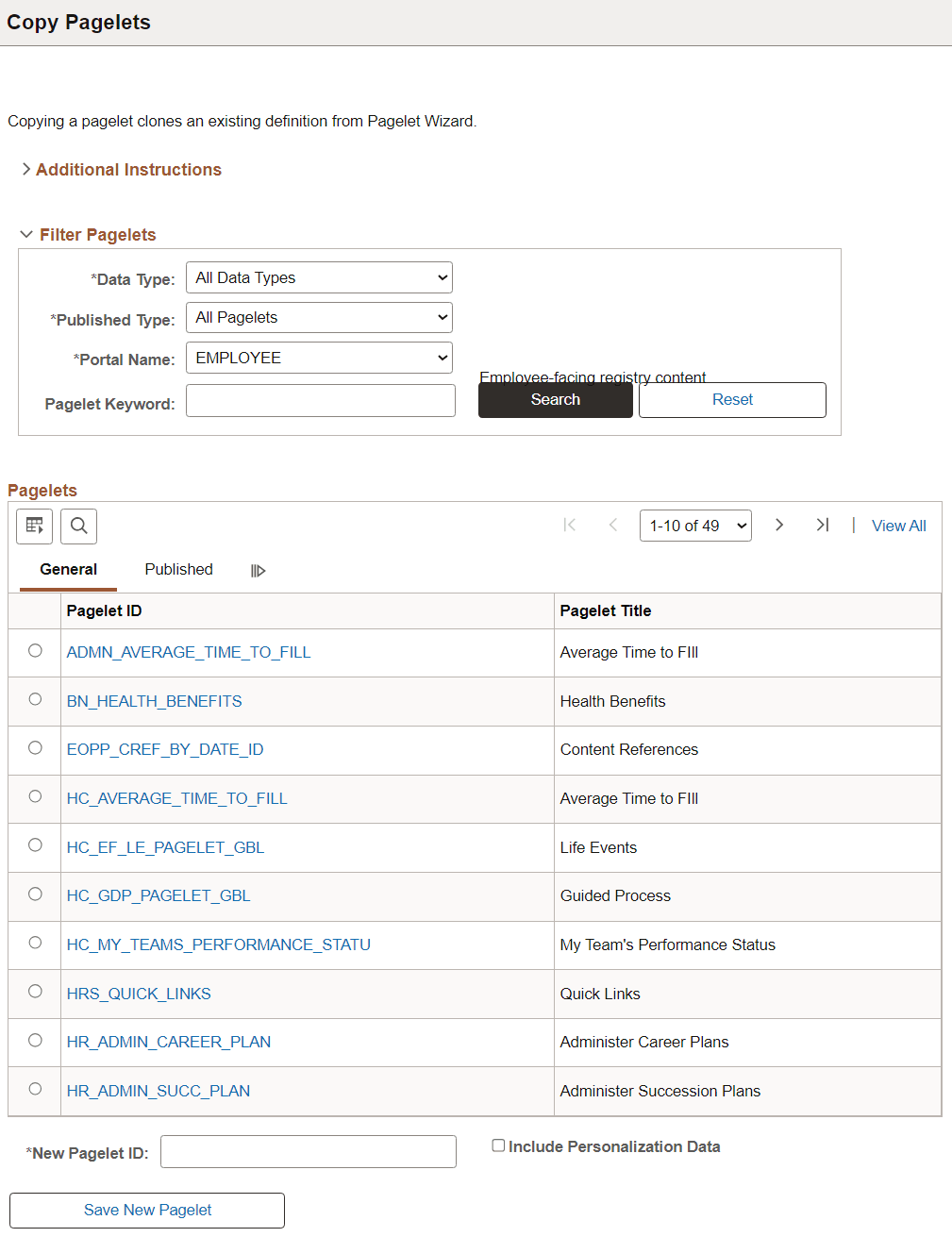
The pagelet copy inherits all aspects of the original pagelet, with the exception of registration information.
| Field or Control | Description |
|---|---|
|
Select |
Select the pagelet to copy. |
|
New Pagelet ID |
Enter a unique pagelet ID for the new pagelet that will be copied from the selected existing pagelet. Note: Pagelet IDs can contain only the characters A–Z, a–z, and _. All other characters put into a pagelet ID will be removed by the system. If all characters are removed from the user-entered pagelet ID, then the Registry Object Prefix will be used instead. If, after removing illegal characters from the pagelet ID, the name is found to match an existing pagelet ID, then Pagelet Wizard will append numbers to the end of the pagelet ID to make the new pagelet ID unique. |
|
Include Personalization Data |
Select to copy any end-user personalizations defined for the existing pagelet along with the new pagelet. |
|
Save New Pagelet |
Click to create the cloned pagelet with the new pagelet ID. Once you create the copied pagelet, you must publish it before it can be used as a homepage pagelet or a template pagelet. You can access the new pagelet in Pagelet Wizard and publish the pagelet during Step 6 on the Specify Publishing Options page. |
The Published tab shows information about how the pagelet has been published.
| Field or Control | Description |
|---|---|
|
Homepage |
If selected, indicates that the pagelet has been published as a homepage page. |
|
Template |
If selected, indicates that the pagelet has been published as a template pagelet. |
|
WSRP |
If selected, indicates that the pagelet has been published as a WSRP portlet. |
|
Embeddable |
If selected, indicates that the pagelet has been published as an embeddable pagelet. |