Importing a Section in Homepages and Dashboards
Importing a section means copying a template's section definition into a fluid homepage or dashboard. You can either manually create a section and assign tiles or you can import a pre-defined section, which is stored in the Fluid Section Templates folder.
You should note that the import process creates a section with tiles within your homepage or dashboard based on the section template at the time of import. If changes are made to the template, you should re-import that section in each homepage where you had imported the section template, that is, there are no automatic updates. Once imported, tiles are not re-imported so that the settings specific to that homepage are maintained. However, new tiles are added.
Additionally, if you have entered any configuration-data entries associated with the loader class in the section template, these entries are also imported and applied to the imported section. For guidelines regarding configuration-data entries when a section template is imported or re-imported, see the Importing Section Template and Configuration-Data Behavior section later in this topic.
Similarly, the security settings specified for a section template (using the Section Security area) are applied to the imported section. For guidelines regarding security behavior when a section template is imported or re-imported, see the Importing Section Template and Security Behavior section later in this topic.
For detailed information on the security that can be applied to a section, refer to the Creating a Section Template topic.
If you change the section ID after importing the section into a homepage or dashboard, you can no longer re-import the section template because with the change in section ID it is an independent section.
Note:
Prior to importing a section, you should ensure that section templates are available in the Fluid Section Templates folder. For more information, see Creating a Section Template.
Complete the following steps to import a section:
-
On the Section Assignments page, click the Import Section button.
-
The Find Section Template page appears, which enables you to search for section templates that are stored in the Fluid Section Template folder.
Use the section template label, description, or wildcards such as % (percent) and _ (underscore) to search. Section template security is applied to display the search results based on the user's permissions. Section template security (specified on the Security page tab) is not applied to a section after it has been imported. Sections are driven by the security applied to a tile definition. If you do not have permissions to a tile, that tile is not displayed in the section.
The search results display the label of the search template, indicates whether the section exists on a homepage, the number of tiles it contains, and the description of the search template.
-
In the Section Template Results grid, click the section template you want to import.
-
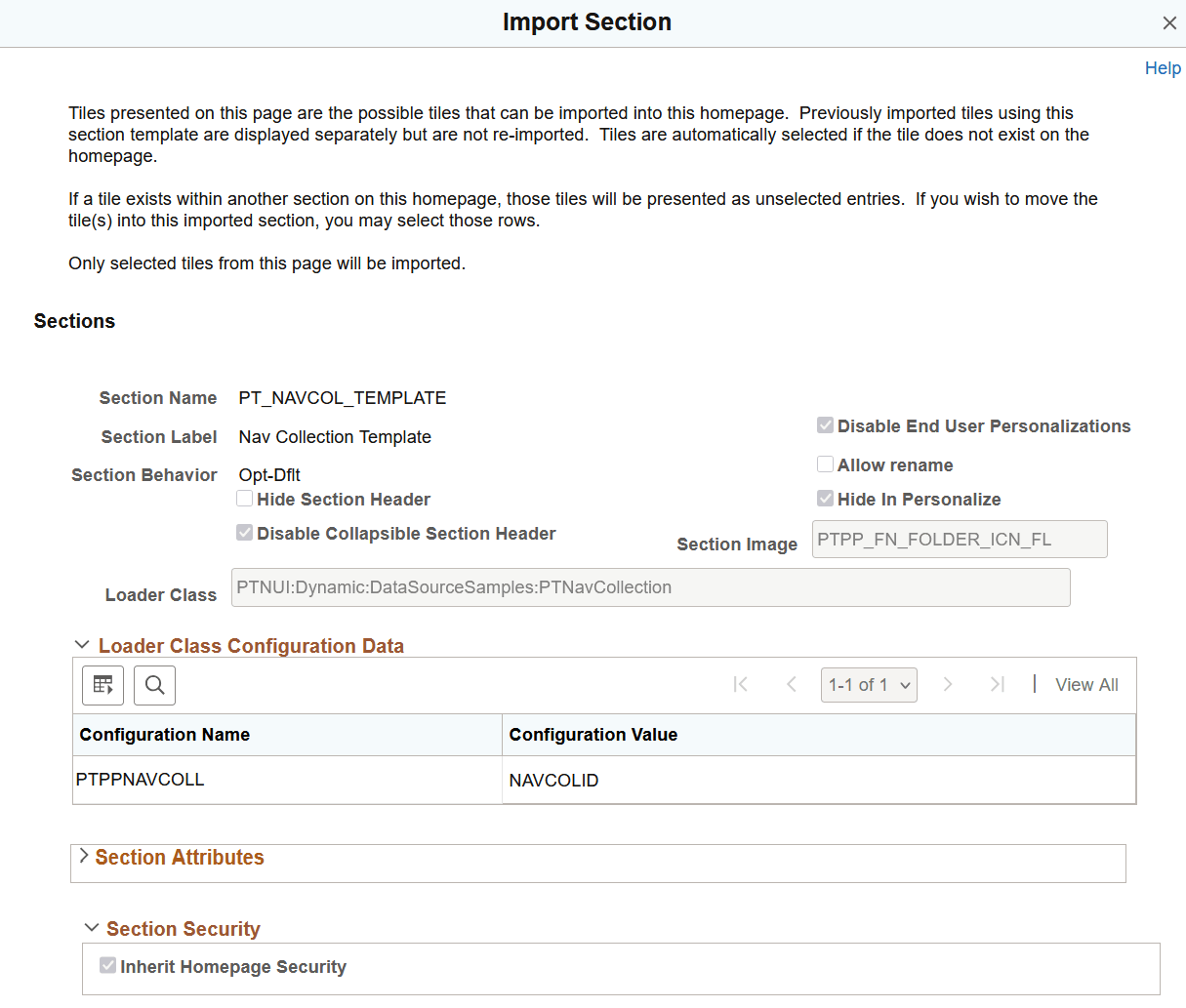
The Import Section page lists the tiles that the section contains and includes tile information, such as tile behavior type and order number. The page also lists the section loader class information, the configuration data associated with it, the content reference attributes, and the section security applied to the imported section. However, you cannot edit any of the information displayed here.
Note the following regarding tiles:
-
The system automatically selects the tiles that are not present on the target homepage or dashboard.
-
If the section template contains tiles that are already present in sections on the target homepage or dashboard, the tiles are not automatically selected for import. If you select tiles that are already part of a section, then the tiles are moved to the imported section.
-
-
Select the tiles that you require and click the Import button. Only the tiles that are selected and have a behavior type other than Optional are imported.
If the homepage contains sections, the imported section is inserted after the existing sections. However, you can modify the section order number. When you import a section, the section order number is not imported.
In the imported section, you may change the tile behavior type and modify the order.
-
Save the homepage or dashboard.
You can select the same section template to import tiles that you may not have imported. In this case, the Import Section page indicates the tiles that were previously imported in the Previously Imported Tiles into Section group box, and you cannot import them again. Expand the Previously Imported Tiles into Section group box to see the list of previously imported tiles.
Importing Section Template and Configuration-Data Behavior
The following configuration-data guidelines are applied when you import or re-import a section template in your homepage or dashboard.
- On an initial import of a section template, the system copies all configuration data from the section template to the imported section. There is no difference between the configuration data on the section template and the imported section.
- Subsequently, if you re-import the section template into the homepage, the following rules apply:
- If a configuration-data name already exists in the imported section, the existing configuration-data value is preserved. Values from the section template do not replace existing values. This behavior preserves administrator changes made after the initial import.
- If a configuration-data name exists in the section template, but does not exist in the imported section, the configuration-data name/value pair is added during re-import. If an administrator previously deleted a configuration entry from the homepage section, the entry is added again during re-import if it still exists in the section template.
- Existing configuration-data entries in the imported section are not removed, even if the configuration-data name does not exist in the section template being re-imported.
- The Import Section page displays the configuration data as it will appear after the import operation, not only the values currently defined in the section template.
Importing Section Template and Security Behavior
The following section-security guidelines are applied when you import or re-import a section template in your homepage or dashboard.
- On an initial import of a section template, the section security specified for a section template is imported into a homepage. There is no difference between the security on the section template and the imported section.
- Subsequently, if you re-import the section template into the homepage, the following rules apply:
- If the section template uses Inherit Homepage Security setting, the imported-section security is set to Inherit Homepage Security, overriding all existing security settings in the imported section.
- If security settings exist in the section template, but do not exist in the imported section, those settings are added during import including permission list or role entries and Author Access setting.
- If security settings are the same in both the section template and the imported section, no changes occur during import.
- Existing security settings in the imported section are not removed, even if those settings do not exist in the section template. This behavior also applies when Author Access is not selected in the section template.
- The Import Section page displays the final security settings as they will appear after the import, not just the values defined in the section template.
This example illustrates the configuration data and security settings of the imported section on the Import Section page.