Creating a Section Template
A section template enables you to copy a predefined section definition into a fluid homepage or dashboard. A section template defines a single section definition and is stored in the Fluid Section Templates folder (in the Fluid Structure Content folder).
You use the Content Ref Administration page (PORTAL_CREF_ADM) to create and maintain section template definitions.
Navigation:
-
Navigate to .
-
Select .
-
Click the Add Content Reference link.
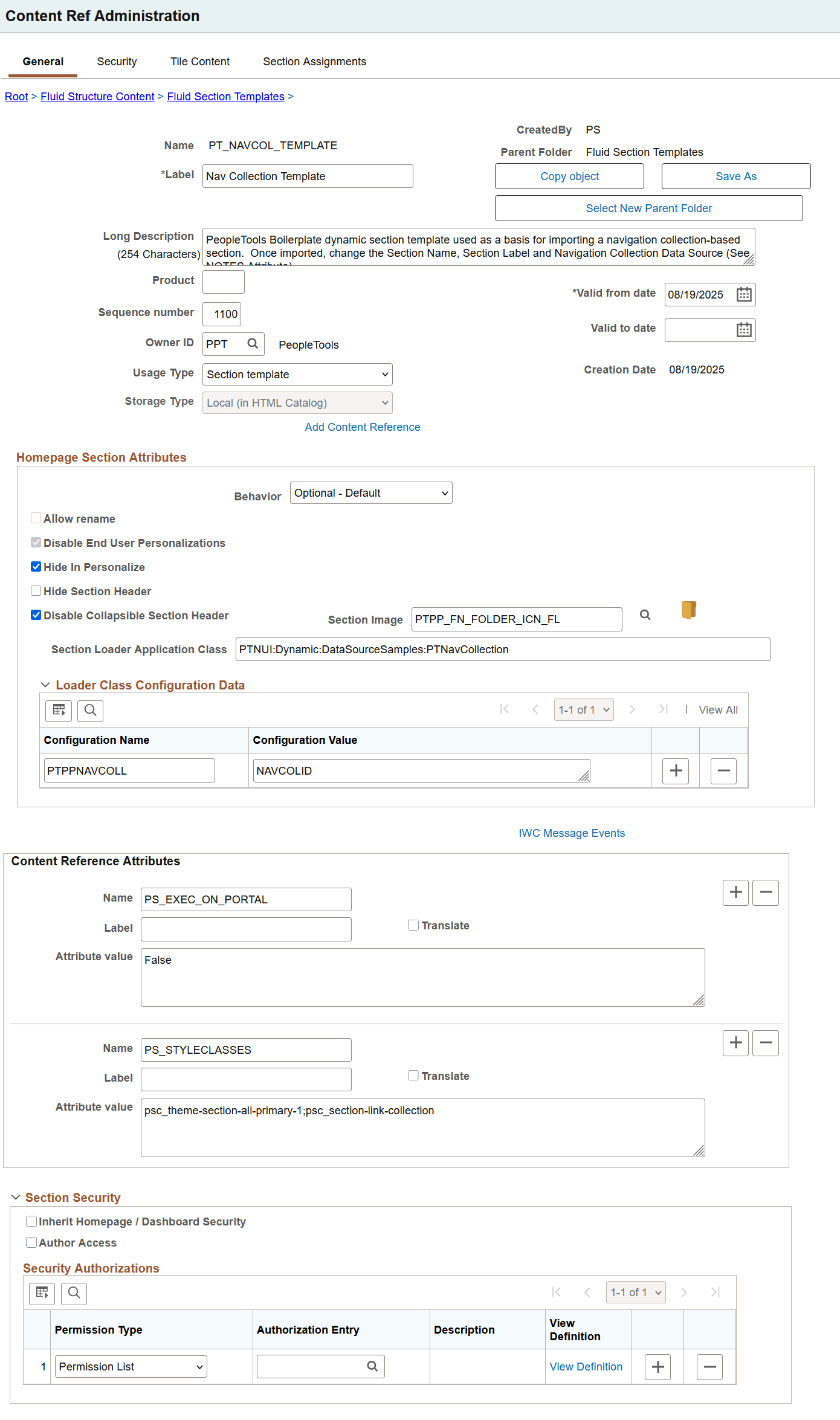
This example illustrates the fields and controls on the Content Ref Administration page for a section template definition.
-
On the General page, enter the necessary information.
In the Usage Type field, select Section template.
In the Homepage Section Attributes area, the following options are available:
-
Behavior: You must select a behavior type other than Optional.
-
Allow Rename: This option is unavailable for entry.
-
Disable End User Personalizations: This option is selected automatically.
-
Hide in Personalize: Select this option to prevent this section from appearing on the homepage personalization page.
-
Hide Section Header: Select to not display the text in the section header including the image, if specified.
-
Disable Collapsible Section Header: When you select this option, the section header cannot be collapsed, that is, the section header remains expanded. To display the section image correctly, this option should be set.
-
Section Image: Select an image to display in the section header. The image should be displayed beside the section title.
-
Section Loader Application Class: Enter the full local path of the application class used to load tiles dynamically in the associated section. It is an extension to the base class PTNUI:Dynamic:DynamicLoader. For more information, see Designing Sections and Tiles and PeopleCode API Reference: DynamicLoader Class Methods.
-
Loader Class Configuration Data: Define configuration data for homepage and dashboard sections using structured configuration name and value pairs.
For more information on the use of configuration data, see Loading Configuration Data in the DynamicLoader Application Class
For information on the behavior of configuration data when the section template is imported, see Importing a Section in Homepages and Dashboards.
-
-
In the Content Reference Attributes area, specify attributes that are applied at the section level. For a listing of attributes for section level, see Applying Styles from Delivered Style Sheets and Styling Homepages and Dashboards Using CSS Variables.
-
In the Section Security area, specify security access for this section. This is the security access that will be copied over as security access settings for this section when this section is imported to a homepage or dashboard. However, the display of tiles within a section is controlled by permissions specified for tiles.
-
Inherit Homepage Security: Select to specify that a section inherits the same security access as the homepage/dashboard. This is the default selection.
When you select this option, the Author Access option and Security Authorizations grid are hidden.
-
Author Access: Select to indicate that the creator of the homepage definition can access the sections of the homepage, regardless of how other permissions are set.
-
Permission Type: Select Permission List, which enables access for users based on permission list membership, and you then specify the permission lists that should have access to this section or select Roles, which enables access for users based on role membership, and you then specify the roles that should have access to this section.
-
Authorization Entry: Select the permission list or role that should have access to this section.
-
View Definition: Select to access the security administration component for the permission list or role specified on the corresponding row.
For information on the behavior of section security when the section template is imported, see Importing a Section in Homepages and Dashboards.
-
-
On the Security page tab, set the access permission.
Note:
Access permission is used to allow a section template to appear on the import list, and it determines who can search for section templates and import them. Access permission does not set up the permission of the section once imported.
-
On the Tile Content page, select the tiles that you want for this section. You must select a behavior type other than Optional.
See Selecting the Pagelets or Tiles That Appear on Homepages.
If you're creating a section to dynamically load tiles through an application class, you do not have to select tiles on this page. See Creating Tiles for more information.
-
On the Section Assignments page, a section is created and all the selected tiles are automatically listed in the Tiles grid. The system attempts to place the tiles with the Req-Fix behavior type first in the section.
Also note that the Allow Rename, Disable End User Personalizations, and Hide in Personalize options are disabled.
Additionally, the Hide Section Header, Disable Collapsible Section Header, Section Image, and Loader Class options are disabled.
-
Save the section template. A section template defines a single section.
Note:
Although you can save the section template without navigating to the Section Assignments page, it is not recommended because the tile order is based on the system. As an administrator, you may want to decide the tile order and the Section Assignments page enables you to specify the tile order.
The section template is stored in the Fluid Section Templates folder and can be imported in a homepage or a dashboard.
After the section template is saved, the Save As button appears on the General page. Use the Save As button to clone the section template. It provides administrators a starting point to build upon the delivered section template. On saving the cloned section template, administrators can navigate to the newly saved section template.
You may edit the section template to add tiles, remove tiles, set the tile behavior, or modify the order. However, these changes are not automatically propagated to the homepages where this section is used. If you want to propagate these changes in the homepages where the section is used, you have to import the section again in that homepage.
To import a section, see Importing a Section in Homepages and Dashboards.