Selecting the Pagelets or Tiles That Appear on Homepages
Use the Tab Content - Tab Content page (PORTAL_TAB_CON_ADM) or the Tile Content: Tab Content page (PORTAL_TAB_LANDING) to select which pagelets or tiles are available to users who have access to this homepage.
Navigation:
-
For a classic homepage, from the Content Ref Administration page, select the Tab Content page tab.
-
For a fluid homepage, from the Content Ref Administration page, select the Tile Content page tab.
This example illustrates the fields and controls on the Tab Content - Tab Content page. You can find definitions for the fields and controls later on this page.
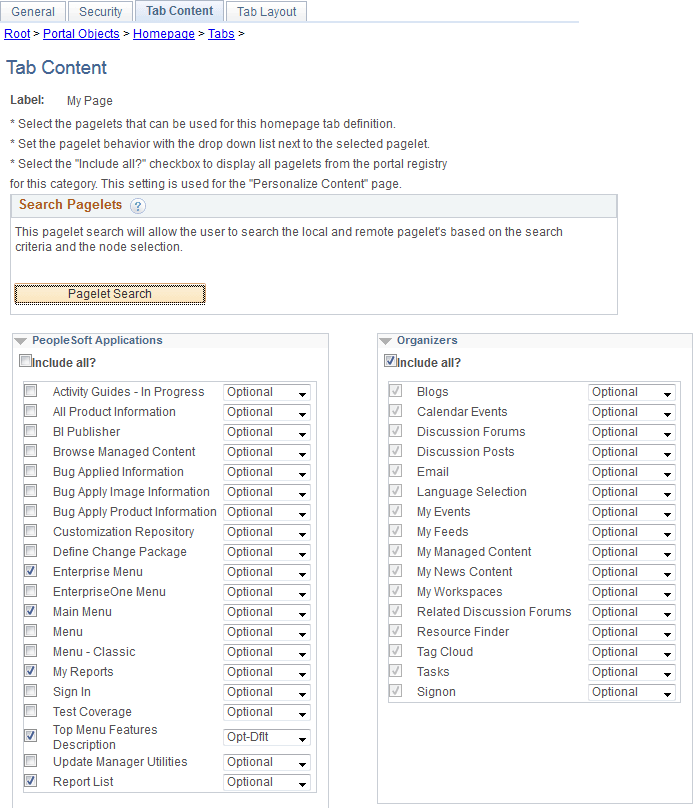
Important:
While this page still determines which tiles are displayed as required, fixed, or by default, the restrictive function of this page does not apply to fluid homepages—that is, all tiles can be added to any fluid homepage by any user with permissions to that tile regardless of whether the tile has been explicitly allowed on this page.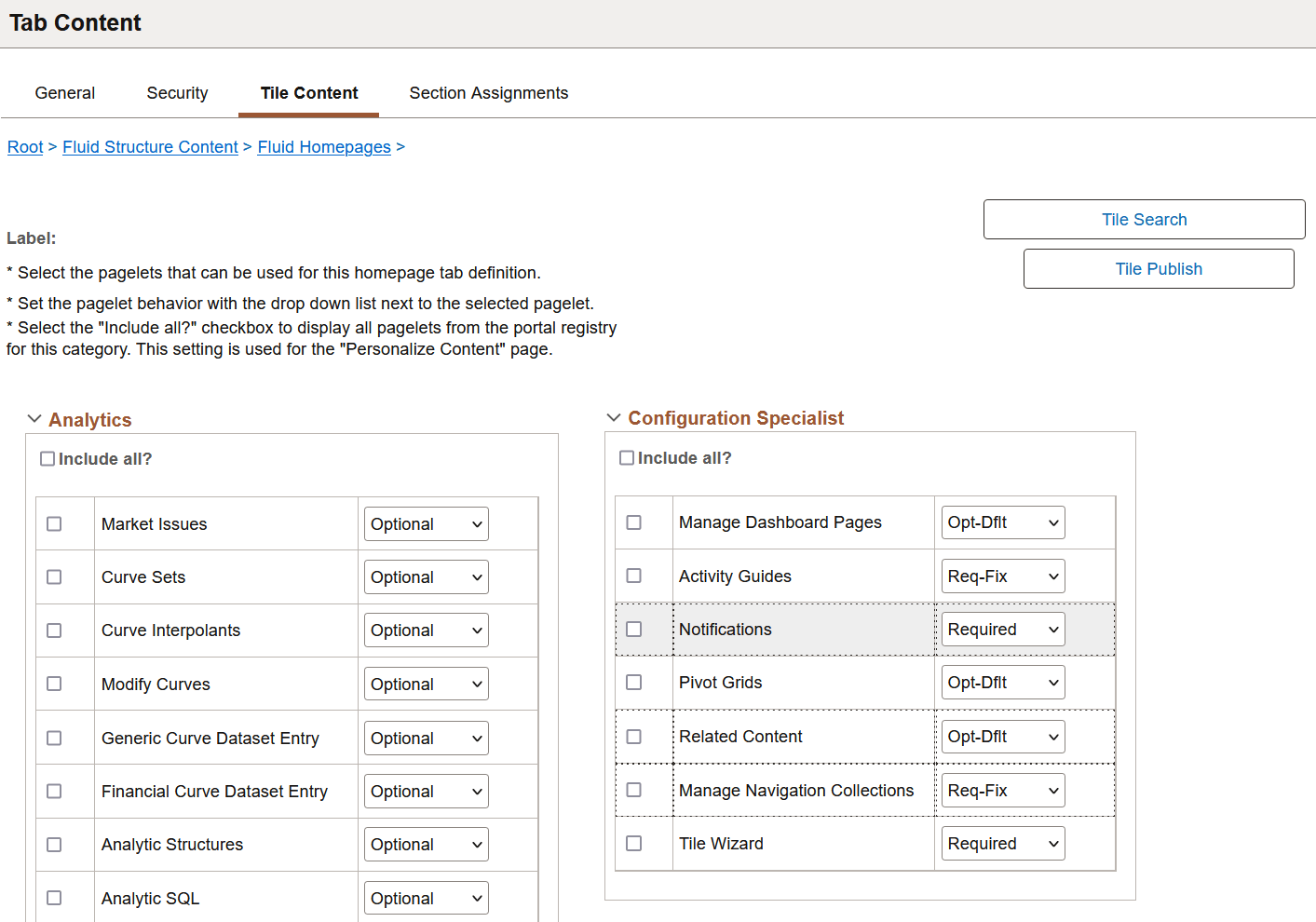
To select the pagelets or tiles that can be displayed on this homepage:
-
Expand any collapsed group boxes and then select the check box to make the pagelet or tile available for this homepage.
Select the Include All? check box to select all pagelets or tiles in that category.
Note:
A user must also have security access to the pagelet or tile definition for the item to be displayed on the homepage.
-
In addition:
-
For classic homepages, you can click the Pagelet Search button and select a pagelet from the Pagelet Search page to add it to the homepage tab definition.
See Searching for and Importing Pagelets and Tiles for more information on searching for pagelets on local and remote nodes.
-
For fluid homepages, you can click the Tile Search button and select a pagelet from the Tile Search page to add it to the homepage tab definition.
See Searching for and Importing Pagelets and Tiles for more information on searching for tiles on local and remote nodes.
-
-
Use the drop-down list box to select the pagelet or tile behavior. If you're creating a section, you must select the tile behavior type other than Optional.
Note:
If you change the behavior type of a tile and the tile is assigned to a section on the Section Assignments page, the behavior type of the tile in the section is automatically updated to reflect the change.
Values are:
Field or Control Description Opt-Dflt (optional default)
The pagelet or tile is visible to all users by default for users that have permissions to the pagelet or tile; users can move or delete the pagelet or tile.
Note:You must select the Opt-Dflt setting if you wish to publish additional tiles to users who have already personalized this homepage. See (Fluid only) Using the Tile Publish Page to Publish Additional Tiles and (Fluid only) Using a PeopleCode Program to Publish Additional Tiles for more information.
Optional
Optional means this pagelet or tile is available for a user to add to their homepage as long as the user has security permission to this pagelet or tile. Additionally, users can move or delete the pagelet or tile.
When an administrator sets a pagelet or tile as optional in a homepage, it does not display automatically on the homepage. However, in fluid homepages, all tiles regardless whether they are set optional or not, are available for the user to add as long as the user has security permission to it.
Only classic homepages, classic dashboards, and fluid dashboards allow only optional pagelets or tiles to be added by the user to their classic homepage, classic dashboard, and fluid dashboard.
Note:However, since all tiles are already available to all users that have permissions to the tile, this selection is unnecessary for tiles.
Setting a tile that is assigned in a section from non-Optional to Optional removes the tile from the section because Optional tiles cannot be assigned to sections.
Req-Fix (required fixed)
The pagelet or tile is visible to all users by default for users that have permissions to the pagelet or tile; however, users cannot move or delete the pagelet or tile.
Note:A tile that is designated as fixed cannot be moved directly. If a fixed tile is also the first tile, no other tiles can be moved in front of it. However, if non-fixed tiles precede the fixed tile, other tiles can be moved in front of the fixed tile thereby rendering the fixed setting moot.
Required
The pagelet or tile is visible to all users by default for users that have permissions to the pagelet or tile; users can move the pagelet or tile, however, they cannot delete it.
-
Click the Save button.
If you're creating a standard fluid homepage, that is, a homepage without sections, then on clicking the Save button, the fluid homepage is ready for use.
If you want to create a sectionalized fluid homepage, that is, a homepage with sections, then you should use the Section Assignments tab to create sections and assign tiles to it.
(Fluid only) Deselecting a Tile on an Existing Fluid Homepage
When you deselect a tile on an existing fluid homepage, the tile is either displayed or not displayed based on these conditions:
-
If the fluid homepage is not personalized by a user, the deselected tile is not displayed on the homepage.
-
If the fluid homepage is user personalized, the deselected tile continues to display on the user-personalized homepage. However, the user can delete this tile on the user-personalized homepage.
-
If the deselected tile had the Required or Req-Fix (required fix) behavior, it is changed to the Opt-Dflt (optional-default) behavior, which enables the user to move or delete the tile from a personalized homepage.
To remove a tile from a user-personalized homepage or to disable a tile from being added by a user in a homepage, you should either set an expiry date for the tile or change the tile permission setting.