(Fluid only) Creating Sections on Fluid Homepages
Use the Section Assignments page (PORTAL_TAB_SECTION) to create sections and assign tiles to a fluid homepage or load tiles dynamically using an application class.
Note:
Only Portal Administrators can create sections on a homepage.
To improve the usability of homepages, Portal Administrators can group tiles into a section. The grouping of tiles can be based on your business requirements.
Note:
PeopleTools 8.62 provides greater control on the styling and layout of homepages and sections. For more information, see Understanding Advanced Sectionalized Homepage Development.
Navigation:
From the Content Ref Administration page, select the Section Assignments page tab.
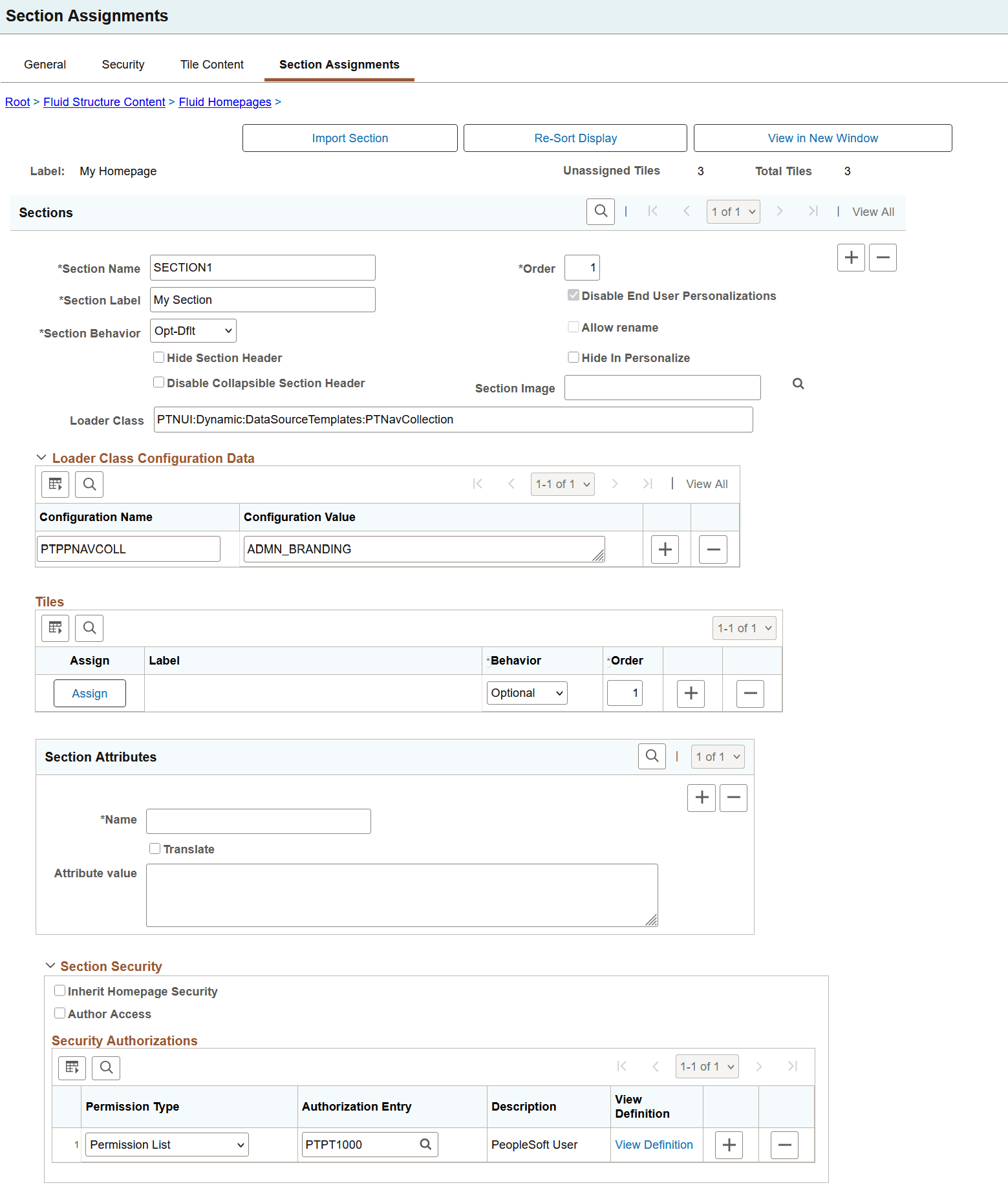
This example illustrates the fields and controls on the Section Assignments page. You can find definitions for the fields and controls later on this page.
| Field or Control | Description |
|---|---|
|
Import Section |
Select to copy a section definition from a section template. Section templates are saved in the Fluid Section Templates folder. For more information, see Creating a Section Template and Importing a Section in Homepages and Dashboards. |
|
Re-Sort Display |
After you've created sections, assigned tiles to the sections, and set the order for the tiles, select the Re-Sort Display button to sort the display of sections and tiles by their order number. |
|
View in New Window |
The View in New Window button is not available in Add mode. The button appears after the Section Assignments page is saved. Administrators and application developers can use this option to see the developed homepage as is in a new tab on the browser. You should note that this is merely a quick navigational access to see the homepage as you set the layout of the homepage with its sections. When the button is selected, the homepage definition is first saved so that all changes made to the homepage can be viewed. The re-caching of the homepage may cause the performance to be slow. If any errors are encountered while saving the homepage definition, the view in new window operation is stopped. Note: If you're editing an existing homepage that is available to end users and select the View in New Window button, the updated homepage will be available to end users, so developers should use standard development practices to minimize the impact to end users who are using the existing homepage. The following prerequisites should be fulfilled to view the homepage:
|
|
Unassigned Tiles |
Displays the number of tiles that are not assigned to any sections; the number decreases as you assign tiles to sections. In order to see a list of unassigned tiles, you need to add a row to a section and select the Assign button. The unassigned tiles are displayed at the top of the list with no assigned section text. Unassigned tiles are placed in the standard area, that is, at the top of the homepage. These tiles are ordered in the standard area based on their portal sequence number. |
|
Total Tiles |
Displays the number of tiles that you selected on the Tiles Content tab. |
Sections
| Field or Control | Description |
|---|---|
|
Section Name |
Enter a unique ID for the section definition. It should be unique within a homepage. The value that you specify in the Name field can consist of up to 30 letters, digits, and underscores ( _ ). It cannot contain any spaces and cannot begin with a digit. |
|
Section Label |
Enter a label for the section. The label is visible to all users who can view this section. |
|
Section Behavior |
In PeopleTools 8.61, all sections act the same because users cannot modify or personalize sectionalized homepages. The behavior types that are applicable to homepages are also applicable to sections. The behavior types are as follows:
|
|
Hide Section Header |
Select to not display the text in the section header including the image, if specified. |
|
Disable Collapsible Section Header |
When you select this option, the section header cannot be collapsed, that is, the section header remains expanded. To display the section image correctly, this option should be set. |
|
Order |
Enter a value to designate the order of sections on a homepage. The order number determines the sequence in which the sections appear on a homepage. The section with the lowest order number appears first. If any order numbers are identical, then the sections are sorted alphabetically by the section label. Note: The section order is solely controlled by the order number specified here. |
|
Disable End User Personalizations |
In PeopleTools 8.61, personalization of sections is not supported, so the Disable End User Personalization check box is automatically selected and cannot be changed. |
|
Allow rename |
When end-user personalization is disabled for a section, the renaming of a section is also automatically disabled. |
|
Hide in Personalize |
Select to hide the section on the Personalize Homepage page. The section with its tiles is hidden, that is, users cannot copy the tiles to another homepage. In effect, a section with this attribute is a system-owned section. |
|
Section Image |
Select an image to display in the section header. The image should be displayed beside the section title. |
|
Loader Class |
Enter the full local path of the application class used to load tiles dynamically in the associated section. It is an extension to the base class PTNUI:Dynamic:DynamicLoader. For more information, see PeopleCode API Reference: DynamicLoader Class Methods. |
|
Loader Class Configuration Data |
The Loader Class Configuration Data grid enables administrators to define configuration data for sections using structured configuration-data name and value pairs. Enter both Name and Value pair; Value field cannot be blank.
The entries are validated when the page is saved. For more information on configuration data, see Loading Configuration Data in the DynamicLoader Application Class. |
Rules for managing a section:
-
A section can contain several tiles.
-
If a section does not contain any tiles, the section is not displayed on the homepage. A section can be empty due to runtime characteristics, for example:
-
You do not have permissions to the tiles in a section or tiles are hidden through the TILEAPPFILTER attribute. In this scenario, the tiles are not displayed. Consequently, the section is not displayed.
-
Not all tiles in a section are available or optimized for small form factor devices. If you're using a small form factor device, then these tiles are not displayed and the section is hidden.
You can use the empty-section tile, which is an administrator controlled tile, to ensure that the section is displayed. See Configuring Tiles for an Empty Section.
-
-
If all the tiles in a section are marked as Hide in Personalize and contains the empty tile, then these tiles are administrator-controlled tiles, which users cannot copy to other homepages. In this case, it is recommended that the section should also have the Hide in Personalize attribute set.
-
Similar to the arrangement of tiles with the Req-Fix behavior at the beginning of a standard homepage, you must ensure that the sections with the Req-Fix behavior are grouped together at the beginning of the homepage. In a section, tiles with the Req-Fix behavior should be grouped together at the beginning of each section.
Tiles
The Tiles grid appears after you create a section, which enables you to assign tiles for the section.
Tiles have to selected on the Tile Content tab first in order for the tiles to be available for assignment into sections.
| Field or Control | Description |
|---|---|
|
Assign |
Clicking this button displays the Tile Assignment page where you can select tiles to insert into the section. |
|
Label |
Displays the label of the tile. |
|
Behavior |
Displays the behavior of the tile that you specified for a tile on the Tile Content tab. However, you can modify the behavior type as required. |
|
Order |
Enter a value to designate the order of the tile within a section. The order number determines the sequence in which the tiles appear in a section. The tile with the lowest order number appears first in a section. If any order numbers are identical, then the tiles are sorted alphabetically by the tile label. Note: The tile order is solely controlled by the order number specified here. |
Rules for assigning tiles to a section:
-
A tile can appear only once on a homepage.
-
Ensure that the tiles with the Req-Fix behavior are grouped together at the beginning of the section.
-
Empty-section tile must be assigned the Req-Fix behavior and should be placed as the first tile in a section. See Configuring Tiles for an Empty Section.
Section Attributes
Use the Section Attributes area to specify style sheet, style classes, and other attributes that are applicable at the section level.
See Styling Homepages and Dashboards Using CSS Variables and Applying Styles from Delivered Style Sheets for more information on attributes and its values for section level.
Section Security
Use the Section Security area to assign security settings to sections in a fluid homepage. If you do not specify any security for the section, an error message is displayed indicating that section security is missing when you attempt to save the homepage.
Table 13-1 Section Security
| Field or Control | Description |
|---|---|
|
Inherit Homepage Security |
Select to specify that a section inherits the same security access as the homepage/dashboard. This is the default selection. When you select this option, the Author Access option and Security Authorizations grid are hidden. |
|
Author Access |
Select to indicate that the creator of the homepage definition can access this section of the homepage, regardless of how other permissions are set. |
Table 13-2 Security Authorizations
| Field or Control | Description |
|---|---|
|
Permission Type |
Select from these types:
|
|
Authorization Entry |
Select the permission list or role that should have access to this section. |
|
View Definition |
Select to access the security administration component for the permission list or role specified on the corresponding row. |
Related Topics