Pagelet Development Considerations
When developing pagelets, you should also consider the following topics.
Single Signon
Oracle delivers a component interface named PRTL_SS_CI that enables external applications to support a single signon solution with PeopleSoft portal applications. This enables users to sign in once when accessing the portal and not have additional sign-ins for each system that is referenced in your portal.
Layout
Observe the following rules for layouts:
-
Avoid horizontal scrolling.
-
Do not use page titles.
The name of the content reference in the portal registry is used as the pagelet title.
-
Pagelet instructions should not be necessary.
-
Avoid group boxes whenever possible.
Note:
They may be necessary to separate sections.
-
Left align text wherever possible.
-
Deselect the Show Borders option for group boxes and scroll areas.
-
Select in PeopleSoft Application Designer to ensure that you can access all the styles available.
-
Leave more than 20 percent spacing between field labels and field edit boxes because the rendered styles are larger in the browser than they appear in PeopleSoft Application Designer.
-
Before bringing your pagelet into the portal, view it in PeopleSoft Application Designer. Select
Appearance and Character
The appearance of objects on pagelets, such as text, links, tables, and so forth, should be modified by means of the PeopleSoft style classes to retain a consistent appearance and character between your pagelet and the rest of the portal. PeopleSoft uses cascading style sheets (CSS). Style sheets are useful because they enable developers to change page attributes across multiple pages quickly and easily.
Each style sheet is composed of individual classes, which affect the formatting of each page. Classes control a broad range of characteristics, including font size, spacing, alignment, border width, weight, and color.
When creating the page, select the Use Default Style Sheet option. For any controls on the page, select the Use Default Style option.
All style sheets used in each pagelet on the page are referenced on the final page that is assembled by the portal. Therefore, a pagelet should not redefine any class that might be shared by other pagelets on the assembled page. If a class needs to be changed, define a new one.
The order of precedence for style sheets is:
-
Template.
-
Target component.
-
Pagelets – in the order that they are assigned.
Note:
In the same way that PeopleTools supports subrecords to enable shared definitions between records, you can define sub style sheets to share a common set of classes. A sub style sheet has all of the properties of a style sheet.
Style sheet definitions are stored in the database. They are accessed and modified by means of PeopleSoft Application Designer. The default style sheet used by PeopleTools depends on your application release, but is either PSSTYLEDEF or PSSTYLEDEF_SWAN. The PeopleSoft Interaction Hub uses a PSSTYLEDEF or PSSTYLEDEF_SWAN derivative.
You can determine which style sheet is being used by selecting The value in the Style Sheet Name field designates the style sheet used by the database.
Two ways are available by which you can see the style classes defined in a style sheet.
If you access PeopleSoft Application Designer, you can open the designated style sheet and view its definitions in a graphical interface.
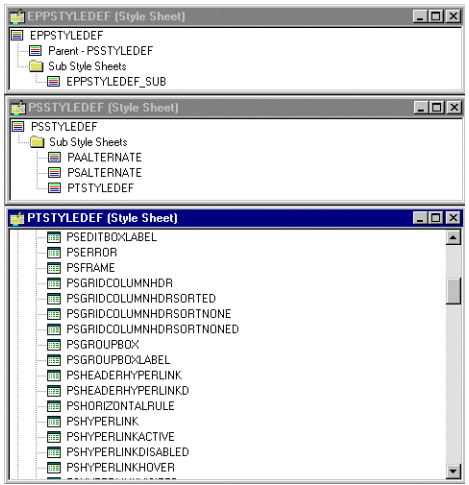
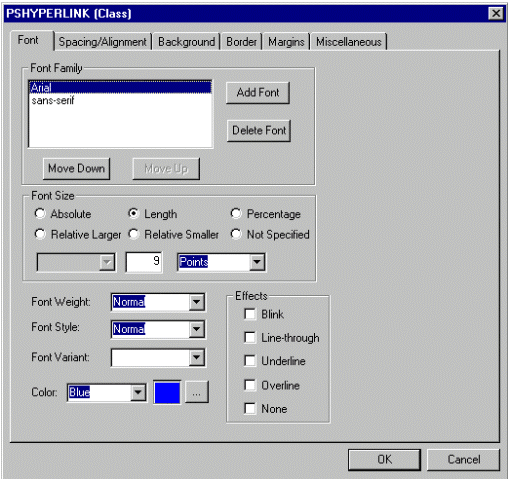
Double-click any style class to view and modify its definition.
If you don't have access to PeopleSoft Application Designer and want to see the CSS file, you can access the file cached for the CSS on the web server. For example, on WebLogic you'll find the file in this directory:
....\peoplesoft\applications\PORTAL\site_name\cacheThe file is generally named PSSTYLEDEF_1.css or PSSTYLEDEF_SWAN_1; however, it may have a slightly different name. For example, it might have a different numbered suffix.
Some of the most common styles used by pagelets include:
-
PSTEXT
General text label.
-
PAADDITIONALINSTRUCTIONS
Instructional text.
-
PABOLDTEXT or PABOLDBLUETEXT
Commonly used for group and category titles.
-
PSPSMALLTEXT
Commonly used for footers and branding (credits).
-
PSPAGE
Commonly used for background colors.
-
PSLEVEL1GRIDODDROW
Shaded row, which is typically light gray or light blue.
-
PSLEVEL1GRIDEVENROW
Lighter-colored row, which is typically white.
-
PSCHECKBOX
-
PSDROPDOWNLIST
-
PSEDITBOX
-
PSGROUPBOX
Commonly used to create groupings or dividers.
-
PSHYPERLINK
-
PSPUSHBUTTON
-
PSRADIOBUTTON
The following examples show ways in which these styles are used in HTML and translated into elements in the PeopleSoft Pure Internet Architecture interface:
This HTML generates the following interface:
<table border='0' cellpadding='0' cellspacing='0' cols='1' ⇒
CLASS='PSGROUPBOX' style="border-style:none;" width='639'>⇒
		<tr>
			<td class='PSGROUPBOXLABEL' align='LEFT'>Language Settings</td>
		</tr>
			<td colspan='2'  valign='top' align='LEFT'>
				<label for='PSOPTIONS_LANGUAGE_CD' class=⇒
'PSDROPDOWNLABEL'>Language Code:
				</label>
			</td>
			<td  valign='top' align='LEFT'>
				<span class='PSDROPDOWNLIST' >English</span>
			</td>
...
<input type='check box' name='PSOPTIONS_TRANS_CHG_LASTUPD'⇒
 id='PSOPTIONS_TRANS_CHG_LASTUPD' tabindex='14' value="Y" />
	<label for='PSOPTIONS_TRANS_CHG_LASTUPD' class='PSCHECKBOX'>
			Translations Change Last Update
	</label>
This example illustrates the fields and controls in the Language Settings group box of the PeopleTools Options page.

This HTML generates the following interface:
<input type='text' name='STYLESHEET' id=⇒
'STYLESHEET' tabindex='28' value="" class='PSEDITBOX' ⇒
style="width:23px; text-align:RIGHT; " maxlength='2'/>
		<label for='PSOPTIONS_TEMPTBLINSTANCES' class='PSEDITBOXLABEL'>⇒
				Style Sheet Name:
		</label>
This example illustrates the Style Sheet Name field of the PeopleTools Options page.

Links and URLs
When processing page-based templates, the portal servlet uses a process called proxying to help ensure that users always stay within the context of the portal and that familiar portal features such as the universal navigation header do not disappear when a user clicks a link.
When a user signs in to a PeopleSoft portal, he or she signs in to a web server on which the portal servlet is running. The portal servlet processes all HTML that isn’t in the simple URL format, converting all URL references to point to the portal web server rather than the original URL. The original URL is still necessary to retrieve the requested content; it is stored in the new URL in the URL query string parameter. The portal servlet proxies all links and all form actions in this manner.
For example, assume that a user requests a page from an external website through a proxied link in the portal. The request arrives at the portal web server, invoking the portal servlet. The portal servlet then programmatically retrieves the page from the web server associated with the requested page. It proxies all the links on the retrieved response and sends the page (the contents of the HTTP response) back to the browser, formatted as the user would expect within the portal.
Note:
If URLs are included in your HTML, you must use absolute URLs as opposed to relative URLs.
When a URL is invoked on a target page, as opposed to the homepage, the content associated with the URL is rendered within the target frame. The PeopleSoft Interaction Hub and header and left-hand area will remain. Therefore, proxying isn’t required to have the new content rendered in the context of the PeopleSoft Interaction Hub.
Performance
Homepages are cached on each user’s browser. The browser does not access the web server after the homepage is initially retrieved. You can enable or disable this feature, and also adjust the time interval before the web server is accessed again to get a fresh homepage. In any case, if a user clicks the browser Refresh button, the homepage is accessed from the web server again, overwriting the homepage cached on the browser.
Important:
If any homepage pagelet in your implementation uses interactive mode, you must disable browser homepage caching in the web profile.
The following PeopleCode function is used to trigger a refresh of the homepage:
FUNCLIB_PORTAL.TEMPLATE_FUNC.FieldFormula.ForceRefreshHomePage().Additionally, the following configuration properties are associated with homepage caching. Any changes to these settings are applied to all users signing in to the web server.
-
PortalCacheHomepageOnBrowser=<True or False>
If set to True, the homepage is cached on the browser. If set to False, the homepage is not cached on the browser.
-
PortalHomepageStaleInterval=<seconds until stale>
A homepage cached on the browser is considered stale after the specified number of seconds. The next time a user accesses the homepage by clicking a link, the web server is accessed and the homepage is refreshed on the browser.
Because different browser versions do not process HTML in exactly the same way, the browserprops.xml file on the web server on which the portal servlet is installed enables you to disable homepage caching for selected browser versions.
This can be useful if you have one or two supported browsers and want to disable cache for nonstandard browsers that could pose an administration problem. Follow the instructions in the file to disable caching for certain browser types.
As with homepages, navigation pages are cached on each user’s browser. You can set options for navigation caching by using the Time page held in cache (METAXP) option.
Set the Time page held in cache option by navigating to and clicking the Personalize Option button for the General Options personalization category. Note that this option is set in minutes, not seconds. A change to this option is picked up by the application server immediately. However, because the users' browsers already have cache control set by the previous value of the option, you must delete the browser cache for the new Time page held in cache value to take effect.
Oracle enables you to prevent the system from caching PeopleSoft pages to the browser. You control browser caching using the EnableBrowserCache property in the configuration.properties file.
Being able to control browser caching is useful for situations in which PeopleSoft applications are deployed to kiosk workstations where multiple users access the applications. Enabling you to prevent caching means that users can't click the Back button to view another individual's transaction or view any other sensitive data.
The side effect of completely disabling caching is degraded performance. For each new page, the system must access the database. However, PeopleTools offers a compromise related to browser caching in the form of the Time page held in cache (METAXP) option discussed earlier.
You can enable browser caching for the navigation pages that remain relatively static. This option applies to PeopleSoft Pure Internet Architecture navigation pages, portal homepages, and navigation pages. Use it to take advantage of the performance gains of caching while limiting the amount of time that navigation pages—the menu pages—remain in cache.
The Time page held in cache option is set to 20 by default. To disable this option, enter 0 in the Override Value edit box. The minimum value in minutes for this option is 0 (disabled) and the maximum value is 525600, which is one year.
If the Time page held in cache option is set to 20, and if you assume that the time is 7 p.m. on August 24, then the header information in the HTML is dated like this:
Wed 24 Aug 2011 07:20:00 PMThis header information indicates that in 20 minutes the system needs to check for a new page. This reduces the performance degradation when no caching occurs at all.
By default, the EnableBrowserCache property is set to True.
If the EnableBrowserCache property is set to False:
-
The system never caches pages. When a user clicks the browser Back button, she receives a Page Expired message in .
-
The setting overrides any date and time header settings.
The following table helps illustrate the way in which the EnableBrowserCache option works with the METAXP option.
| EnableBrowserCache | METAXP | Caching Behavior |
|---|---|---|
|
True |
0 |
No caching due to the 0 value in METAXP. |
|
True |
> 1 |
Pages are cached with expiration values set in Greenwich Mean Time (GMT) based on the Time page held in cache value (METAXP). |
|
False |
0 |
No caching. |
|
False |
>1 |
No caching. The EnableBrowserCache option setting overrides the Time page held in cache value (METAXP). |
Multi-language Support
PeopleSoft applications currently support the following 33 languages:
-
Arabic.
-
Bahasa Malay.
-
Bulgarian.
-
Canadian French.
-
Chinese (Simplified).
-
Chinese (Traditional).
-
Croatian.
-
Czech.
-
Danish.
-
Dutch.
-
English.
-
Finnish.
-
French.
-
German.
-
Greek.
-
Hebrew.
-
Hungarian.
-
Italian.
-
Japanese.
-
Korean.
-
Norwegian.
-
Polish.
-
Portuguese.
-
Romanian.
-
Russian.
-
Serbian.
-
Slovak.
-
Slovenian.
-
Spanish.
-
Swedish.
-
Thai.
-
Turkish.
-
UK English.
Pagelet Wizard can access the PeopleSoft runtime environment to determine details of a user’s profile, such as his or her language. For more information about how you can use this Pagelet Wizard feature to facilitate passing runtime parameters, such as language, see Pagelet Wizard documentation in this PeopleBook.
See Understanding Pagelet Wizard.
In addition, Java classes delivered with PeopleTools enable you to call PeopleCode from your Java program and access contextual information from the runtime system. If needed, language can be retrieved through a PeopleCode function that is accessible from Java. Further information about this feature can be found in this document.