Pagelet Personalizations
Like homepages, pagelets can be personalized in different ways. The data displayed can be filtered automatically to show only data that is relevant to a particular user. The user can also explicitly personalize the data shown by setting options on a personalization page.
Personalization pages are another type of pagelet extension. However, personalization page pagelet extensions are different from previously discussed pagelet extensions in the following ways:
-
You do not click a button or link on the pagelet to access personalization pages. Instead, clicking the Personalize icon on the pagelet header accesses a personalization page where you can define user options that are specific to that pagelet.
-
Setting values on the personalization page will change the way data appears on the pagelet for the user. Detail pages usually display data in read-only mode or allow you to change application data.
Note:
Any text that the pagelet developer enters during Step 3 in Pagelet Wizard appears as instructions on the Personalize page.
The Personalize Tasks page provides an example of a pagelet personalization page.
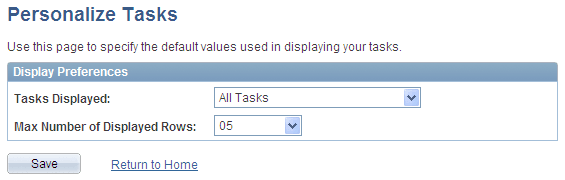
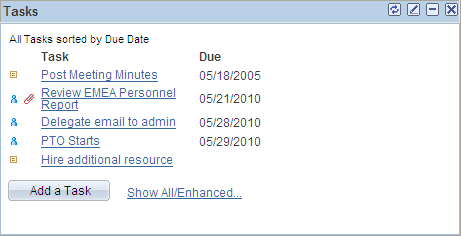
You can use the Personalize Tasks personalization page for the Tasks pagelet to change the type and number of tasks shown on the pagelet. Clicking Save stores these values and returns you to the homepage. The Tasks pagelet now reflects these changes. This example illustrates how personalization changes what is displayed in the Task pagelet.