Selecting and Configuring Self-Service Processes
Self-service scheduling allows users to execute processes and generate reports using context-specific information. You can configure execution of self-service processes from any transaction page where self-service scheduling is enabled. Scheduling in this manner retrieves mapped application data from the transaction page and uses it for the process execution. Once the process is completed, the authorized user can access the report from the dynamically generated notification from any PeopleSoft page.
Within an activity guide, an action item can be defined as a Process type, which allows you to associate that action item with an already defined self-service schedule. Use the Process Configuration tab of the Action Item Details grid to complete configuring an action item as a process type:
-
Click the Assign Service link to Look up Schedule Name page.
-
If modifiable component interface parameters have been defined for the self-service schedule, click the Configure CI Parameters link to map activity guide data to the component interface.
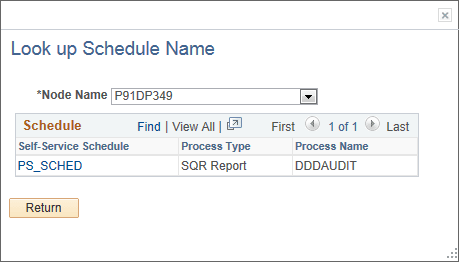
Look up Schedule Name Page
Use the Look up Schedule Name page to select the already defined self-service schedule.
This example illustrates the fields and controls on the Look up Schedule Name page.
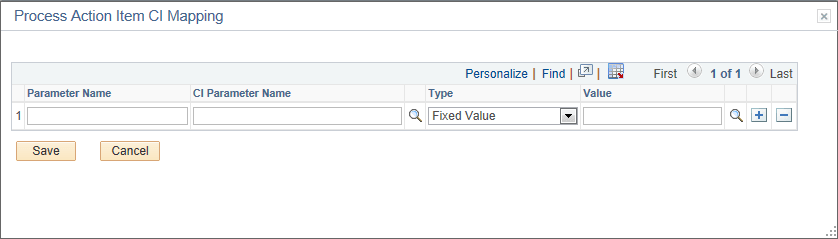
Process Action Item CI Mapping Page
Use the Process Action Item CI Mapping page to map activity guide context data to any modifiable parameters defined for the component interface for the self-service schedule.
This example illustrates the fields and controls on the Process Action Item CI Mapping page. You can find definitions for the fields and controls later on this page.
| Field or Control | Description |
|---|---|
|
Parameter Name |
Enter the field name (as specified on the Template Properties: Advanced Options page) for a context data item. |
|
CI Parameter Name |
Select the modifiable parameter defined for the component interface. |
|
Type |
Select one of the following context types:
|
|
Value |
Enter the value when the context type is fixed value. Alternatively, select the system variable from the look up list when the context type is system variable. Note: No value is entered when the context type is runtime. |