Setting Up Access Control
To set up access control, you create the storage group root folder and storage group parent folders on your web server. Then, you create a subfolder structure as needed and upload files to these subfolders on the web server.
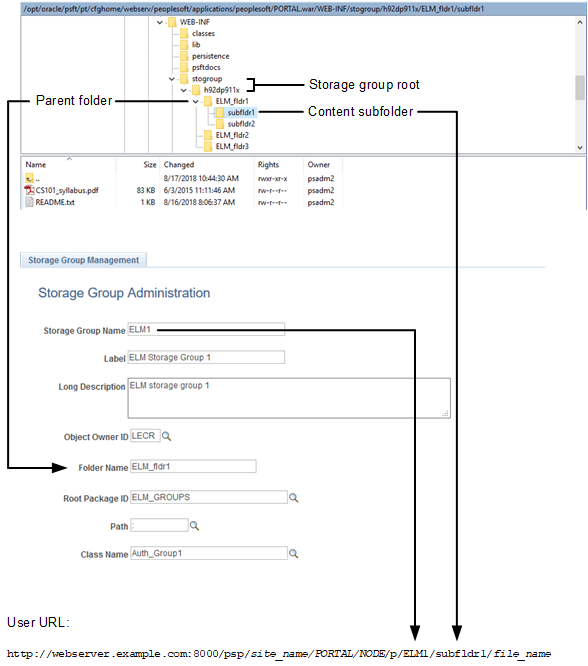
The following diagram illustrates the relationship of the file system on the web server to the definition on the Storage Group Management page and to a URL provided to users.
To set up access control:
-
Create the storage group root folder under PS_CFG_HOME/peoplesoft/applications/peoplesoft/PORTAL.war/WEB-INF/. The required name for the storage group root folder is: stogroup/site_name.
Note:
Use 755 as the permissions for the folders in the storage group hierarchy.
-
Create one or more storage group parent folders under this storage group root folder.
-
Under each parent folder, create one or more subfolders and upload files as needed.
Note:
Files must be stored in and accessed from the subfolders, not from the storage group parent folder.
-
In Application Designer, create a custom implementation for the PTPP_SG:ContentAuthorizorBase base class.
-
Implement the PeopleCode API Reference: Authorize method: ContentAuthorizorBase class method to return one of three authorization results for the current user: Authorized for the specified subfolder, authorized for the specified subfolder and any of its subfolders, or denied.
-
Using the Storage Group Management page, associate your PeopleCode implementation to a parent folder on the web server.
-
Provide users with URLs to the files that they can access on the web server using the psp servlet. For example, the URL to CS101_syllabus.pdf in the subfldr1 folder would be:
http://webserver.example.com:8000/psp/site_name/PORTAL/NODE/p/ELM1/subfldr1/CS101_syllabus.pdfYou can use a function provided in a delivered function library to facilitate generation of these URLs. For example, use the following PeopleCode program to generate the URL for this same CS101_syllabus.pdf file. The value returned can be assigned to a hyperlink or button, for example.
Declare Function GetStorageGroupContentURL PeopleCode FUNCLIB_PORTAL.PTPP_SG_FUNC FieldFormula;
ViewContentURL(GetStorageGroupContentURL(%Portal, %Node, "ELM1", "subfldr1/CS101_syllabus.pdf"), True);