Specifying Data Link Details
Access the Link Details page. (Click the Link Options icon on the Specify Display Options page.)
This example illustrates the fields and controls on the Link Details page. You can find definitions for the fields and controls later on this page.
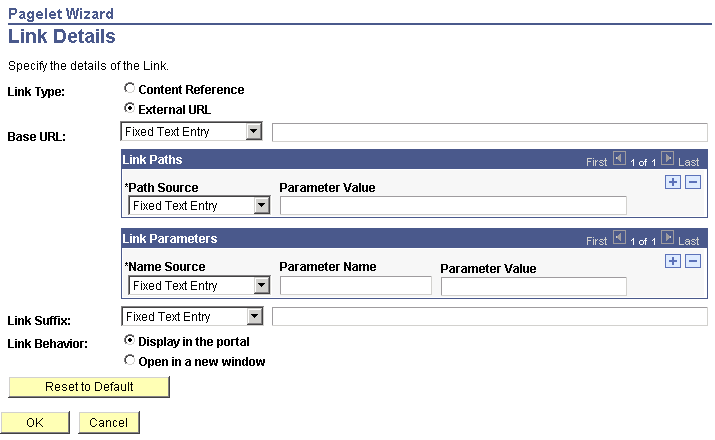
You can access this page for field or column names that appear on the Specify Display Options page if you select the table, rowset, list, and chart formats. Entering information on the Link Details page enables you to associate URLs with field values, which at runtime appear on the pagelet as active links that you click to access additional relevant information.
Pagelet Wizard builds the column data link in the follow way using link path, parameter, and suffix values:
http://baseURL/linkpath1/linkpath2/…/linkpathN/?parm1=val1&parm2=val2&…&parmN=valNlinksuffix
| Field or Control | Description |
|---|---|
|
Link Type |
Select the type of link destination to define for the data. Options are: Content Reference: Select to define data links to a content reference. External URL: Select to define data links to an external URL. |
|
Portal Name |
Select the portal in which the content reference resides. This field appears when you select Content Reference as the link type. |
|
Content Reference |
Select the content reference to which the link points. This field appears when you select Content Reference as the link type. |
|
Base URL |
Enter the URL to which you want the link to point. This field appears when you select External URL as the link type. Options are: Specified by Data: Select to have the system dynamically generate the link information based on the selected data field. Fixed Text Entry: Select to hard-code the link information by entering a value. |
Link Paths
| Field or Control | Description |
|---|---|
|
Path Source |
Select the method to use to determine the link destination. Options are: Specified by Data: Select to have the system dynamically generate the link information based on the selected data field. Fixed Text Entry: Select to hard-code the link information by entering a value. |
|
Link Path |
This field appears if you select Specified by Data as the path source. Select the data field to use to generate the link. |
|
Parameter Value |
This field appears if you select Fixed Text Entry as the path source. Enter a parameter value. |
Link Parameters
| Field or Control | Description |
|---|---|
|
Name Source |
Select the method to use to determine the link destination. Options are: Specified by Data: Select to have the system dynamically generate the link information based on the selected data field. Fixed Text Entry: Select to hard-code the link information by entering a value. |
|
Parameter Name |
Enter a value that corresponds to the value in the Parameter Value field. |
|
Parameter Value |
If you have selected Specified by Data as the name source, select a data field. If you selected Fixed Text Entry as the name source, enter a parameter value. |
|
Link Suffix |
Select the method to use to determine the link destination. Options are: Specified by Data: Select to have the system dynamically generate the link information based on the selected data field. Fixed Text Entry: Select to hard-code the link information by entering a value. If you selected Specified by Data as the link suffix, select a data field. If you selected Fixed Text Entry as the link suffix, enter a parameter value. |
|
Link Behavior |
Options are: Display in portal: Select if you want the content accessed by the data link to be displayed within the portal. Open in a new window: Select if you want the content accessed by the data link to be displayed in a new window. |
|
Reset to Default |
Click to clear the values on this page and remove the link. |
PeopleTools Portal Technologies XSL Templates
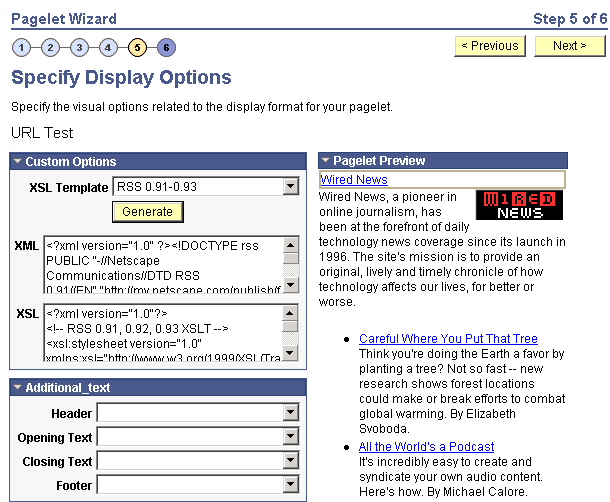
PeopleTools Portal Technologies delivers seven XSL templates that enable you to transform content from internet news sources that use industry-standard formats such as RSS and ATOM. When you select the URL data source and the custom display format, the following additional templates appear in the drop-down list box in Step 5 of Pagelet Wizard.
These include:
-
ATOM 0.3
-
ATOM 1.0
-
RSS
-
RSS 0.91 - 0.93
-
RSS 1.0
-
RSS 2.0
-
Skeletal XSL
Select the appropriate XSL template from the list and click the Generate button. The formatted news articles appear in the pagelet preview on the right side.
This example illustrates the fields and controls on the Specify Display Options page (using an XSL template).