Specifying Query Data Source Parameters
After selecting PS Query as the data type on the Select Data Source page, access the Specify Data Source Parameters page. (Select On the Select Data Source page, click the Next button.)
This example illustrates the fields and controls on the Specify Data Source Parameters page for a PeopleSoft query data source. You can find definitions for the fields and controls later on this page.
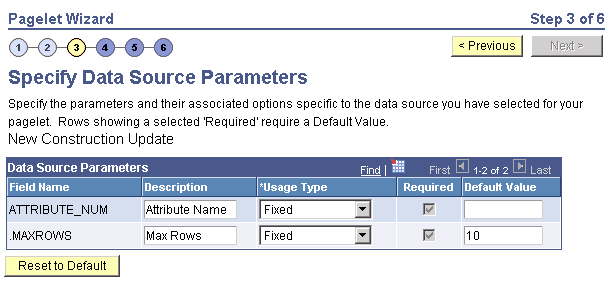
Data Source Parameters
Pagelet Wizard analyzes the selected query and translates the query prompts into the list of pagelet parameters shown in this step. You cannot add to the list of parameters. Most prompts will be marked as required; however, any prompts that are used exclusively in the IN clause of the query will not be marked as required.
Important:
Query Prompts that are based on dynamic views should not be used as User Specified data source parameters. Unexpected results will occur.
You can attain advanced functionality with proper design of the query and the Pagelet Wizard pagelet. For example, you might want to create a pagelet that will show open purchase orders for a list of vendors, and allow each user to specify up to five vendors. To achieve this functionality, you would first create a query to retrieve the open purchase orders for up to five vendors. When you create this query, ensure that the five vendor ID prompts are used only in the IN clause of the query. You can then create a pagelet using the PS Query data type and choose the query that you have created. The five vendor ID prompts will be shown as data source parameters. However, they will be marked as not required. End users will then be able to specify any number of vendors (up to five) when they personalize the pagelet. Finally, update the personalization instructions on the pagelet to explain to the end users that they can supply up to five vendor IDs.
| Field or Control | Description |
|---|---|
|
Field Name |
Displays the data source parameters that correspond to the query prompts associated with the selected query. This field also displays the required system-supplied .MAXROWS query data source parameter that you can use to limit the amount of data returned on the pagelet. |
|
Required |
This option is selected if the data source parameter must have a value entered on the pagelet to retrieve data successfully. For example, the .MAXROWS field is required. If this option is selected and display-only, the value is set in the application class at the application programming interface (API) level. If you leave this option deselected, the data source parameter value can be cleared at runtime, or it can be entered to refine the data selection criteria. Prompts tied to the IN clause of the query will not be marked as required. |
|
Reset to Default |
Click to reset the values on this page to the default values specified by the query data source API. |
|
Values |
Click the Values link to set the default values for users. |
Personalization Instructions
Use the Personalization Instructions text box to enter custom personalization instructions for the pagelet. These personalization instructions appear on the Personalization page of the pagelet.
Note:
Personalization instructions must be translatable.