Standard Navigation Pages
You enable the display of standard navigation pages at the registry level on the General Settings page. You can then disable the display of standard navigation pages for specific folders in the registry on the Folder Administration page.
You access standard navigation pages by clicking a folder icon in the menu navigation. Items contained within the folder, including content references and other folders, are arranged in columns on the page.
The following example illustrates a standard navigation page for the PeopleTools, Security folder.
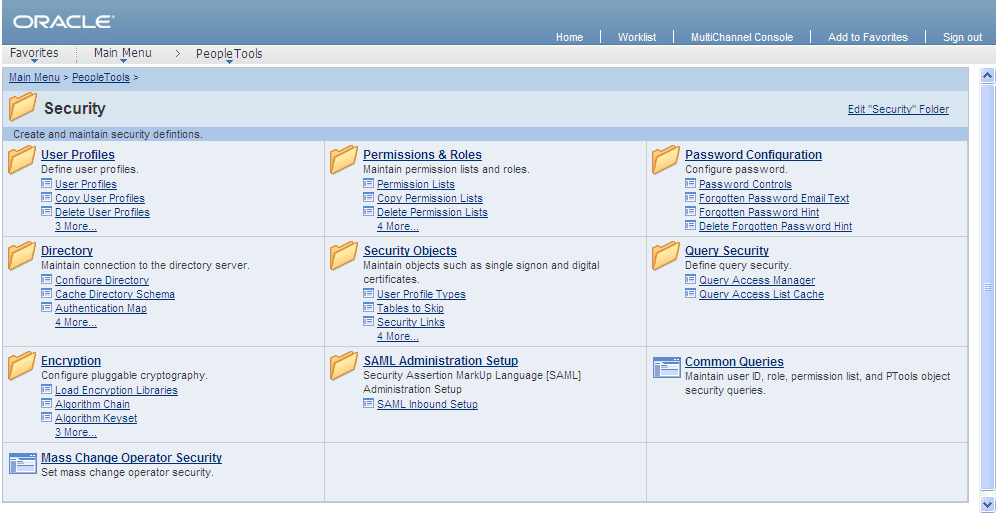
From a navigation page, you can click any content reference link to directly access the component without drilling down through the folder hierarchy. When you click a folder link on a standard navigation page, you access another standard navigation page that reflects the contents of the selected subfolder.
For example, when you click the User Profiles link from the Security standard navigation page, the standard navigation page for the User Profiles folders appears as shown here:
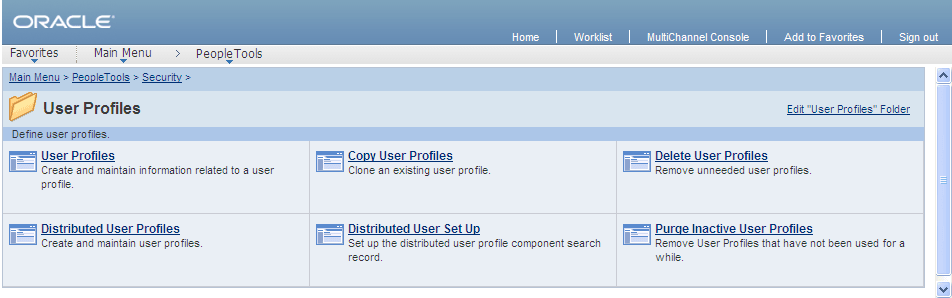
Standard Navigation Page Display
To enable the display of standard navigation pages:
-
Select
-
Select the Is Folder Navigation Enabled check box.
-
Enter PT_PTPP_SCFNAV_BASEPAGE_SCR (the delivered Base Navigation Page object) in the Folder Navigation Object Name field.
This Base Navigation Page object is designed to display standard navigation pages as they are documented in these topics.
Note:
To enable the display of standard navigation pages for the registry in a portal other than the one you are signed in to, select then click Edit next to the portal that you want to change to access the Portal Definitions - Edit Portal page.
Note:
You can disable the display of a standard navigation page for an individual folder in the selected registry by selecting the Is Folder Navigation Disabled option on the Folder Administration page.
You can also designate an alternate navigation object for an individual folder that overrides the base navigation object defined at the registry level by selecting a value in the Folder Navigation Object Name field on the Folder Administration page. The object that you designate as the folder navigation object is launched when the folder label is selected.
Certain aspects of standard and custom navigation page display are dependent on system and registry options. See Setting Up Navigation Collection Options.
See Administering Folders, Administering Portal Definitions.
Folder and Link Sequence on Standard Navigation Pages
The sequence in which folders and links appear on standard navigation pages is defined in the portal registry. Although the contents of a standard navigation page correspond to the content of the selected menu folder, the sequence of elements on the page may not be the same as the sequence in which they are displayed in the menu.
In the drop-down menu, folders are always displayed before content references. The folders appear as a group in the order determined by the sequence numbers defined in the portal registry; similarly, the content references appear as a group in the order determined by the sequence numbers defined in the portal registry.
Unlike the drop-down menu, standard navigation pages do not group folders first followed by content references. Sequence numbers alone determine the order of items on a standard navigation page. However, if a folder and content reference have the same sequence number, the folder is displayed before the content reference on a standard navigation page.
See Administering Folders, Administering Content References.