Step 2: Data Source Information - PSQuery/SQL
Use the Data Source Information page for the PSQuery/SQL data type to specify which PeopleSoft queries, stored SQL statements, or a combination to specify the data displayed on the tile.
Navigation:
-
On the Tile Basic Information page, click the Next button.
-
Select the PSQuery/SQL data type.
This example illustrates the fields and controls on the Data Source Information page for the PSQuery/SQL data type. In this example, settings for KP1 have already been selected. You can find definitions for the fields and controls later on this page.
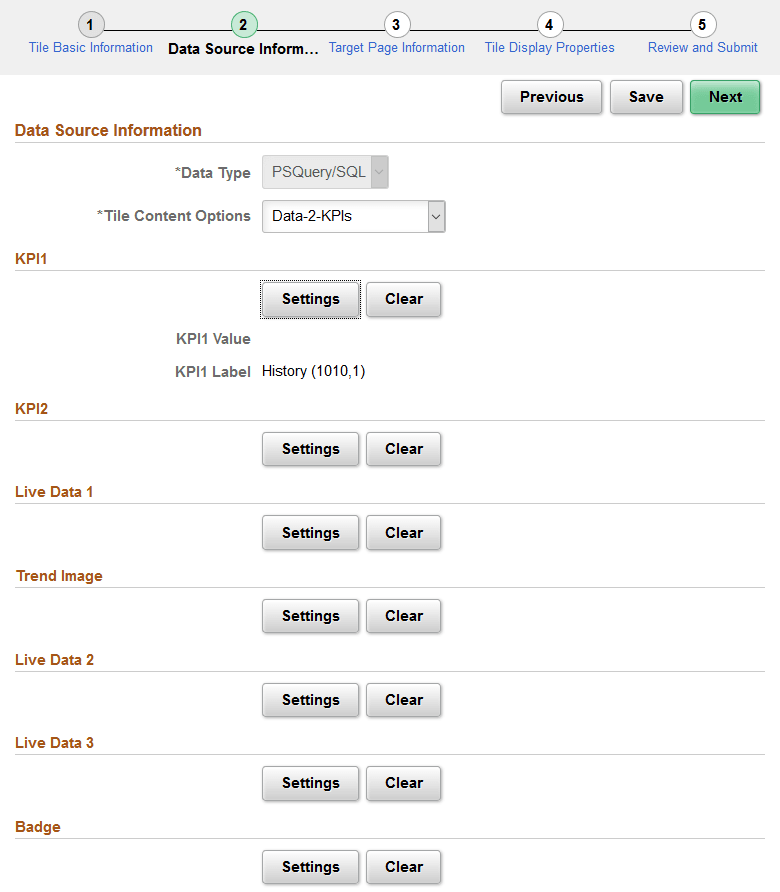
The PSQuery/SQL data type provides an interface for using a PeopleTools-delivered implementation of the PTGP_APPCLASS_TILE:Tiles:Tile base class that allows you to select one or more PeopleSoft queries, SQL definitions, and Message Catalog entries to provide the data and text to display on the face of a tile. Using this data type does not require you to write or understand PeopleCode. However, you do need to understand the elements that can be displayed on a tile (for example, key performance indicators (KPIs), live data, badge data, and so on), the data types for these elements, and where these elements are displayed. See PeopleCode API Reference: Understanding Application Class Tile Content for more information.
When selecting PeopleSoft queries, SQL definitions, and Message Catalog entries to configure a tile, note the following limitations:
-
Regardless of the number rows and columns of data returned by a query or SQL, only the first row is used.
-
Only Message Catalog entries that do not use bind variables can be used.
Note:
If data masking for personally identifiable information or other sensitive data has been enabled on a record field that is part of the criteria for the PeopleSoft query, then these data values are masked when displayed via Tile Wizard tiles.
| Field or Control | Description |
|---|---|
|
Tile Content Options |
Select one of the following:
|
|
Settings |
Click the Settings button to configure the values for an element. |
|
Clear |
Click the Clear button to clear the values for an element. |
Configuring Settings
Click the Settings button to configure the values for an element.
The following example illustrates the settings page for the KPI1 element using a PeopleSoft query as the data source.
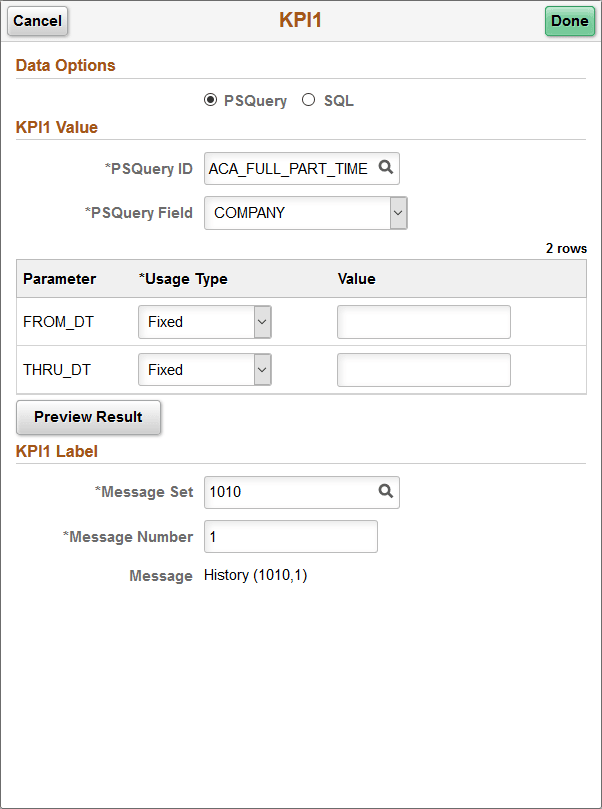
| Field or Control | Description |
|---|---|
|
Data Options |
Select either PSQuery or SQL. |
|
PSQuery ID |
When PSQuery has been selected as the data option, select the PeopleSoft query. |
|
PSQuery Field |
When PSQuery has been selected as the data option, select the column from the PeopleSoft query to return the data value. |
|
SQL ID |
When SQL has been selected as the data option, select the SQL definition. |
|
SQL Field |
When SQL has been selected as the data option, select the column from the SQL to return the data value. |
|
Parameter |
Displays input parameters as is appropriate for the selected query. |
|
Message SetMessage Number |
Select a message set and number to return a label for the data value. |