Step 2: Data Source Information - OBIEE
Use the Data Source Information page for the OBIEE data type to specify which OBIEE report or OBIEE dashboard data source.
Navigation:
-
On the Tile Basic Information page, click the Next button.
-
Select the OBIEE data type.
This example illustrates the fields and controls on the Data Source Information page for the OBIEE data type. You can find definitions for the fields and controls later on this page.
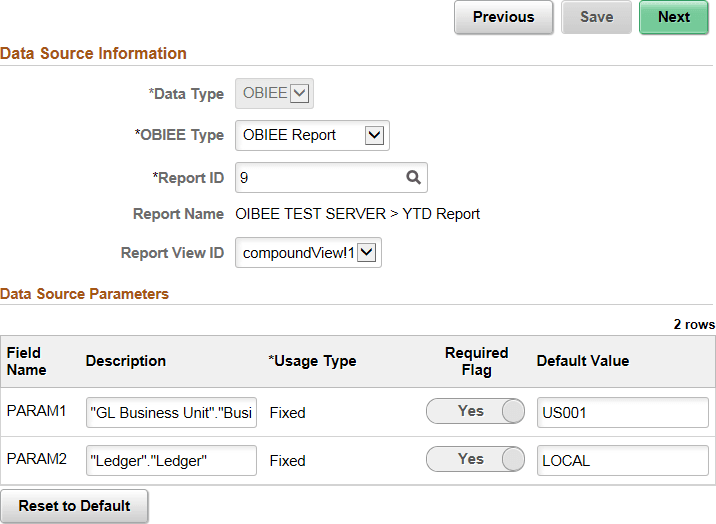
Data Source Information
| Field or Control | Description |
|---|---|
|
OBIEE Type |
Select either:
|
|
Report ID |
Select the ID of the report or dashboard that you want to be the data source. Only reports or dashboards that have been loaded into the PeopleSoft system appear in this list. |
|
Report Name |
This field displays the OBIEE server name and the report name. This field is display-only. |
|
Report View ID |
For OBIEE reports only, select the view or report type as created in the OBIEE application. |
Data Source Parameters
Tile Wizard analyzes the selected OBIEE data source and generates the list of parameters shown in this step. You cannot add to the list of parameters.
| Field or Control | Description |
|---|---|
|
Description |
Displays a description of the parameter. |
|
Usage Type |
All data source parameters are Fixed, meaning the data source parameter cannot be modified by users of the tile. |
|
Required |
Select to require a value for the parameter. |
|
Default Value |
Enter the parameter value that the system uses by default. |
|
Reset to Default |
Click to set all values on this page to the default values specified by the data source API. |
Related Topics