Step 2: Data Source Information - Navigation Collection
Use the Data Source Information page for the Navigation Collection data type to specify which navigation collection data source is to be displayed as a “fluid navigation collection.”
Navigation:
-
On the Tile Basic Information page, click the Next button.
-
Select the Navigation Collection data type.
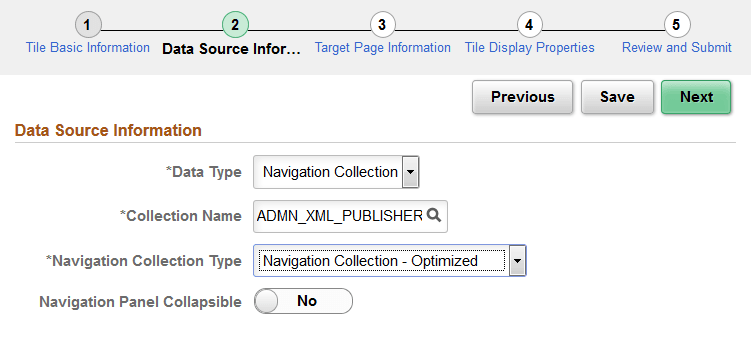
This example illustrates the fields and controls on the Data Source Information page for the Navigation Collection data type. You can find definitions for the fields and controls later on this page.
| Field or Control | Description |
|---|---|
|
Collection Name |
Select the navigation collection. |
|
Navigation Collection Type |
Select the manner in which the navigation collection content will be displayed when a user clicks on the tile:
|
|
Navigation Panel Collapsible |
Select Yes to present the left panel as collapsible for all users. Otherwise, the left panel only becomes collapsible when the browser width falls below a threshold. Note: This field is displayed only when Navigation Collection Optimized is selected. |
Fluid navigation collections
support additional URL parameters that cannot be set in Tile Wizard—specifically, &JumpPage, &NewWindow, and &AgInHistory. See Manually Creating Tile Definitions to Launch Fluid Navigation Collections for information on how to modify the content reference definition
to include additional URL parameters.