Manually Creating Tile Definitions to Launch Fluid Navigation Collections
You can create tile definitions to launch what are referred to as “fluid navigation collections.” See Fluid Navigation Collections for a definition of “fluid navigation collections” and guidelines on how to define these navigation collections.
You can create these tile definitions one of two ways:
-
Using Tile Wizard, which provides a simple step-by-step guide. See Step 2: Data Source Information - Navigation Collection for more information.
-
Manually by following the procedures in this section.
To create a tile definition to launch a fluid navigation collection:
-
Obtain the ID for the navigation collection:
-
Go to the portal registry ().
-
Go to .
-
Click the Edit link for a navigation collection.
-
Copy or make note of the Name field.
-
-
Navigate to the tile repository in the portal registry (Fluid Structure Content > Fluid Pages).
-
Click the link for a subfolder.
-
Create a new content reference definition and follow the specific instructions depending on how you want to display the navigation collection.
In an Optimized Activity Guide
Note:
Only links under the root folder or the first level of subfolders are displayed in an activity guide. If the navigation collection includes additional levels of subfolders and links, they are not displayed.
To display the navigation collection and links as an optimized non-guided non-sequential activity guide:
-
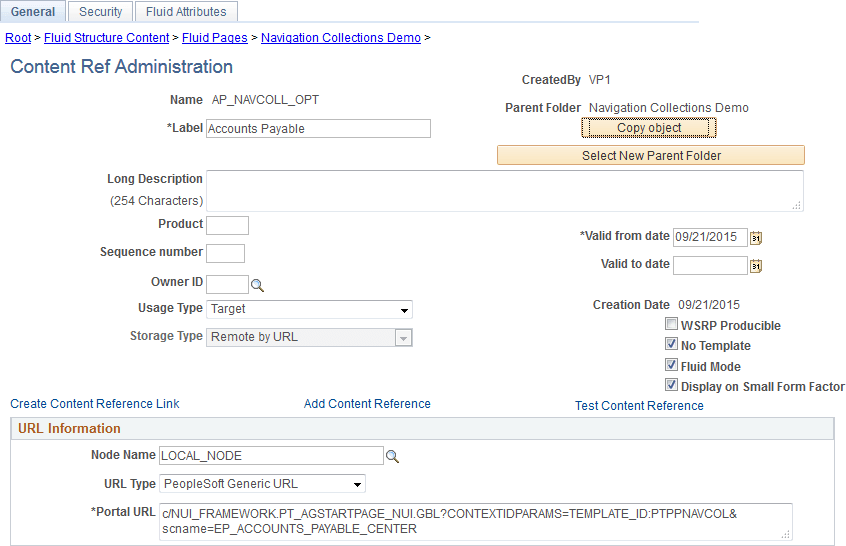
Set the following on the General page:
-
No Template: selected
-
Fluid Mode: selected
-
Display on Small Form Factor : selected
-
Node Name: LOCAL_NODE
-
URL Type: PeopleSoft Generic URL
-
Portal URL:
c/NUI_FRAMEWORK.PT_AGSTARTPAGE_NUI.GBL?CONTEXTIDPARAMS=TEMPLATE_ID:PTPPNAVCOL&scname=NAVCOLL_ID
The following example displays a tile definition to display a navigation collection and links as an optimized non-guided non-sequential activity guide.
-
-
In the Portal URL field, add one or more optional query string parameters to override the default behavior of fluid navigation collections:
-
&PanelCollapsible=Y: Displays the left panel as collapsible rather than as fixed. -
&JumpPage=N: Do not display a “jump page” on smartphones.On smartphones, a fluid navigation collection is displayed as the links only (that is, what is displayed in the left panel on other devices) by default. Also by default, clicking a link transfers you to the target component and exits the fluid navigation collection. You can return to the navigation collection using the Back button.
-
&NewWindow=N: Do not display a New Window menu item in the Actions menu. -
&AgInHistory=N: Do not add the fluid navigation collection to the Back button history stack.
-
-
On the Security page, set the security to be the same as the security for the navigation collection.
-
On the Fluid Attributes page accept the defaults and set any other desired fluid attributes.
In a Non-Optimized Activity Guide
Note:
Only links under the root folder or the first level of subfolders are displayed in an activity guide. If the navigation collection includes additional levels of subfolders and links, they are not displayed.
To display the navigation collection and links as an non-optimized non-guided non-sequential activity guide:
-
Set the following on the General page:
-
No Template: selected
-
Fluid Mode: selected
-
Display on Small Form Factor : selected
-
Node Name: LOCAL_NODE
-
URL Type: PeopleSoft Generic URL
-
Portal URL:
c/NUI_FRAMEWORK.PT_AGSTARTPAGE_NUI.GBL?CONTEXTIDPARAMS=TEMPLATE_ID:PTPPNONOPT&scname=NAVCOLL_ID
-
-
In the Portal URL field, add one or more optional query string parameters to override the default behavior of fluid navigation collections:
-
&PanelCollapsible=Y: Displays the left panel as collapsible rather than as fixed. -
&JumpPage=N: Do not display a “jump page” on smartphones.On smartphones, a fluid navigation collection is displayed as the links only (that is, what is displayed in the left panel on other devices) by default. Also by default, clicking a link transfers you to the target component and exits the fluid navigation collection. You can return to the navigation collection using the Back button.
-
&NewWindow=N: Do not display a New Window link the Actions menu. -
&AgInHistory=N: Do not add the fluid navigation collection to the Back button history stack.
-
-
On the Security page, set the security to be the same as the security for the navigation collection.
-
On the Fluid Attributes page accept the defaults and set any other desired fluid attributes.
As Folders and Links in the NavBar
Note:
When a navigation collection is displayed in the NavBar, the contents of one folder are displayed at a time. However, there is no restriction on subfolders beneath the first level.
To display the navigation collection and links directly in the NavBar:
-
Set the following on the General page:
-
No Template: selected
-
Fluid Mode: selected
-
Display on Small Form Factor : selected
-
Node Name: LOCAL_NODE
-
URL Type: PeopleSoft Generic URL
-
Portal URL:
c/NUI_FRAMEWORK.PTNUI_NAVCOLL_COMP.GBL?sa=n&scname=NAVCOLL_ID
-
-
On the Security page, set the security to be the same as the security for the navigation collection.
-
On the Fluid Attributes page set the following:
-
Display In: NavBar
-
Include In Repository: Homepage: deselected
-
Include In Repository: Dashboard: deselected
-
Include In Repository: NavBar: selected
-
-
Set any other desired fluid attributes.