Setting Fluid Attributes for Content References
Access the Fluid Attributes page (Select Click the Edit link for a content reference; then select the Fluid Attributes tab.)
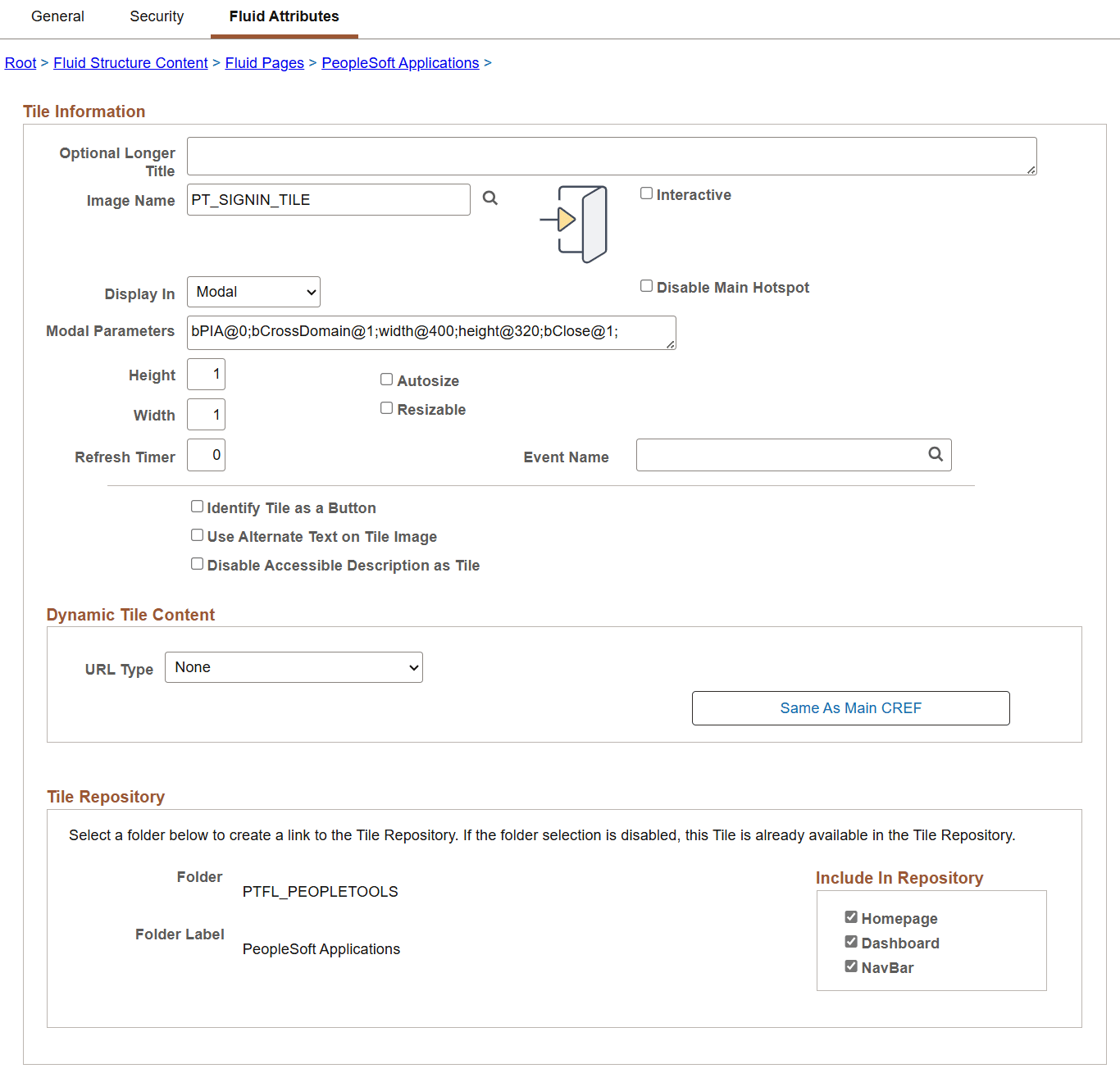
This example illustrates the fields and controls on the Fluid Attributes page. You can find definitions for the fields and controls later on this page.
Tile Information
Use the Fluid Attributes page to configure the behavior and appearance of fluid content such as tiles, embedded related content, and related information. Certain fields pertain to tile definitions only while others pertain to all types of fluid content.
| Field or Control | Description |
|---|---|
|
Optional Longer Title |
Use this field to enter a title that is more than 30 characters. Currently, the tile label has a limit of 30 characters. You should note when using longer titles on standard tiles (tiles that existed prior to PeopleTools 8.62 release and do not use the 8.62 styling) that the width of the tiles may require to be increased to display the longer label because the standard tiles do not wrap the title. For users of the administrator pages, the long title is available only on the tile search user interface. All other administrator pages that show a list of tiles use the standard tile label. Note: The longer title is not applicable to NavBar tiles. |
|
Image Name |
Click the Image lookup button to display the Browse Image Catalog page, which allows you to select an image (in SVG format only) from the database to display a custom static image as the fluid content. Otherwise the default image is displayed. See the following section, "Using the Browse Image Catalog Page" for more information. Note: When dynamic content is also configured for a tile, this static image is displayed only until the dynamic content is loaded. |
|
Interactive |
Select this option to display the fluid content as interactive, which allows users to enter data or click buttons within the fluid content. Since interactive fluid content require more resources than non-interactive ones, select this option only as needed. Important: You must also set dynamic tile content for the fluid content to be interactive; otherwise, a static content is displayed. See the following sections for more information. Important: While embedded related content can be defined as interactive, you should be aware of the limitations. See the section, “Limitations with Interactive Grouplets,” in Fluid Related Content for more information. |
|
Display In |
Control how the target transaction or content appears once a user taps the tile. Options are:
|
|
Disable Main Hotspot |
Select this option to allow links that are displayed dynamically within the tile to be available and usable. Selecting this option disables clicking the tile to display the target content defined for the tile. |
|
Modal Parameters |
Enter custom modal options. See Fluid User Interface Developer’s Guide: Modal Options for more information. |
|
Height |
Set the height of the tile. The default dimensions of a tile are 1 tile unit by 1 tile unit. Tiles up to 8x8 are supported. Note the following conditions and limitations with respect to the height and width of a tile:
See the following section titled “Tile Height and Width” for a table of tile widths and heights from 1 to 8. |
|
Width |
Set the width of the tile. |
|
Autosize |
Select this option to allow the fluid content to dynamically resize itself based on the size of the content. Note the following conditions and limitations with respect to the autosize option:
|
|
Resizable |
Select this option to allow the tile to be redisplayed at the specified alternate dimensions. Note the following conditions and limitations with respect to the resizable option:
|
|
Alternate Height |
Set the alternate height for a resizable tile. |
|
Alternate Width |
Set the alternate width for a resizable tile. |
|
Refresh Timer |
Enter the time in seconds to set an automatic refresh period for dynamic content on a tile. When the timer limit has been reached, the system re-draws the tile so that it displays the current data, such as in the case with chart. The default value of 0 disables any automatic refresh. Note: The system enforces a 10 second minimum limit. Any value entered less than 10 seconds is ignored and is treated as 10 seconds. When setting this value, be sure to monitor performance of the page refreshes and adjust accordingly. |
|
Event Name |
Select the event name to subscribe to a push notification event defined on the server. Subscribing to an event allows the tile content to be updated by the event. See Fluid User Interface Developer’s Guide: Understanding the Push Notification Framework and Fluid User Interface Developer’s Guide: Defining Eventsfor more information on defining push notification events. |
|
Identify Tile as a Button |
Use this setting to change a tile from being identified as a link to a button. This setting is typically used for a tile that you want to set as a section-action button. Note: This setting is not applicable to NavBar tiles. For more information on the use of a tile as a button, see Creating Different Presentations of Tiles. |
|
Disable Accessible Description as Tile |
Select to disable the tile accessible description. This setting is typically used in conjunction with the Identify Tile as Button setting so that the tile is no longer identified as a tile. Also, you can use this setting when you are configuring a tile as a link. Note: This setting is not applicable to NavBar tiles. For more information, see Creating Different Presentations of Tiles. |
|
Dynamic Tile ContentURL Type |
If you want the tile, embedded related content,or related information to display dynamic content, select one of these options:
See the following sections for information on each option. Selecting None results in the system displaying the selected static image or a default static image if no image is defined on the content reference. |
|
Dynamic Tile ContentSame as Main CREF |
Click the Same as Main CREF button to reset the dynamic content URL type and parameters to be the same as those already defined on the Content Ref Administration (General) page. Important: For PeopleSoft components (and for PeopleSoft generic URLs starting with c/ which represent a component URL), the target content URL and the dynamic content URL are required to identify different components to prevent data integrity errors in the component buffer. When the target content (on the General page) is one of these two types, the Same as Main CREF button is not displayed. For the dynamic content, you must manually define a component different from the target component before you can save the content reference definition. See Fluid User Interface Developer’s Guide: Limitations on Accessing a Component as a Grouplet and Then in a Standalone Manner for more information. |
Using the Browse Image Catalog Page
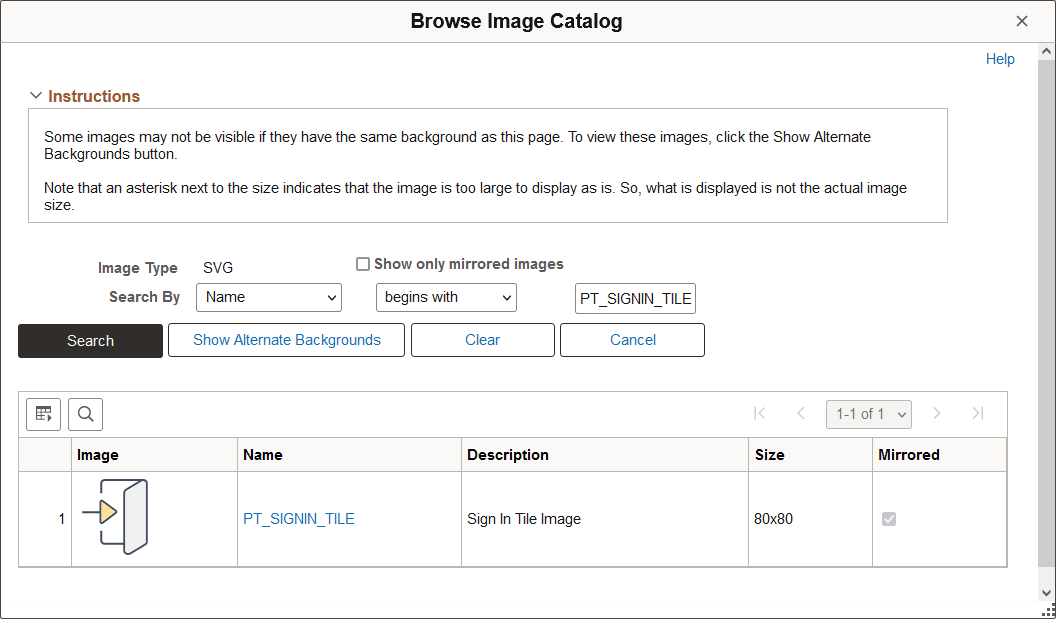
Use the Browse Image Catalog page to select an SVG from the database to display a custom static image as the fluid content.
This example illustrates the fields and controls on the Browse Image Catalog page.
| Field or Control | Description |
|---|---|
|
Image Type |
SVG is selected by default and cannot be changed. |
|
Show only mirrored images |
Select Yes to only retrieve images that are mirrored. Otherwise, both mirrored and unmirrored images are retrieved. |
|
Search By |
Select Name or Description and additional search criteria to limit the search results. |
|
Show Alternate Backgrounds |
Click the Show Alternate Backgrounds button to redisplay each image in the current grid on three background colors: white, gray, and black. This option allows you to view white images, which are not visible on the default white background. In this example, the white check mark is visible on the gray and black backgrounds:
|
|
Clear |
Click the Clear button to clear both the search criteria and the grid. |
|
Cancel |
Click the Cancel button to close the secondary window. |
|
Name |
Select an image by name to use it as the custom static image. |

Tile Height and Width
PeopleTools supports tile sizes from 1 tile unit by 1 tile unit up to 8x8. Tile units are device dependent, which means that tiles are not actually square. The actual pixel width and height of a tile depends on the device type—either small form factor (SFF) or non-SFF as illustrated in the following table:
| Width | SFF | Non-SFF | Height | SFF | Non-SFF |
|---|---|---|---|---|---|
|
1 |
152 |
250 |
1 |
120 |
197 |
|
2 |
309 |
510 |
2 |
245 |
404 |
|
3 |
466 |
770 |
3 |
370 |
611 |
|
4 |
623 |
1030 |
4 |
495 |
818 |
|
5 |
780 |
1290 |
5 |
620 |
1025 |
|
6 |
937 |
1550 |
6 |
745 |
1232 |
|
7 |
1094 |
1810 |
7 |
870 |
1439 |
|
8 |
1251 |
2070 |
8 |
995 |
1646 |
Note:
Tiles up to 8x8 are supported.
Dynamic Tile Content: Non-PeopleSoft URL
Use the Non-PeopleSoft URL type to display external content as dynamic fluid content.
Important:
For the autosize option to work with external content, the external content and the PeopleSoft application must reside within the same domain. Otherwise, the autosize option is ignored.
This example illustrates the fields and controls from the Dynamic Tile Content group box for a non-PeopleSoft URL. You can find definitions for the fields and controls later on this page.

| Field or Control | Description |
|---|---|
|
Node Name |
Optionally, enter a defined node name. |
|
Portal URL |
Enter the complete or partial URL in this field. If you selected a defined node, then enter the partial URL here. The result is the concatenation of the selected node's URI text and the portal URL that you entered. |
Dynamic Tile Content: PeopleSoft Component
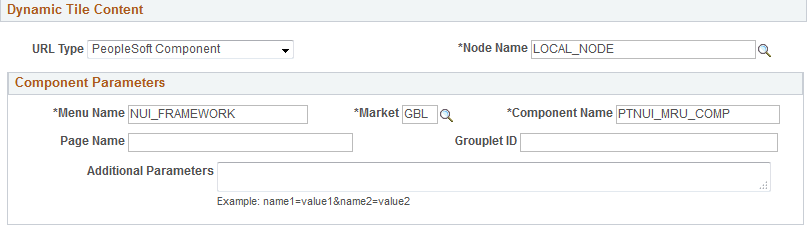
Use the URL type of PeopleSoft Component to display a fluid component as dynamic fluid content.
This example illustrates the fields and controls from the Dynamic Tile Content group box for a PeopleSoft component. You can find definitions for the fields and controls later on this page.
| Field or Control | Description |
|---|---|
|
Node Name |
Enter the node for the target component. |
|
Menu Name |
Enter the menu for the target component. |
|
Market |
Select the market for the target component. |
|
Component Name |
Enter the name for the fluid component. |
|
Page Name |
Optionally, enter the fluid page name. Note: Because multi-page components are not recommended as dynamic content, the page name is not required. |
|
Grouplet ID |
Enter the page field name as defined on the General tab of the group box definition. See Fluid User Interface Developer’s Guide: Working with Group Boxes for more information. Note: The grouplet ID is ignored when the definition is defined to be interactive; the entire component is rendered instead. For non-interactive definitions, if the grouplet ID is not specified, the entire page is rendered instead. |
|
Additional Parameters |
Enter any additional query string parameters to be appended onto the URL for the PeopleSoft component. For example, enter emplid=8001. |
Dynamic Tile Content: PeopleSoft Generic URL
Use the PeopleSoft Generic URL type to display any PeopleSoft URL type as dynamic fluid content. The generic URL type can be used to define iScripts, worklists, and even component-based URLs.
This example illustrates the fields and controls from the Dynamic Tile Content group box for a PeopleSoft generic URL. You can find definitions for the fields and controls later on this page.

| Field or Control | Description |
|---|---|
|
Node Name |
Optionally, enter a defined node name. |
|
Portal URL |
Enter the complete or partial URL in this field. If you selected a defined node, then enter the partial URL here. The result is the concatenation of the selected node's URI text and the portal URL that you entered. |
Dynamic Tile Content: PeopleSoft Script
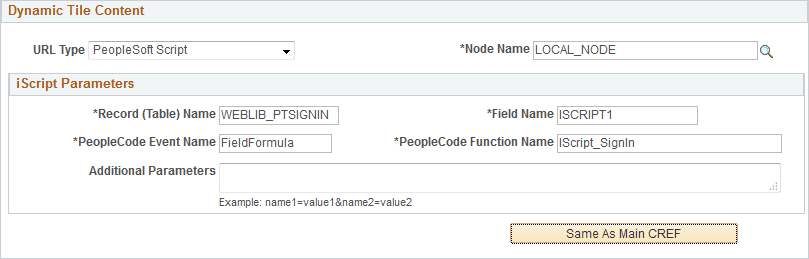
Use the PeopleSoft Script type to display a PeopleSoft iScript as dynamic fluid content.
This example illustrates the fields and controls from the Dynamic Tile Content group box for a PeopleSoft iScript. You can find definitions for the fields and controls later on this page.
| Field or Control | Description |
|---|---|
|
Node Name |
Enter the node for the target iScript. |
|
Record (Table) Name |
Enter the WEBLIB derived/work record name that contains the target iScript. |
|
Field Name |
Enter the field name that contains the target iScript. |
|
PeopleCode Event Name |
Enter the PeopleCode event name. |
|
PeopleCode Function Name |
Enter the user-defined PeopleCode function to be executed. |
|
Additional Parameters |
Enter any additional query string parameters to be appended onto the URL for the PeopleSoft script. For example, enter emplid=8001. |
Tile Repository
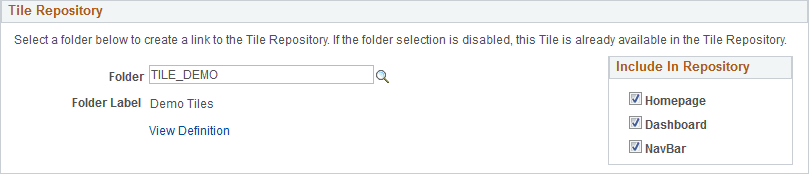
Use the Tile Repository group box to specify the category (folder) where content reference definition (or its content reference link definition) resides within the tile repository. In this regard, the tile repository refers to the portal registry subfolders under Fluid Structure Content > Fluid Pages.
This example illustrates the fields and controls in the Tile Repository group box. You can find definitions for the fields and controls later on this page.
| Field or Control | Description |
|---|---|
|
Folder |
For an existing content reference outside the tile repository, select a subfolder within the tile repository. Note: Specifying a subfolder within the tile repository creates a content reference link there. The existing content reference definition remains wherever it is defined. |
|
Folder Label |
Displays the label for the selected folder. |
|
View Definition |
Click the View Definition link to view the definition for the content reference link. |
|
Homepage |
Select this option to allow the definition to be listed when the Add Tile dialog box is accessed from fluid homepages. |
|
Dashboard |
Select this option to allow the definition to be listed when the Add Tile dialog box is accessed from fluid dashboards. |
|
NavBar |
Select this option to allow the definition to be listed when the Add Tile dialog box is accessed from the NavBar. |