Fluid Navigation Collections
PeopleTools provides several features that combined together allow you to display what are referred to as “fluid navigation collections.” These features allow you to launch navigation collections in a fluid activity guide wrapper. You can choose to re-present existing navigation collections consisting entirely of classic content references as well as add fluid content references to new or existing navigation collections. Navigation collections are created and maintained exactly the same way that they always have been. After a navigation collection has been defined, you can determine whether to launch that navigation collection inside a fluid wrapper as a “fluid navigation collection.” These fluid navigation collections are another way that you can create WorkCenter-like functionality in fluid applications.
The PeopleTools features that support fluid navigation collections include:
-
The activity guide framework, which is the wrapper used to display the navigation collection links and target content.
-
The PTPP_NAVCOLL activity guide data source and supporting templates.
-
Tile Wizard, which can be used to create a tile definition to launch the fluid navigation collection. (See Step 2: Data Source Information - Navigation Collection for more information.)
There are two ways to launch a fluid navigation collection from a tile:
-
In an optimized, non-guided, non-sequential activity guide (using the PTPPNAVCOL activity guide template).
-
In a non-optimized, non-guided, non-sequential activity guide (using the PTPPNONOPT activity guide template).
In addition, you can create a NavBar tile from the navigation collection to display the navigation collection links within the NavBar.
Note:
By design, on a smart phone, a fluid navigation collection is displayed as the links only (that is, what is displayed in the left panel on other devices). Also by default, clicking a link transfers you to the target component and exits the fluid navigation collection. You can return to the navigation collection using the Back button. To override this behavior, you can add the JumpPage=N query string parameter to the URL that launches the navigation collection.
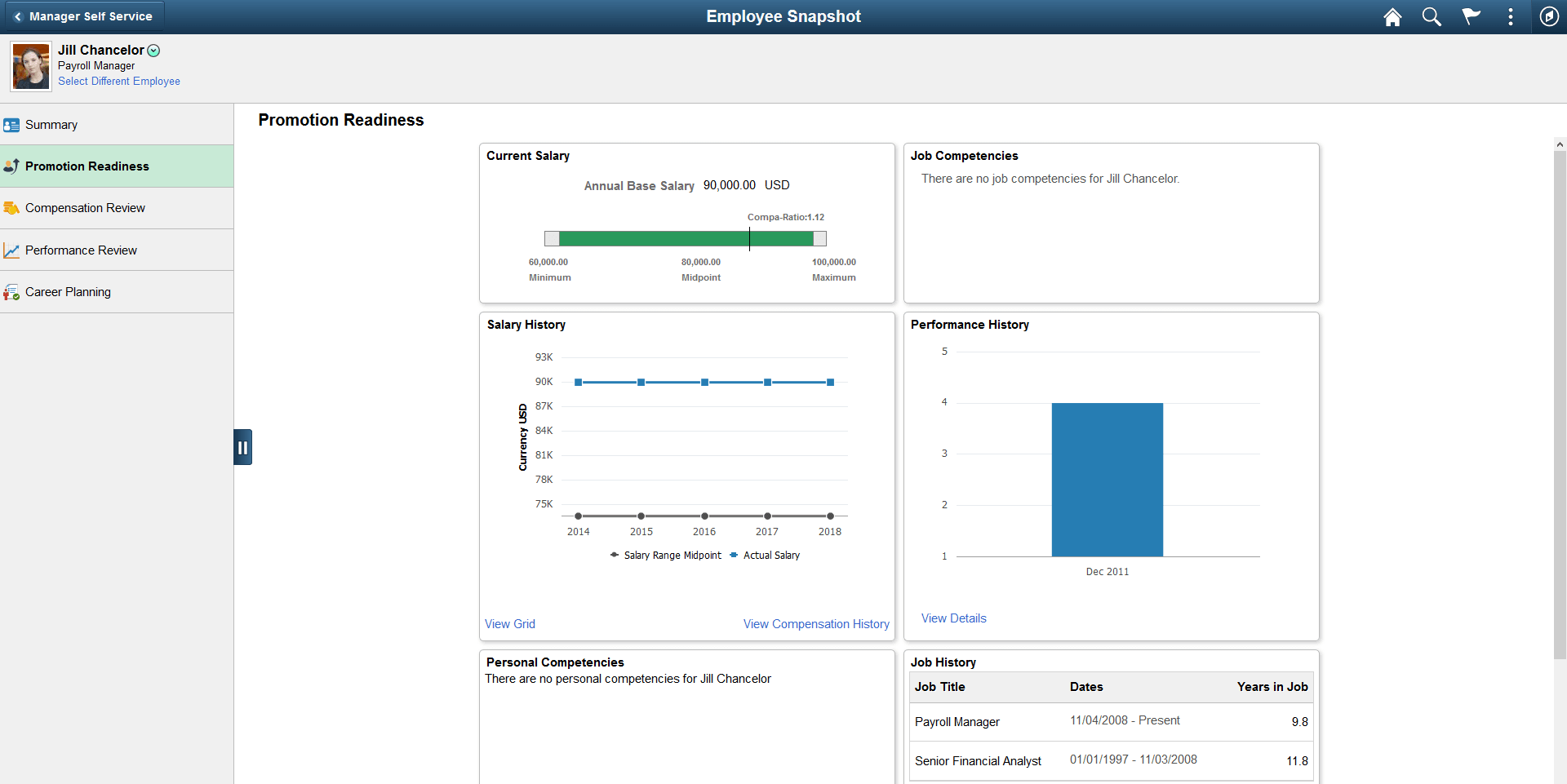
The following example shows the Employee Snapshot navigation collection displayed in an optimized activity guidė. With an optimized activity guide, folders and navigation links are displayed in the left panel.
Guidelines for Creating Fluid Navigation Collections
Note the following guidelines and limitations for fluid navigation collections:
-
While classic content references can be included in fluid navigation collections, there are differences when these classic pages are viewed on smartphones. The text and content of the classic page will be displayed at a readable size. However, these classic pages will often exhibit other usability issues on smartphones since the fixed page layout may still require horizontal scrolling to view additional fields on the page.
-
If the navigation collection is to be rendered in the optimized format, then any fluid components must adhere to the guidelines for optimized activity guides. See Guidelines and Limitations for Using Fluid Components in Activity Guides for more information.
-
If the link target is a fluid component that employs an internal two-panel construct (that is, it either includes a Side Page 1 page, was built from the PeopleTools 8.54 PSL_TWOPANEL layout page, or was designed with an internal left panel similar to PSL_TWOPANEL), you must employ one of these methodologies to accommodate this link target:
-
Specify either the Replace Window option or the Open in a new window option for the link.
-
Enable left panel collision handling with the slide-out left panel on the fluid navigation collection. See Fluid User Interface Developer’s Guide: Left Panel Collision Handling with Slide-out Left Panels for more information.
Note:
This accommodation is not required for a non-optimized rendering of the navigation collection.
-
-
If the link target is a fluid component that opens the component search page (that is, the search type is not set to None), specify either the Replace Window option or the Open in a new window option for this link.
-
If the link target is a fluid wrapper component—that is, a master/detail component, a fluid activity guide, or another fluid navigation collection—specify either the Replace Window option or the Open in a new window option for this link.
Important:
A fluid wrapper component can never be displayed inside another fluid wrapper component.
-
By default, the first component in the navigation collection is opened automatically when the navigation collection is launched. Therefore, the first component should be the most frequently used component and ideally should be quick to load. More importantly, the first component cannot be a fluid component with a two-panel layout.
-
For classic dashboards, specify either the Replace Window option or the Open in a new window option for the dashboard item within the navigation collection definition.
-
For classic WorkCenters, specify the Replace Window option (or the Open in a new window option).
-
For a classic component that has been configured with the Related Content frame, specify the Open in a new window option.
-
Fluid navigation collections and activity guides do not support conditional navigation.