Using Chat UI
When enabled, the Chat UI is available globally within the PeopleSoft online application.
The following example illustrates the floating button for Chat UI on a PeopleSoft homepage.
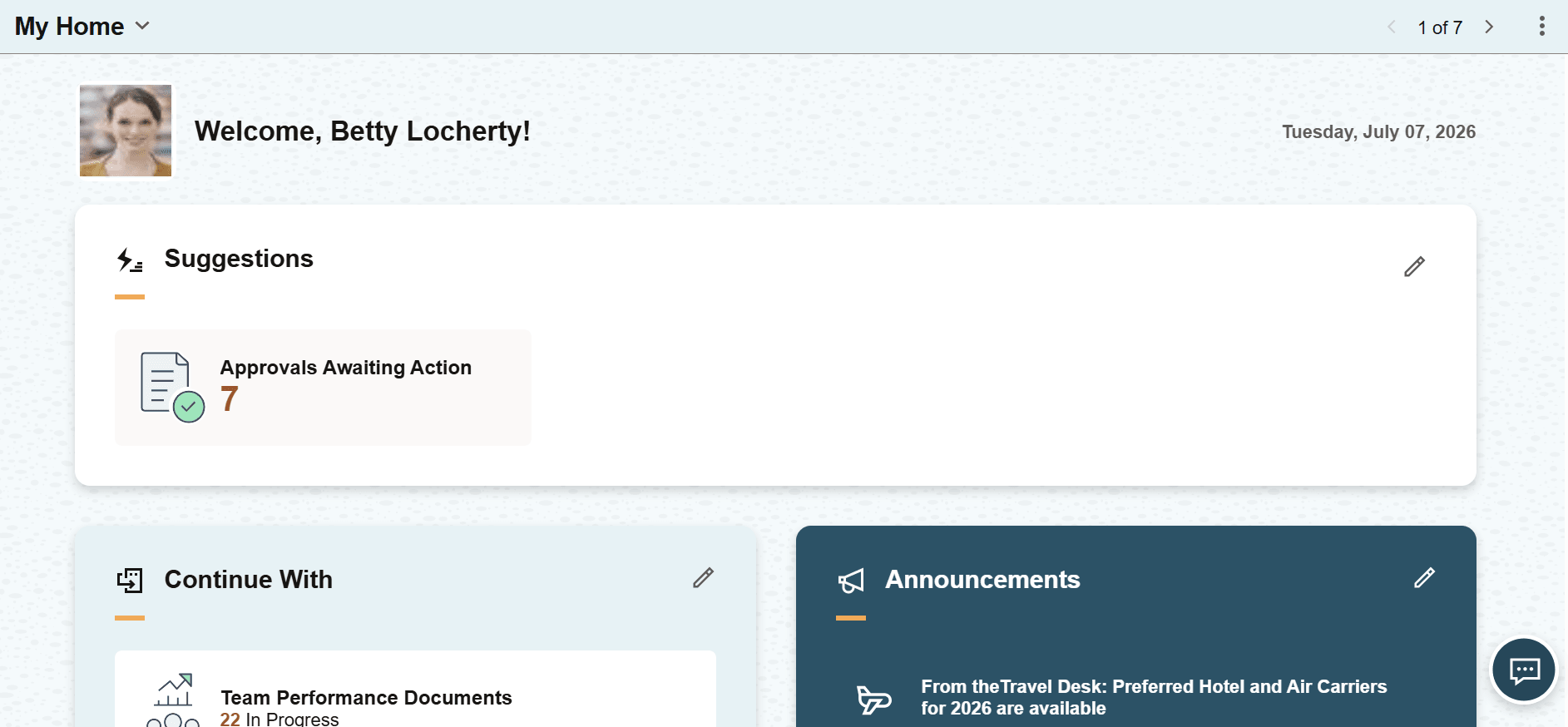
Select the Chat UI floating button on the PIA page to access the Chat UI. You can personalize the location of the chat window and floating button by dragging and dropping them.
The following example illustrates the Chat UI window on a PeopleSoft homepage. You can find definitions for the fields and controls later on this page.
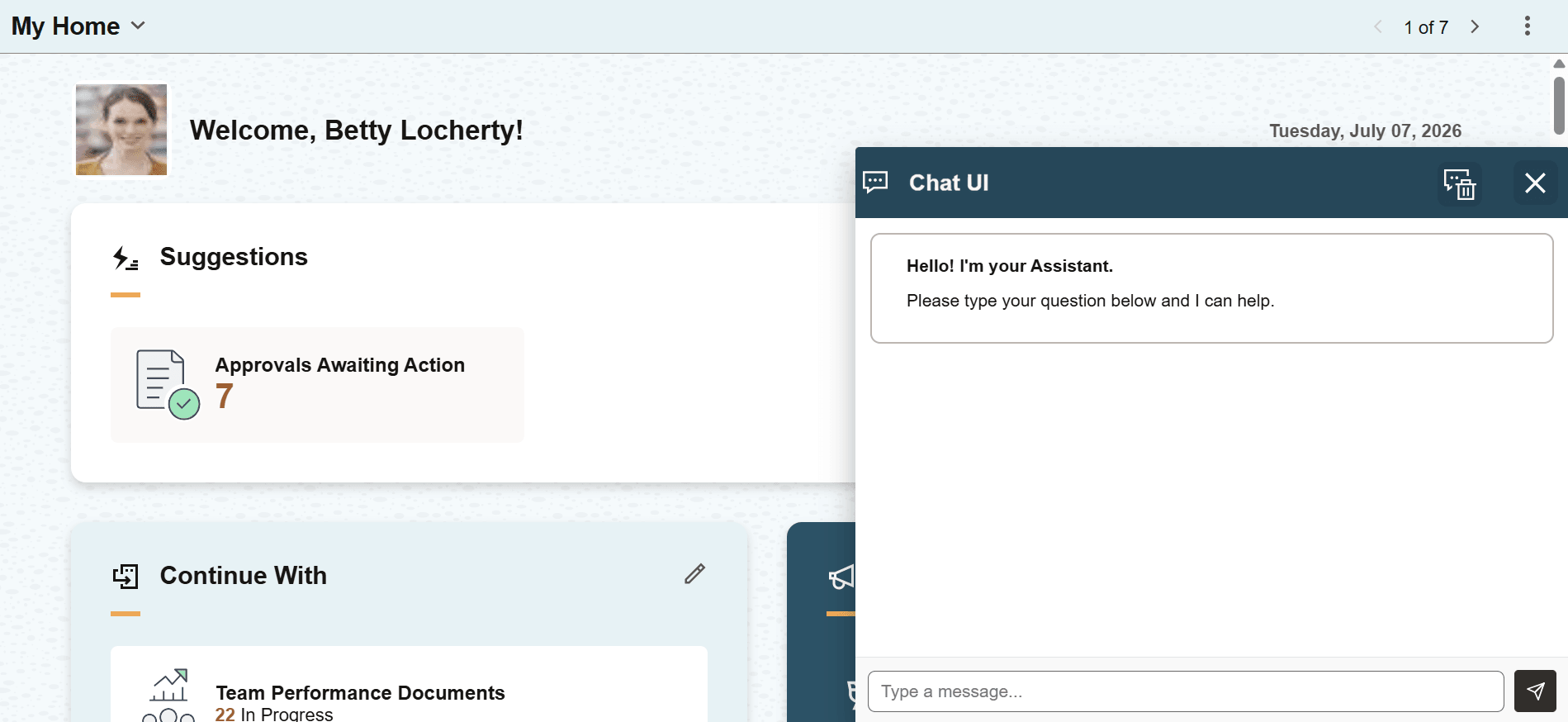
Using the Chat UI window, users can ask questions, request information, or initiate actions using natural language.
By default, the response timeout is set to 5 minutes. You can modify this value in the Response Timeout section of the PeopleTools Feature Options page. See Enabling Chat UI.
Fields or controls and descriptions for the Chat UI window.
| Field or Control | Description |
|---|---|
|
|
Clear chat button. Use the Clear chat button to clear the current chat screen.
Note: The cleared chat is deleted from the user interface only. The chat remains available in the chat history table (PS_PTML_CHAT_HIST) until it is deleted or turned off from the PeopleTools Feature Options page. See Enabling Chat UI |
|
|
Close button. Use the Close button to close the Chat UI window. Alternatively, you can also click the application page to close the Chat UI window. |
|
|
Chat Input field. Use the Chat Input field to enter a question or request for the Chat UI. |
|
|
Send message button. Use the Send message button to submit your question or request. Alternatively, you can also press Enter on your keyboard to submit your request. |
|
|
Thumbs up and Thumbs down buttons. The Thumbs up and Thumbs down buttons appear after you receive a response from the NL Search Service for your query. Select Thumbs up to indicate that the response was helpful or accurate, or select Thumbs down to indicate that it was unhelpful or inaccurate. The application records the feedback to help improve future responses. The selected button changes from an outline to a filled state. |





Related Topics