Enabling Chat UI
Administrators can enable or disable the Chat UI globally within PeopleSoft, using a system-level setting on the PeopleTools Feature Options page. The Chat UI is disabled by default.
Prerequisites for Enabling Chat UI
-
The Chat UI is connected to the backend WebSocket or service endpoint used to send and receive messages from the customer’s AI agent implementation.
-
The customer has implemented the ChatOrchestrator logic needed to route requests, call the appropriate AI agent or service, and return responses to the Chat UI. See add link to the updated topic in System and Server Admin book
-
User authentication and authorization are handled by existing PeopleSoft PIA mechanisms. The Chat UI does not manage user credentials independently.
Creating the URL Identifier
Create a URL identifier on the URL Maintenance page to define the backend service endpoint and authentication properties that the Chat UI uses to access search and application services. After you create the URL identifier, specify the same value on the PeopleTools Feature Options page. For details on creating an URL Identifier, see URL Maintenance
Enabling Chat UI in PeopleTools Feature Options
To associate the URL Identifier with the Chat UI and enable the Chat UI, use the PeopleTools Feature Options page.
Select PeopleTools, then Utilities, and then PeopleTools Feature Options.
The following image illustrates the Chat UI settings in the PeopleSoft Feature Options page. You can find definitions for the fields and controls later on this page.
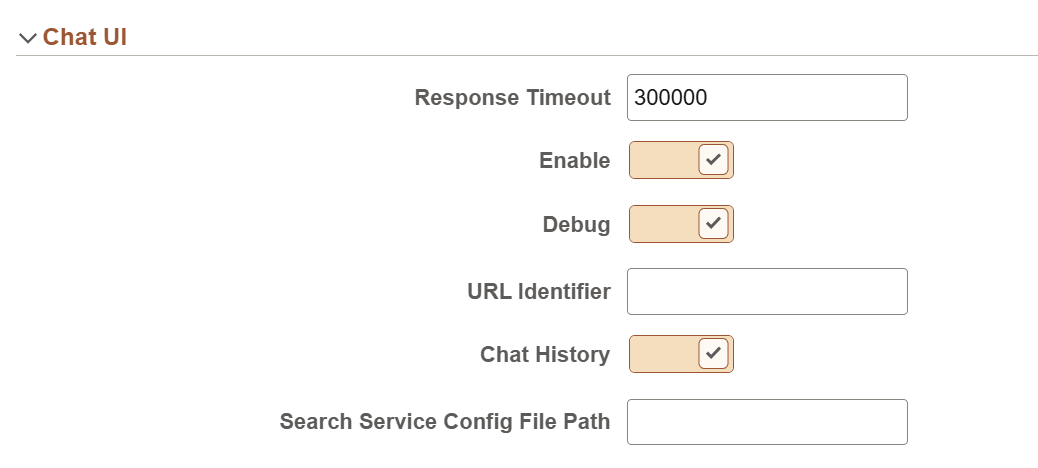
Fields and controls in the Chat UI section.
| Field or Control | Description |
|---|---|
|
Response Timeout |
Enter a value in milliseconds. The default is 300000 msec (5 minutes). This is the maximum amount of time the Chat User Interface (Chat UI) will wait for a back-end response before it prints a "Response Timeout" message. |
|
Enable |
Control whether the Chat UI will be available. It is not enabled by default. |
|
Debug |
Enable debugging. This option is disabled by default. When debugging is enabled, the administrator obtains the debugging information in the browser console log. Check your browser documentation for information on accessing the browser console log. |
|
URL Identifier |
The URL identifier specifies the credentials (user ID, password, token) that the system uses to access the Chat UI services. See URL Maintenance for details on specifying the credentials. |
|
Chat History |
Control whether to store the questions asked by the end user in the chat history table (PS_PTML_CHAT_HIST). This option is enabled by default. If this option is disabled, the questions are not saved. |
|
Search Service Config File Path |
Enter the path to the configuration file used by the Chat UI for using the Search Service. |
For more information on using the PeopleTools Feature Options page, see Using PeopleTools Feature Options.