Creating Self-Service Schedule
To create a self-service schedule, the administrator must define the schedule parameters and the modifiable parameters. Use the Self-Service Schedule page (Search) to add a new self-service schedule.
Note:
The Customer Setup section is defined only at deployment on the customer’s environment and should not be filled in this phase.
To add a new self-service schedule:
-
Select .
-
Click the Add a New Value tab.
-
Enter a self-service schedule ID and click Add.
-
On the Self-Service Schedule page, define the schedule parameters and the modifiable parameters.
Note:
The Customer Setup section is updated on the end user’s environment only.
This example illustrates the fields and controls on the Self-Service Schedule page. You can find definitions for the fields and controls later on this page.
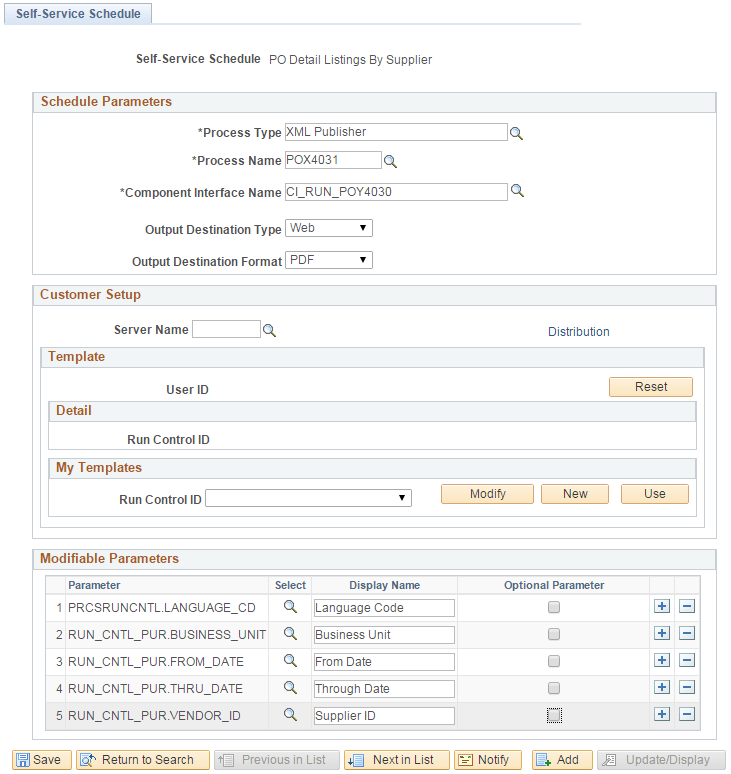
Schedule Parameters
| Field or Control | Description |
|---|---|
|
Process Type |
Enter the process type for each database and operating system platform on which you want the processes to run. |
|
Process Names |
Enter a process name to display. The process names available are based on the type selected. Leave blank to display all names. |
|
Component Interface Name |
Enter the component interface on the run control for the process schedule. You must create a component interface in the Application Designer if it does not exist. See, Component Interfaces: Understanding Component Interfaces. |
|
Output Destination Type |
Select the output destination for this schedule that is applicable for this process type. The process uses the values in the process type definition to determine where to send the output. |
|
Output Destination Format |
Select the format of the output destination type. |
Modifiable Parameters
For every self-service schedule, a set of parameters can be defined whose values can be over-ridden at run-time. You can select the values for the modifiable parameters at run-time either from the transaction pages, API, or run-time prompt.
| Field or Control | Description |
|---|---|
|
Parameter |
Enter the field name of the component. |
|
Display Name |
Enter the label that is displayed when the run-time prompt is displayed. |
|
Optional Parameter |
Select this option to indicate that there will be no run-time prompt if the parameter is not mapped to a transaction page. |