Setting up Self-Service Schedule
You can setup a self-service schedule by:
-
Mapping the related content to transaction pages.
-
Using API
Mapping to Transaction Page
The administrator must configure the related information for the application users to run processes to generate reports.
To map the related content to a transaction page, you must first identify the page from where the schedule would be executed. The end users execute the schedule from the transaction page. You can configure the data in the transaction page to the modifiable parameters.
To configure the related information :
-
Select .
-
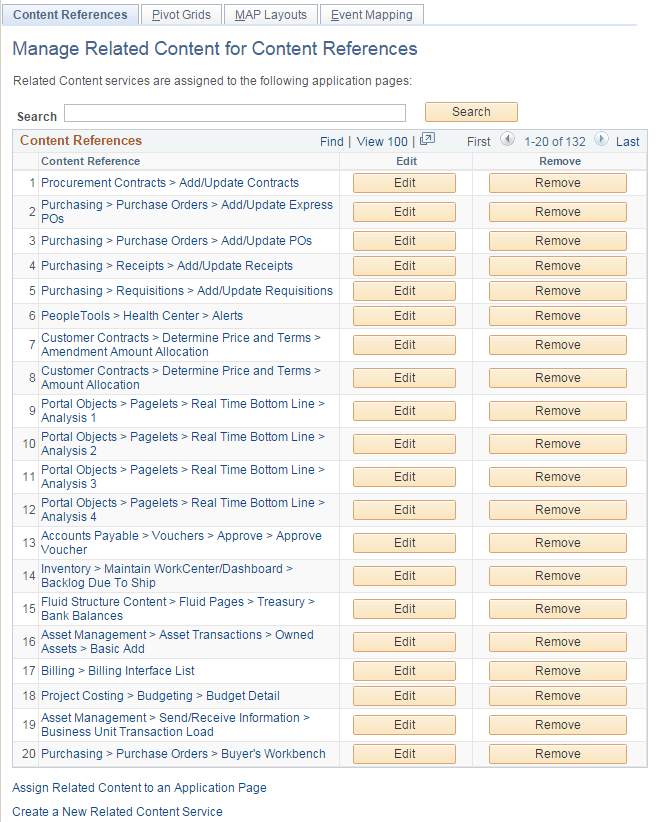
On the Manage Related Content for Content References page, select a content reference.
This example illustrates the fields and controls on the Manage Related Content for Content Reference page.
-
Click the Edit button.
-
Click the Configure Related Actions tab.
-
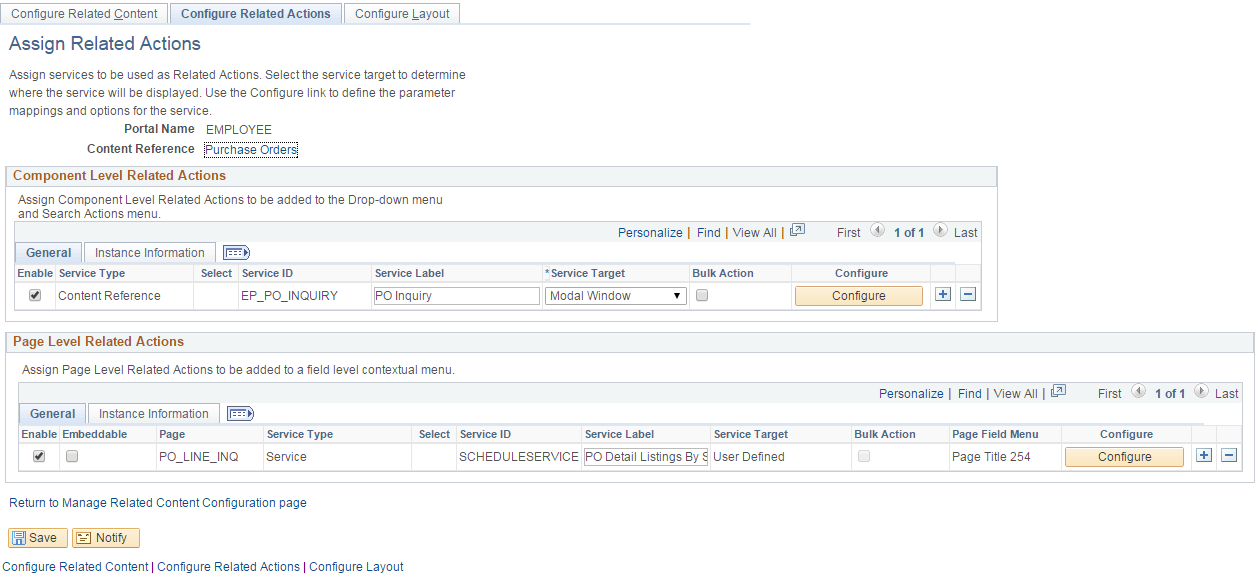
From the Page Level Related Actions section, select the transaction page on which you want the related action.
-
In the Service Type field, select Service.
-
Select the Service ID as SCHEDULESERVICE.
Note:
Starting PeopleTools 8.54, SCHEDULESERVICE application class provides a new Related Content Framework service.
-
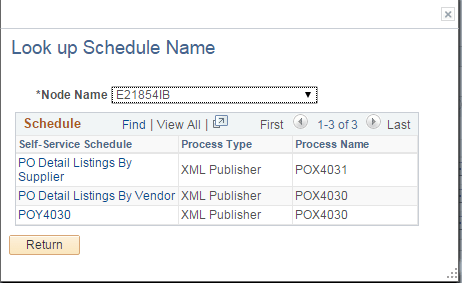
On the Look up Schedule Name page, select the node. You can select either the local or the remote node.
The self-service schedules available in that node are displayed.
Note:
To access and run schedules on remote node, you must configure the remote nodes. For configuring remote nodes, see “Configuring Remote Nodes”.
This example illustrates the fields and controls on the Look up Schedule Name page.
-
Choose the self-service schedule that you have created.
-
Click the Configure button.
This example illustrates the fields and controls on the Assign Related Actions page.
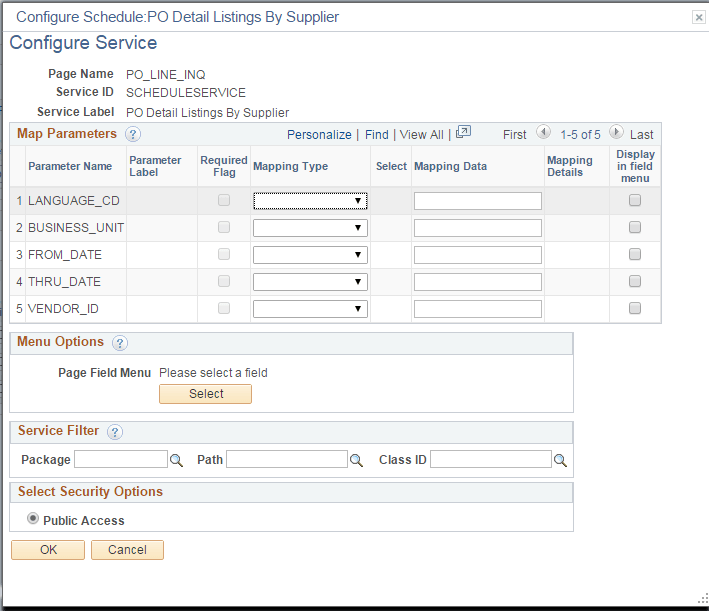
The Configure Service page displays the modifiable parameters specified in the self-service schedule.
-
On the Configure Service page, you can set the mapping type from the Mapping Type list.
This example illustrates the fields and controls on the Configure Service page.
-
Click OK to save the configuration.
For more information about managing related content, see Portal Technology: Configuring Related Content, Related Actions, and Menu and Frame Layouts.
Configuring Remote Nodes
Set the routings for the following Service operations:
| Field or Control | Description |
|---|---|
|
PTS_GETSCHEDULES |
Obtains all schedules from remote node. |
|
PTS_GETSCHEDULE_INFO |
Obtains specific schedule information. |
|
PTS_RUNSCHEDULE |
Executes a schedule on remote node synchronously. |
|
PTS_RUNSCHEDULE_ASYNC |
Executes a schedule on remote node asynchronously. |
Note:
Enable the first routing for service operation PTS_STATUS_NOTIFY to receive and handle notifications for the scheduled processes.
Using API
You can also setup a self-service schedule by using the API. Use SchedulerEditor class to update the modifiable parameters.
-
Pass an empty string as parameter value to create SchedulerEditor class object.
&editor = create PTSCHEDULESERVICE:SchedulerEditor(""); -
Pass the schedule name and the node name to Invoke the SetSchedule() method.
&editor.SetSchedule(<Schedule_Name>, <Node_Name>); -
Pass the CI parameter name and value to invoke the &editor.SetCIParamValue() method.
&editor.SetCIParamValue(<Param_Name>, <Param_Value>); -
Invoke SetNotifyAppMethod and AddNotifyInfo to get the notifications.
-
Invoke Run() to execute the process.
This is a code example of setting up self-service schedule using the SchedulerEditor class.
&itemProcRequest = create PTSCHEDULESERVICE:SchedulerEditor("");
&strErrorMessage = &itemProcRequest.SetSchedule
  (&ItemToBeScheduled.ProcessScheduleName,
     &ItemToBeScheduled.ProcessTargetNode);

Evaluate &strErrorMessage

/* Invalid schedule or schedule not available */
When = "PTS_SCHEDULE_NOT_FOUND"

/* Handle error */
Break;

When = "PTS_IB_ERROR" /* Any IB errors */
/* Handle error */
Break;

When = "PTS_SUCCESS"
&itemProcRequest.SetCIParamValue(&prcsCtxData.CIParamName,
  &prcsCtxData.paramValue);

&itemProcRequest.SetNotifyAppMethod("PTAI_ACTION_ITEMS:
  ProcessAutomation:ProcessNotification", "updateProcessStatus");
&itemProcRequest.AddNotifyInfo("PTAI_LIST_ID", &ItemToBeScheduled.ListId);
&itemProcRequest.RunCntlID = &ItemToBeScheduled.ProcessRunControlID;
&strErrorMessage = &itemProcRequest.Run();
break;
End-Evaluate;